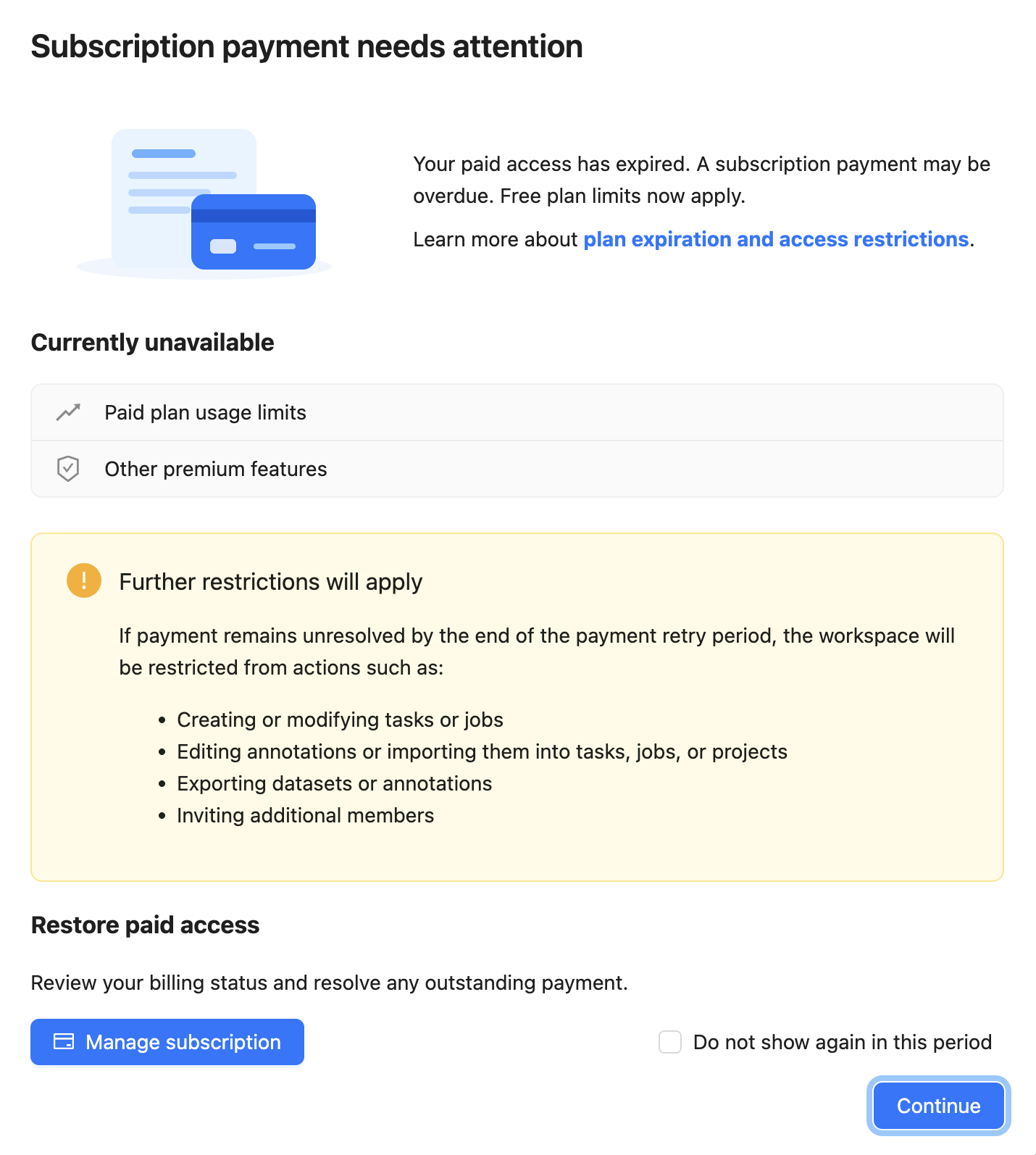
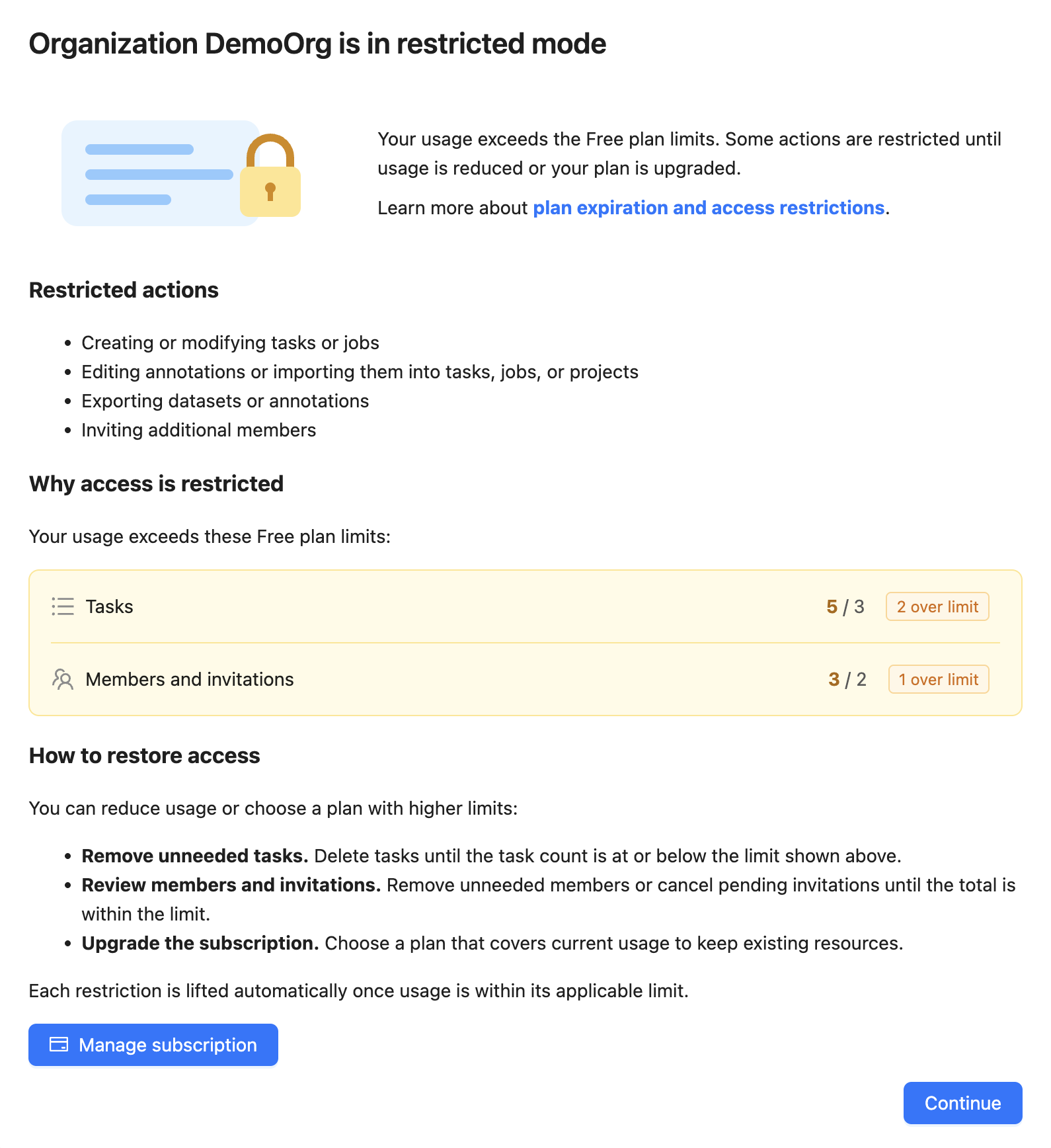
This article provides tips on how to effectively manage your CVAT Online subscriptions, including tracking expenses and canceling unnecessary subscriptions, to optimize your finances and save time.
Whether you’re a business owner or an individual, you’ll learn how to take control of your subscriptions and manage them.
See:
- Available paid plans
- Billing
- How to add VAT/tax and other information to the CVAT Online invoice before the first payment?
- How to update VAT/tax information and other details for upcoming invoices from CVAT Online?
- Can a paid invoice be modified?
- How can I get a quote before I subscribe? How to add a PO number to my invoices?
- Can you sign an agreement before I subscribe?
- Can you handle a bank transfer with 30-day payment terms?
- Where can I find my invoices?
- I am a student, can I have a discount or free access?
- Payment methods
- Adding and removing team members
- Change plan
- Can I subscribe to several plans?
- Cancel plan
- Plan renewal
- Plan expiration
- Subscription management video tutorial
Available paid plans
This section outlines the paid plans available on CVAT Online.
Monthly plans
| Name | Description |
|---|---|
| Solo | The Solo plan has a fixed price and is designed for personal use only. It does not assume collaboration with team members and is not suitable for use within organizations, but it removes all other limitations of the Free plan. Note: Although it allows the creation of an organization and access for up to 2 members – it is for trial purposes only! Organization and members will have all the limitations of the Free plan. |
| Team | The Team is for collaboration, it removes limitations of the Free plan for the whole organization, allowing you to share paid benefits with your colleagues. The monthly payment for the plan depends on the number of team members you’ve added. All limits of the Free plan will be removed. Note: The organization owner is also part of the team. So, if you have two annotators working, you’ll need to pay for 3 seats (2 annotators + 1 organization owner). |
Annual plans
Whether you’re a new user, or have a subscription to Team or Solo plan, you can subscribe to our annual plan and save up to 30% on CVAT Online usage costs.
The annual subscription offers all the benefits of our paid plans but at a more affordable monthly rate.
For more information, see How to switch from monthly subscription to annual?
Billing
This section describes the billing model and gives short a description of limitations for each plan.
There are two types of subscriptions available for both the Solo and Team plans: monthly and annual.
For more information, see: Pricing Plans
How to add VAT/tax and other information to the CVAT Online invoice before the first payment?
To ensure VAT (tax) information and other relevant details are included on your CVAT Online invoices, it’s important to add this information before making the first payment.
Here’s how you can do it:
- Sign up for a CVAT Online account and log in.
- (Optional) If you add the VAT/tax number to the organization, first create an organization and switch to an Organization account.
- Navigate to the top right corner, next to the nickname, click on the arrow > upgrade to the plan.
- Switch on the I would like the invoice to include additional data (address, phone number, VAT information) toggle, select the best payment period for you, and click Get Started.
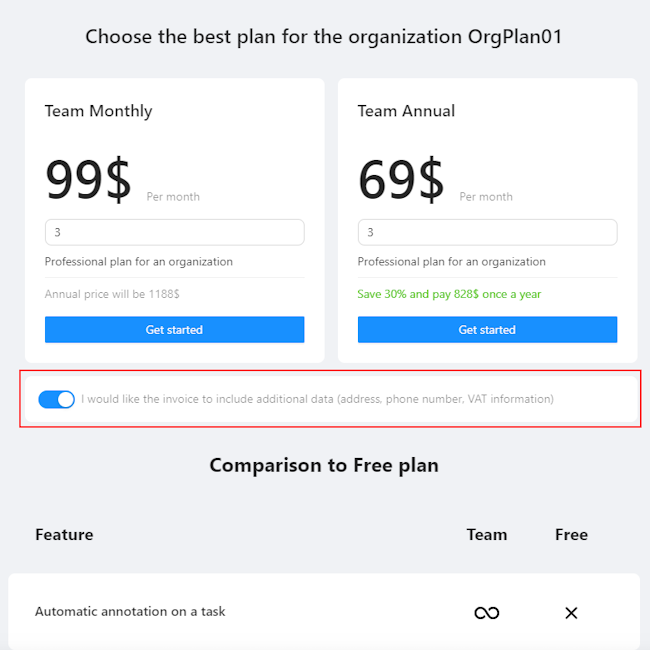
- You will see the billing page:
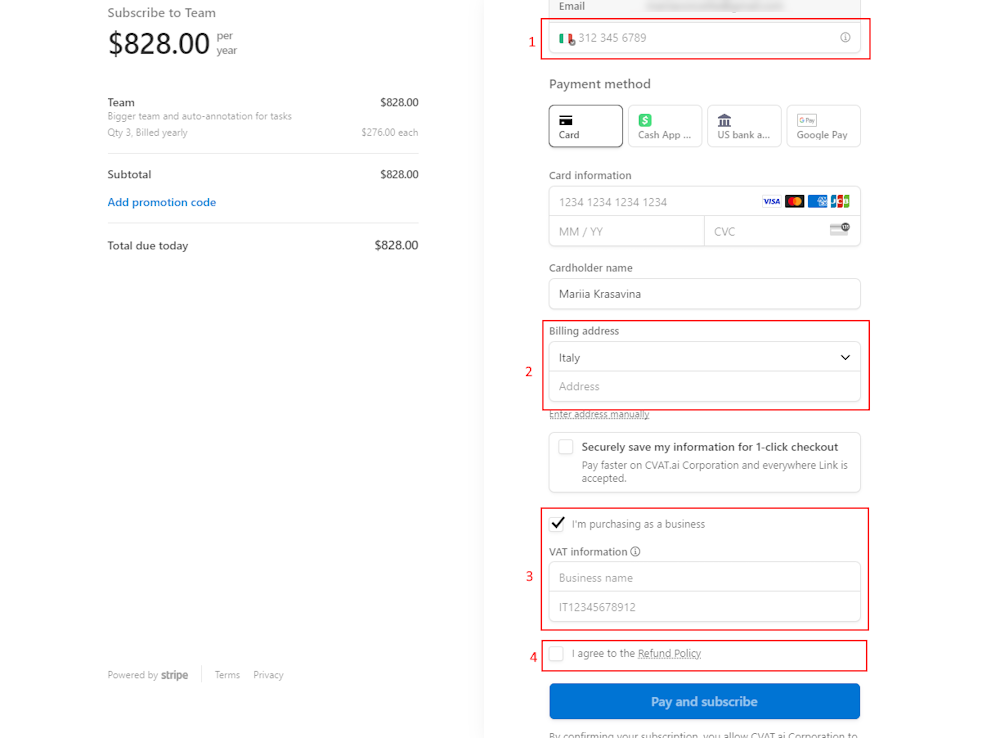
- Phone number (1).
- Billing Address: Enter the billing address you want to appear on the invoice in the address field (2).
- VAT Information and Business Name: Select the checkbox I am purchasing as a business and enter your VAT and business name information (3).
-
Select checkbox I agree to refund policy (4).
Note
Please read the Refund policy before selecting the checkbox. -
Click Pay & Subscribe.
All information you’ve added will appear on the billing page and in the invoice.
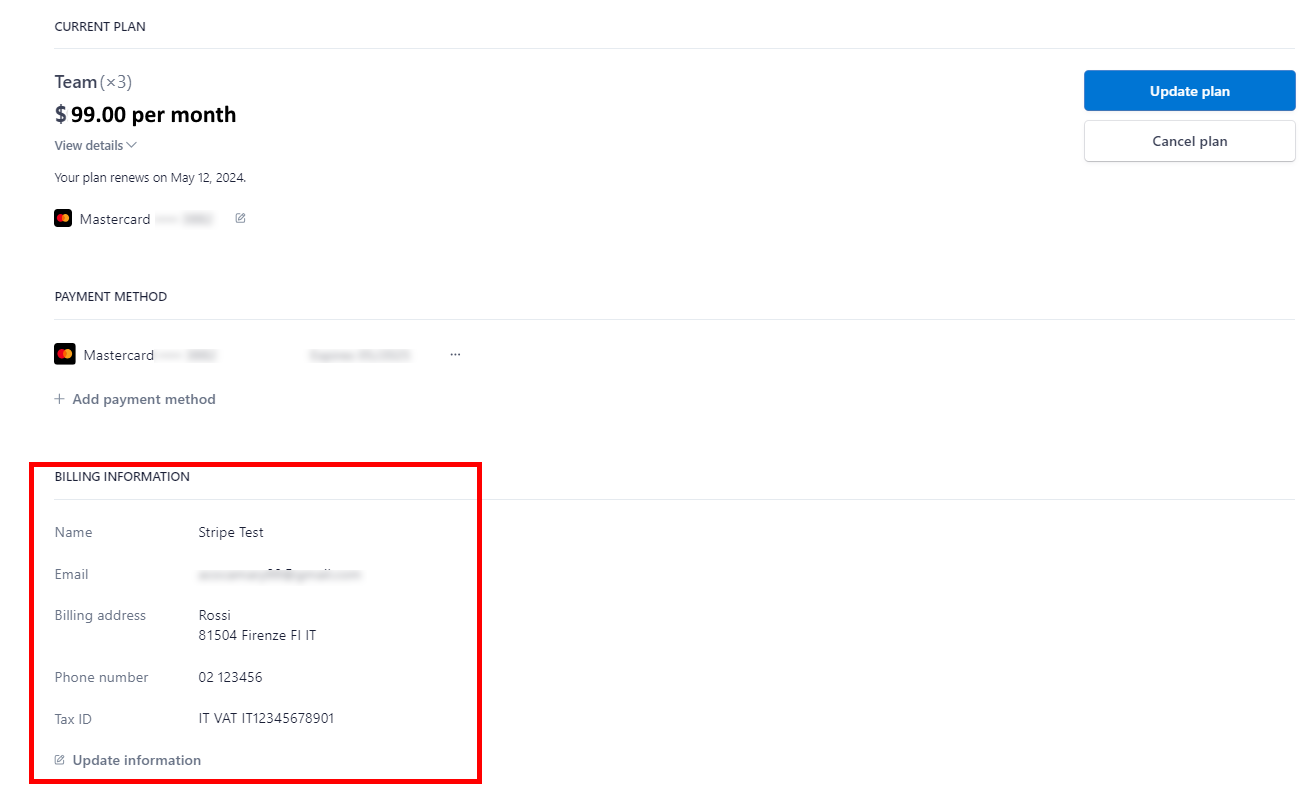
By following these steps, you can seamlessly add VAT and other crucial information to your invoices, making your financial transactions with CVAT Online transparent and compliant.
How to update VAT/tax information and other details for upcoming invoices from CVAT Online?
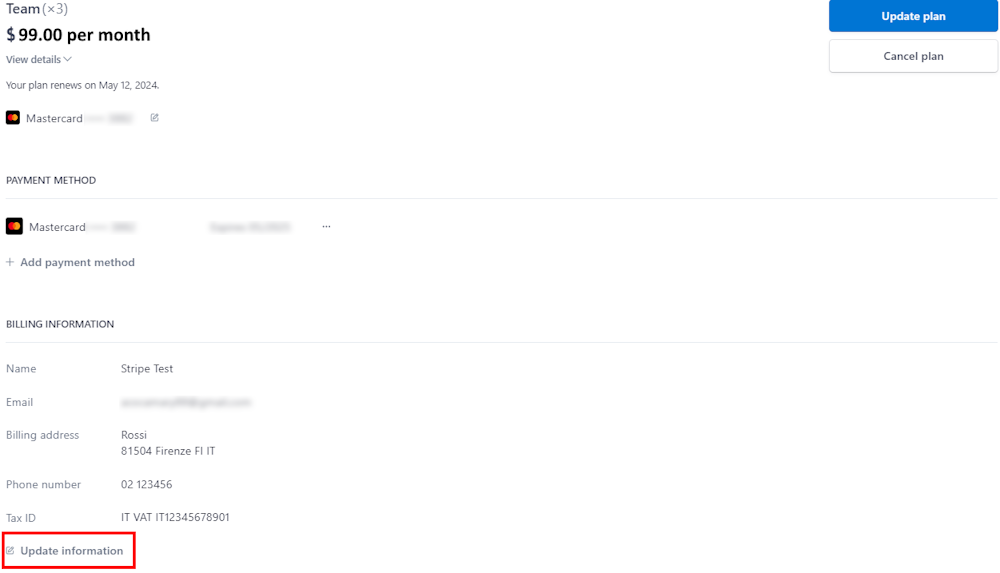
In the top right corner, near the nickname, click on the arrow > manage plan.
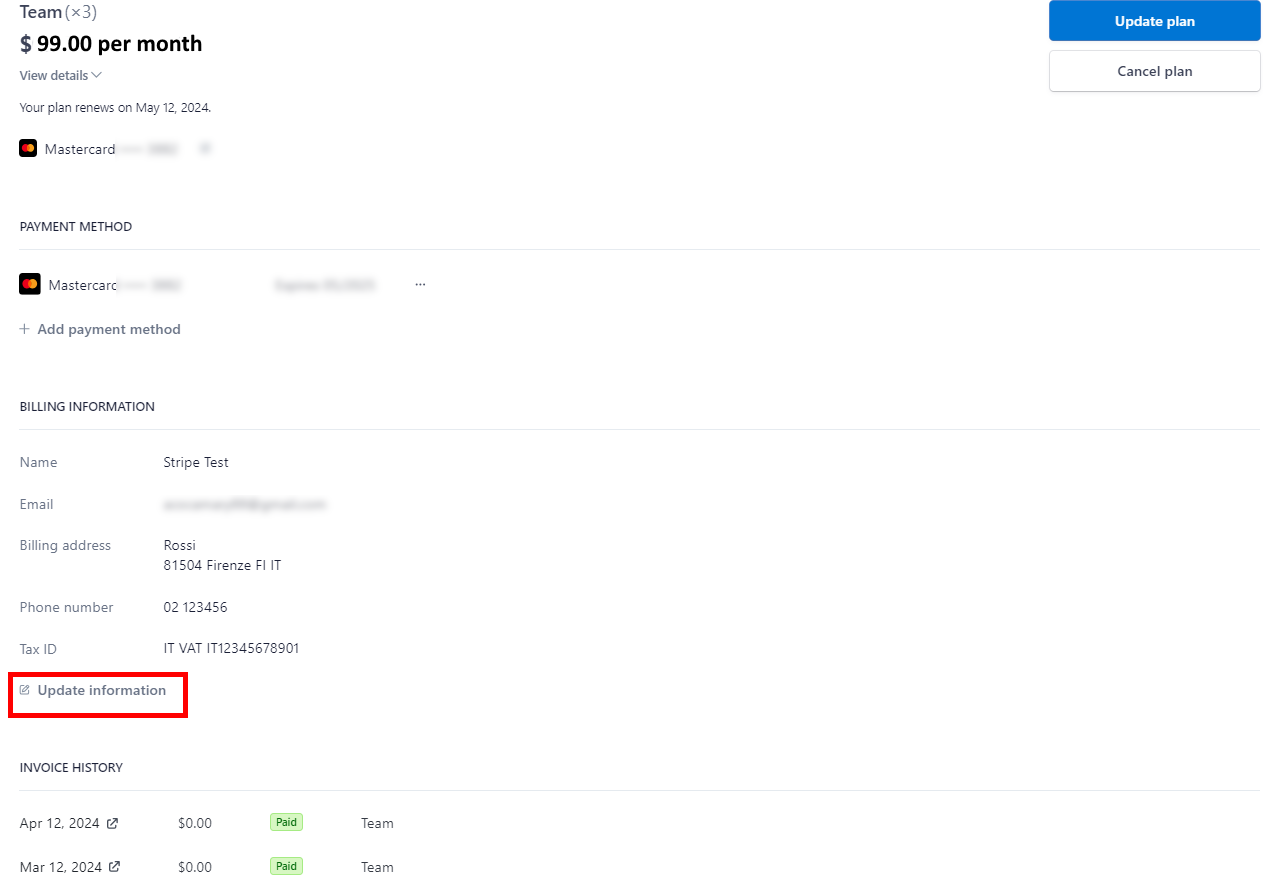
You will see the Stripe page. Go to the Billing Information > Update Information.
Can a paid invoice be modified?
Once an invoice has been paid, it is not possible to modify it. This restriction is due to the limitations of the payment processing platform used, which in the case of CVAT Online, is Stripe.
Stripe’s policy dictates that revisions to an invoice can only be made before payment. For more comprehensive information on this policy, please refer to Stripe’s official documentation on invoice edits at their website.
How can I get a quote before I subscribe? How to add a PO number to my invoices?
If you require a quote from CVAT Online for payment via bank transfer, certain criteria must be met:
- The total subscription cost must be $396 and up per year.
- Quotes are available exclusively for annual subscriptions.
Should you meet these requirements, please write to support@cvat.ai
Can you sign an agreement before I subscribe?
Sign of specific agreements and approvals are available if you meet specific criteria (the total subscription cost must be $10,000 and up per year), for more details contact support@cvat.ai
Can you handle a bank transfer with 30-day payment terms?
Yes, it is available if you fit the quota criteria, for details contact support@cvat.ai.
Where can I find my invoices?
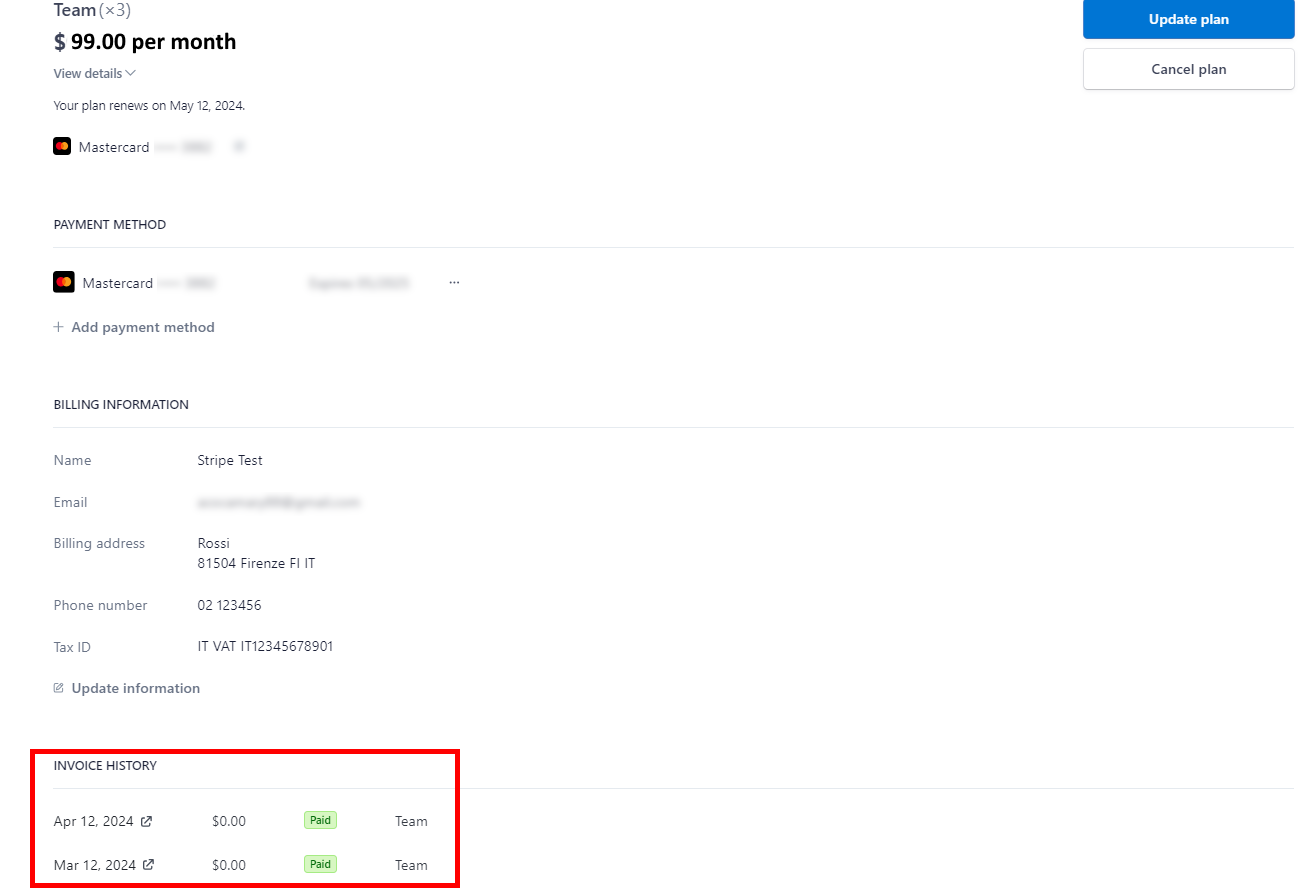
In the top right corner, near the nickname, click on the arrow > manage plan.
You will see the Stripe page. At the bottom of the page, you will see the Invoice History section with all invoices.
Invoices are automatically sent to the account owner’s address used for the registration.
To see the invoice click on the Show Invoice Icon icon.
icon.
I am a student, can I have a discount or free access?
To consider your request for a discount, we’d need a few details from you:
- A copy of your valid student ID or any document confirming your university affiliation.
- Your university advisor’s contact details.
- The name and contact information of the dean of your faculty.
- A brief outline of your project plan. This helps us understand how we might collaborate on a joint marketing statement highlighting your use of CVAT Online, and how it can benefit your project.
- We’d also appreciate a positive LinkedIn post about your experience using CVAT Online, making sure to tag @CVAT.ai.
All these details must be sent to support@cvat.ai. Once we have this information, we’ll gladly offer you a 50% discount for one year.
Payment methods
This section describes how to change or add payment methods.
Paying with bank transfer
Note
At the moment this method of payment works only with US banks.To pay with a bank transfer:
- Go to the Upgrade to Solo/Team plan> Get started.
- Click US Bank Transfer.
- Upon successful completion of the payment, you will receive a receipt via email.
Note
The completion of the payment process may take up to three banking days.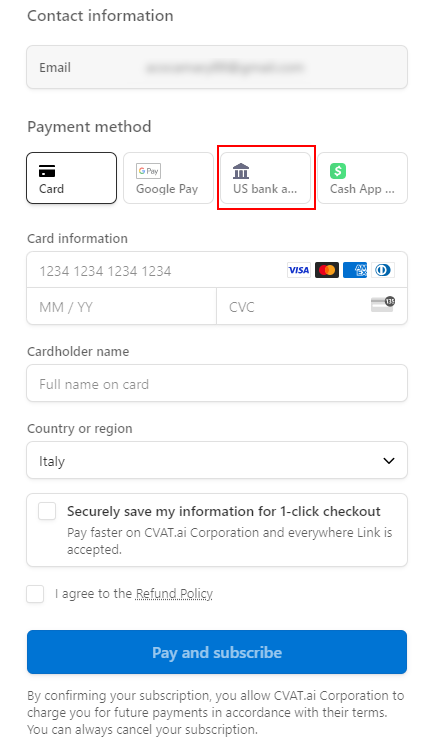
How to change the payment method?
In the top right corner, near the nickname, click on the arrow > manage plan > +Add Payment Method
Adding and removing team members
Note
Solo plan is for personal use only, you cannot add or remove team members.Team plan is for collaboration. To add members to your Organization, go to the Manage Team plan > Update quantity.
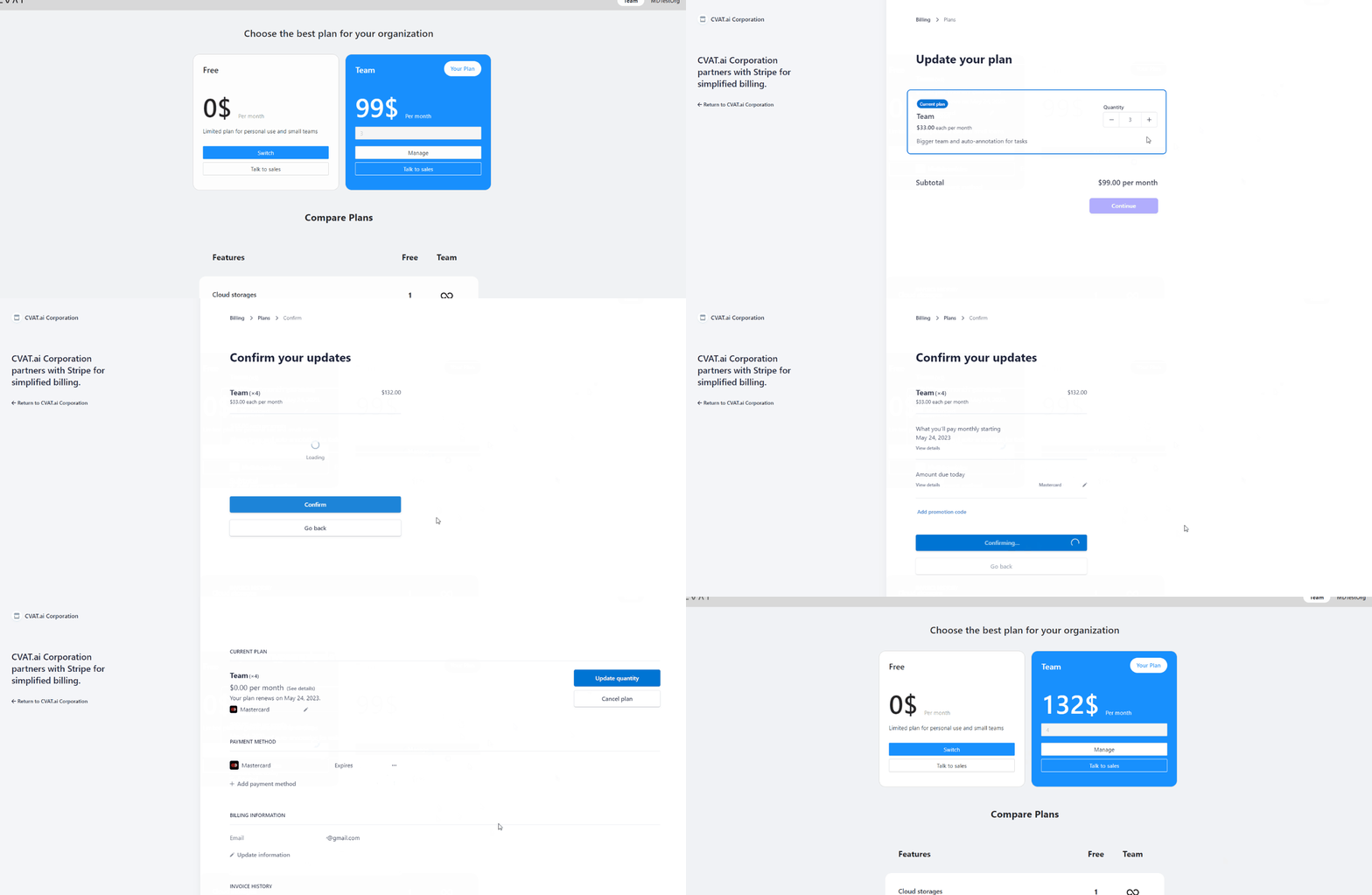
If you’ve added a user before the current billing period ends, the payment will be prorated for the remaining time until the next billing cycle begins. From the following month onward, the full payment will be charged.
In case you removed the user before the current billing period ends, funds will not be returned to your account, but next month you will pay less by the amount of unused funds.
Change plan
How to change the plan from Solo to Team?
The procedure is the same for both Solo and Team plans.
If for some reason you want to change your plan, you need to:
- Unsubscribe from the previous plan.
- If you need a refund, contact us at support@cvat.ai.
- Subscribe to a new plan.
How to switch from a monthly subscription to an annual one?
If you have monthly subscription, and wish to switch to the Annual plan, please follow these steps:
- In the top-right corner, near the nickname, click on the arrow.
- Select Manage Solo/Team Plan.
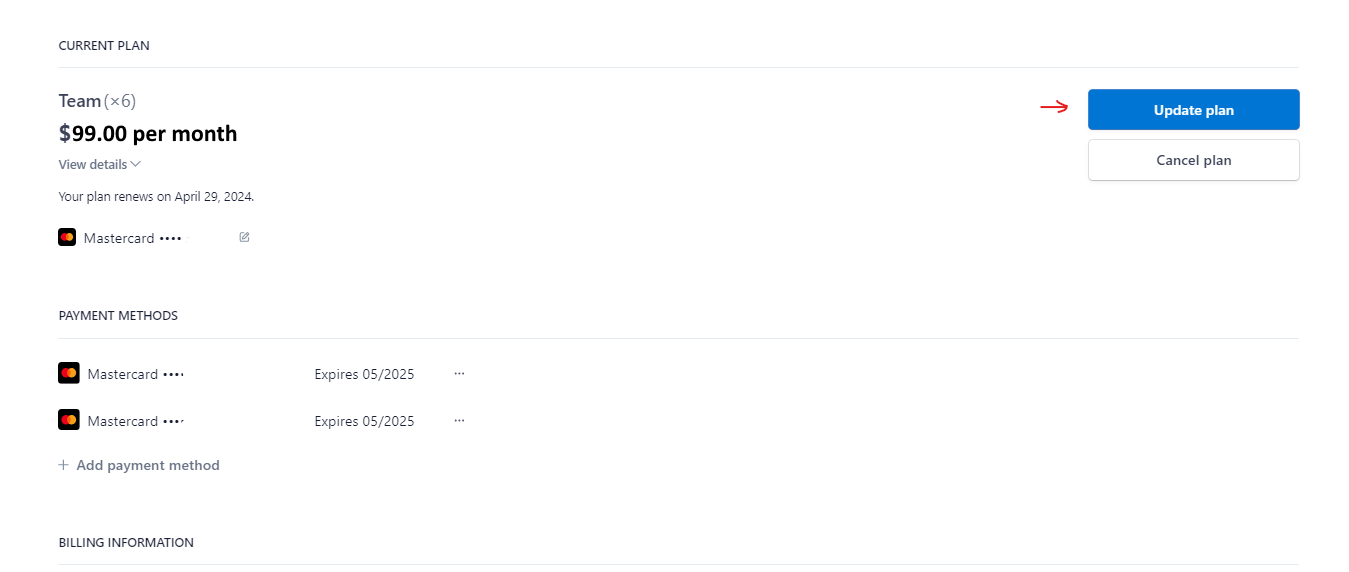
- On the Stripe page that appears, click Update Plan.
- Choose Yearly and then click Continue.
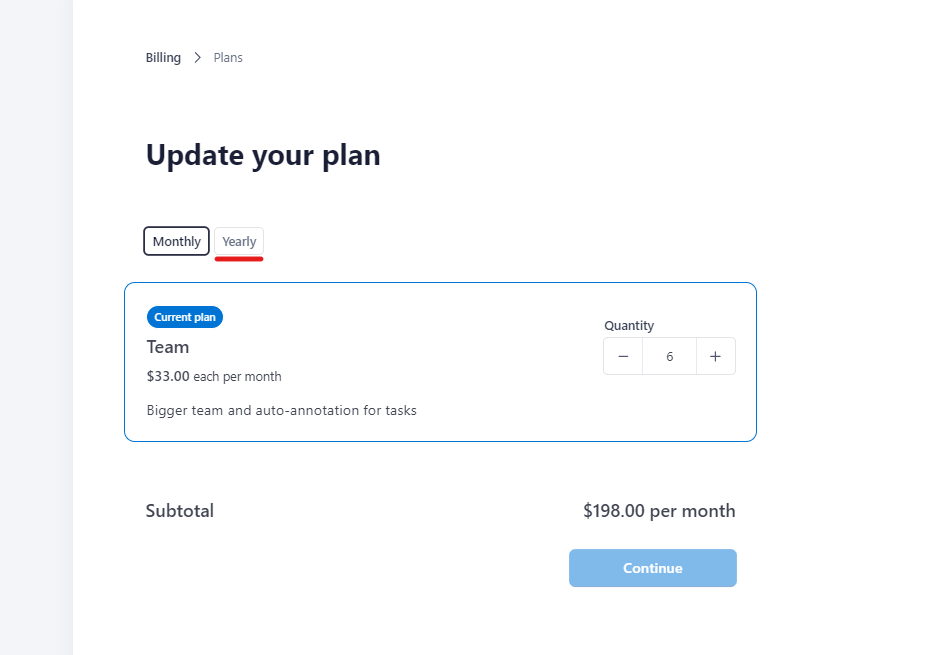
The price will be adjusted according to the number of members, selected in the Quantity field (if updated), taking into account the amount of money that was not spent in the current period.
Upon payment, your subscription will be renewed and the start date will be reset to the day you switch to the new plan.
Can I subscribe to several plans?
Paid plans are not mutually exclusive. You can have several active subscriptions, for example, the Solo plan and several Team plans for different organizations.
Cancel plan
This section describes how to cancel your CVAT subscription and what will happen to your data.
What will happen to my data?
When your paid access ends, Free plan limits apply to the affected workspace. Depending on your usage, some actions on existing resources may also be restricted. You can still create task and project backups to keep a copy of your work.
For details about restrictions, recovery, and data retention, see Plan expiration.
How to cancel any plan?
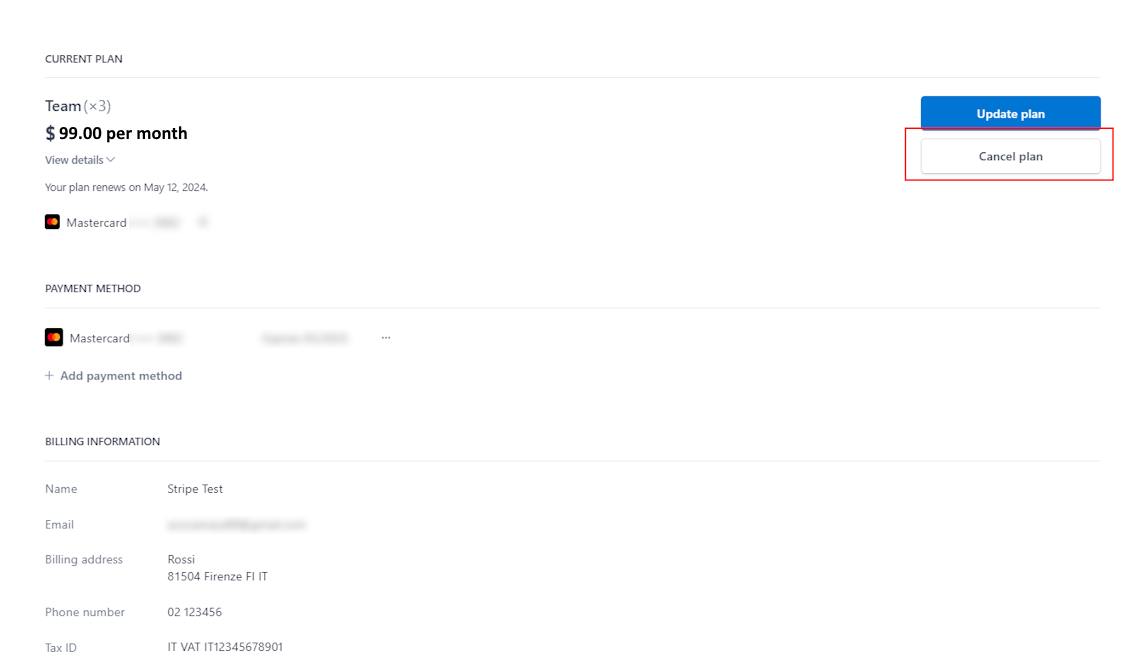
To cancel the plan, in the top right corner, near the nickname, click on the arrow> manage plan > Cancel plan
Please, fill out the feedback form, to help us improve our platform.
How can I get a refund?
To understand if you are eligible for a refund, see Refund policy.
- Cancel the subscription before asking for a refund.
- Contact our support team at support@cvat.ai or use the “Support” option in the app.cvat.ai interface.
- Provide your account details and a brief explanation of the reason for the refund:
- Send us your last invoice.
- Send us the username and e-mail address you’ve used to register in CVAT Online.
Our team will review your request. We may request additional information if needed. Once approved, the refund will be processed to your original payment method within 5-10 business days.
Plan renewal
To renew your CVAT Online subscription, in the top right corner, near the nickname, click on the arrow> manage plan > Renew plan.