Plan expiration
If a renewal payment for a self-managed subscription cannot be completed, you usually have a grace period to resolve it. Free plan limits apply as soon as your paid access expires. If payment remains unresolved after the grace period, additional restrictions may apply to existing resources.
These changes affect the workspace covered by the subscription: your personal workspace for a Solo plan, or the organization for a Team plan. Other workspaces with active subscriptions are not affected.
Grace period
The usual grace period for card payments is seven days. For bank debit payments, the grace period may vary depending on payment processing and retry timing. Paid features may remain available while the first payment attempt for an invoice is processing.
For subscriptions paid manually by invoice, paid access remains active until the invoice due date.
For self-managed subscriptions, the grace period starts when your paid access expires because the renewal payment has not been completed. It gives you time to review your billing details and resolve the payment while payment retries take place.
What changes during the grace period?
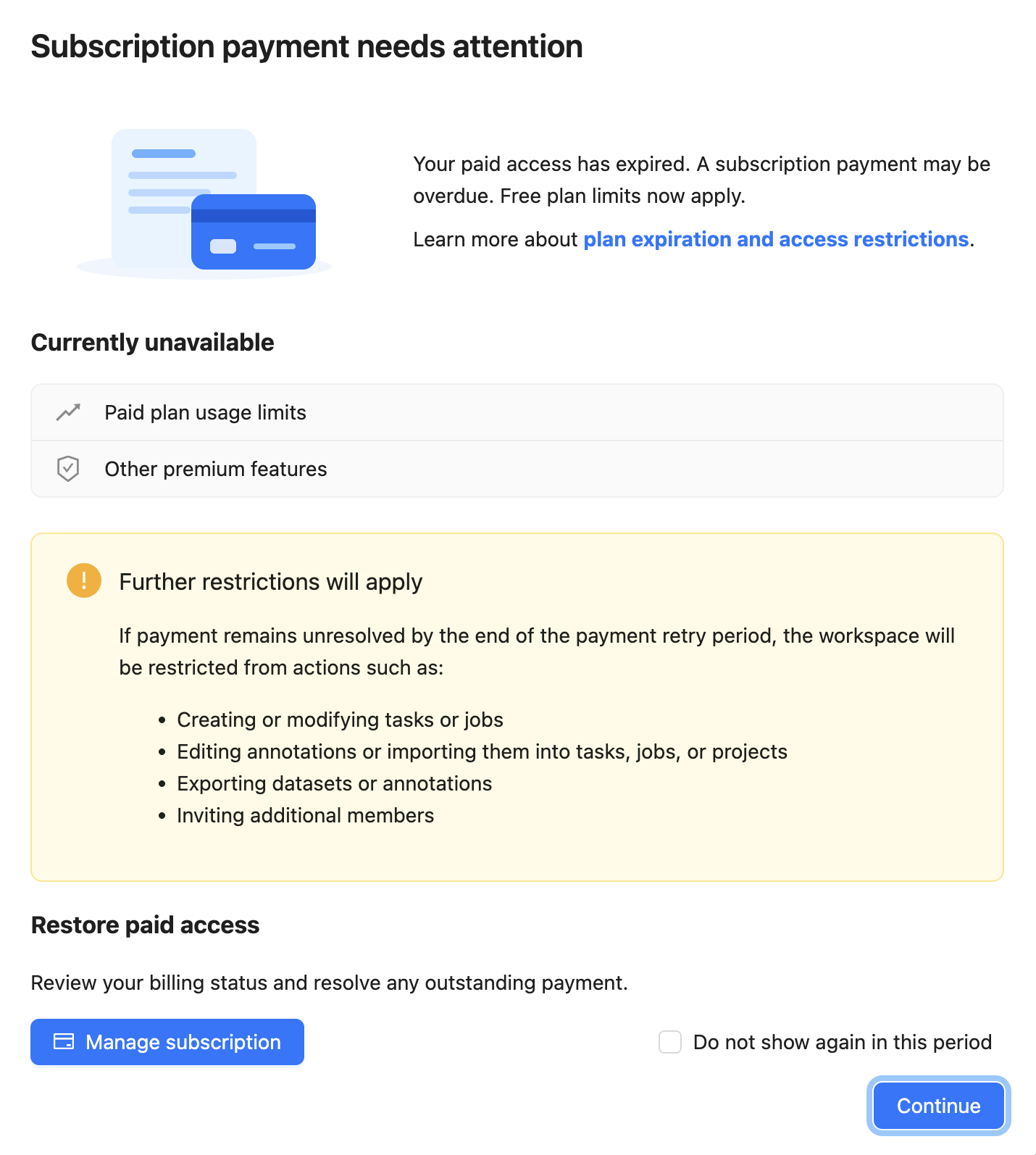
Free plan limits and features apply immediately. This means:
- Higher usage limits no longer apply. Creating tasks, projects, cloud storage connections, webhooks, or AI agents, and inviting members, is subject to Free plan quotas. See the pricing page for the current allowances.
- Analytics and quality reports are unavailable in the interface. This includes the paid analytics and quality-control views.
- Background automatic annotation is unavailable. Interactive AI tools remain subject to Free plan allowances for built-in and external AI agent calls; they are not all disabled.
- Dataset exports that include images or videos are unavailable. Annotation-only exports and task/project backups remain available, subject to your normal permissions.
During this period, exceeding the Free plan task, storage, or membership limits does not yet trigger the additional restrictions on working with existing resources described below. For example, you can continue saving annotation changes.
The personal account holder and organization owners or maintainers may see a Subscription payment needs attention dialog. To resolve the payment, follow Restore paid access.
Before the grace period ends
Please resolve the payment or reduce your usage to fit the Free plan. If payment remains unresolved when your grace period ends, usage above the limits can restrict actions such as modifying existing resources.Restriction period
The restriction period begins if payment has not been resolved by the end of the grace period. Your workspace returns to the Free plan. Additional restrictions depend on which limits your usage exceeds:
| Exceeded limit | Additional restrictions |
|---|---|
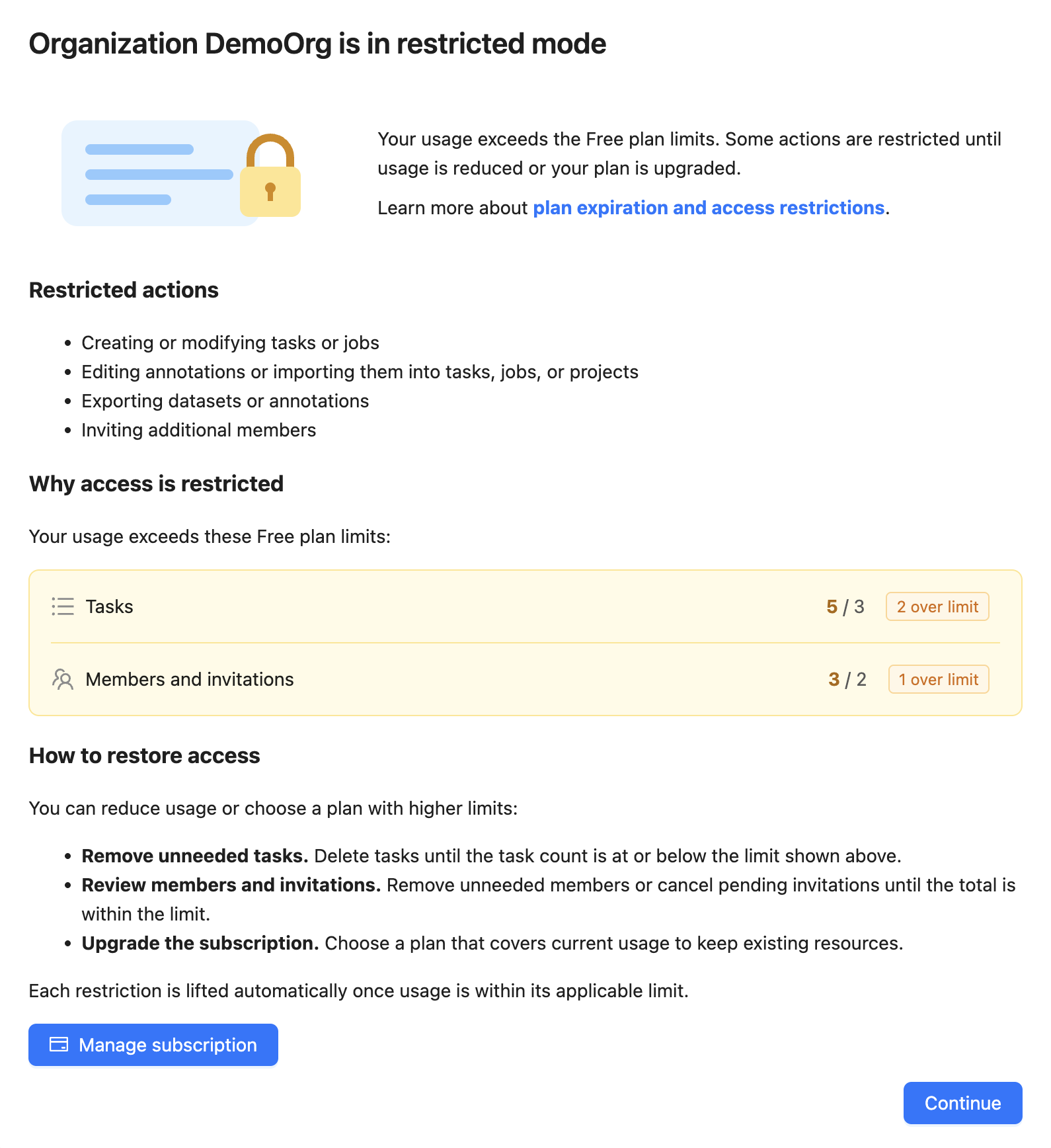
| Task count or internal storage | Creating or modifying tasks and jobs, saving annotation changes, importing annotations into tasks, jobs, or projects, and exporting datasets or annotations are blocked. |
| Organization members and invitations | Saving annotation changes and importing annotations into tasks, jobs, or projects are blocked. Further invitations are subject to the membership quota. |
If both conditions apply, both sets of restrictions apply. Exceeding other resource limits, such as the project limit, prevents creating more of those resources; it does not by itself trigger the annotation restrictions above. New resources cannot be created once the applicable quota is reached, even if usage has not exceeded it.
You can still view and delete resources and export task and project backups, subject to your role and permissions. A Restricted Mode dialog explains the restrictions that affect your workspace. If your usage fits within the Free plan, you can continue using its available features without these additional restrictions.
Restore paid access
- Switch to the personal workspace or organization whose subscription has expired.
- Select Manage subscription in the payment dialog, or open Manage Solo plan or Manage Team plan from the user menu. If the subscription has already ended, use Upgrade to Solo or Upgrade to Team to subscribe again.
- Review your billing status, update the payment method if needed, and complete the payment. Choose a plan and, for an organization, enough seats to cover your usage.
Paid access is restored automatically once the payment and subscription update are processed. For organization subscriptions, the organization owner must manage the payment. If you are a team member, please contact your organization owner.
Alternatively, you can stay on the Free plan by deleting excess tasks or other resources and removing excess members or pending invitations. Each usage-based restriction is lifted automatically when usage is at or below the corresponding limit. Paid features still require an active paid subscription.
Keep your data without renewing
You do not need to renew your subscription to download task or project backups. Backups remain available in Restricted Mode so you can preserve your work before removing resources from CVAT Online.
- Open the task or project action menu and select Backup Task or Backup Project.
- Download the backup and keep it in a safe location outside CVAT Online.
- Check that you have saved the backups and any separately stored media you need before deleting resources.
See Backup Task and Project for detailed instructions and restoration options. Lightweight backups for cloud-backed tasks do not include the original media: please retain those files in your cloud storage or make a separate copy. Restoring a backup into CVAT Online is subject to your current plan limits and restrictions.
Data retention
Please keep a copy of your work
Data left in an over-limit workspace may be removed automatically 30 days after paid access expires. Please download task or project backups before that deadline if you do not plan to renew or reduce your usage to fit the Free plan.The grace period is part of this 30-day period. Downloading a backup does not extend the retention period for the copy stored in CVAT Online.
If you need help with payment or access, please contact CVAT support.