Webhooks
Webhooks are user-defined HTTP callbacks that are triggered by specific events. When an event that triggers a webhook occurs, CVAT makes an HTTP request to the URL configured for the webhook. The request will include a payload with information about the event.
CVAT, webhooks can be triggered by a variety of events, such as the creation, deletion, or modification of tasks, jobs, and so on. This makes it easy to set up automated processes that respond to changes made in CVAT.
For example, you can set up webhooks to alert you when a job’s assignee is changed or when a job/task’s status is updated, for instance, when a job is completed and ready for review or has been reviewed. New task creation can also trigger notifications.
These capabilities allow you to keep track of progress and changes in your CVAT workflow instantly.
In CVAT you can create a webhook for a project, an organization, or the whole server. Project and organization webhooks can be set up from the CVAT GUI or via direct API calls. Server webhooks are admin-only and are set up through the Django administration panel or via direct API calls.
See:
- Create Webhook
- Payloads
- Webhook secret
- Ping Webhook
- Webhooks with API calls
- Example: setting up email alerts via webhooks
Create Webhook
For project
To create a webhook for Project, do the following:
-
Go to the Projects and click on the project’s widget.
-
In the top right corner, click Actions > Setup Webhooks.
-
In the top right corner click +
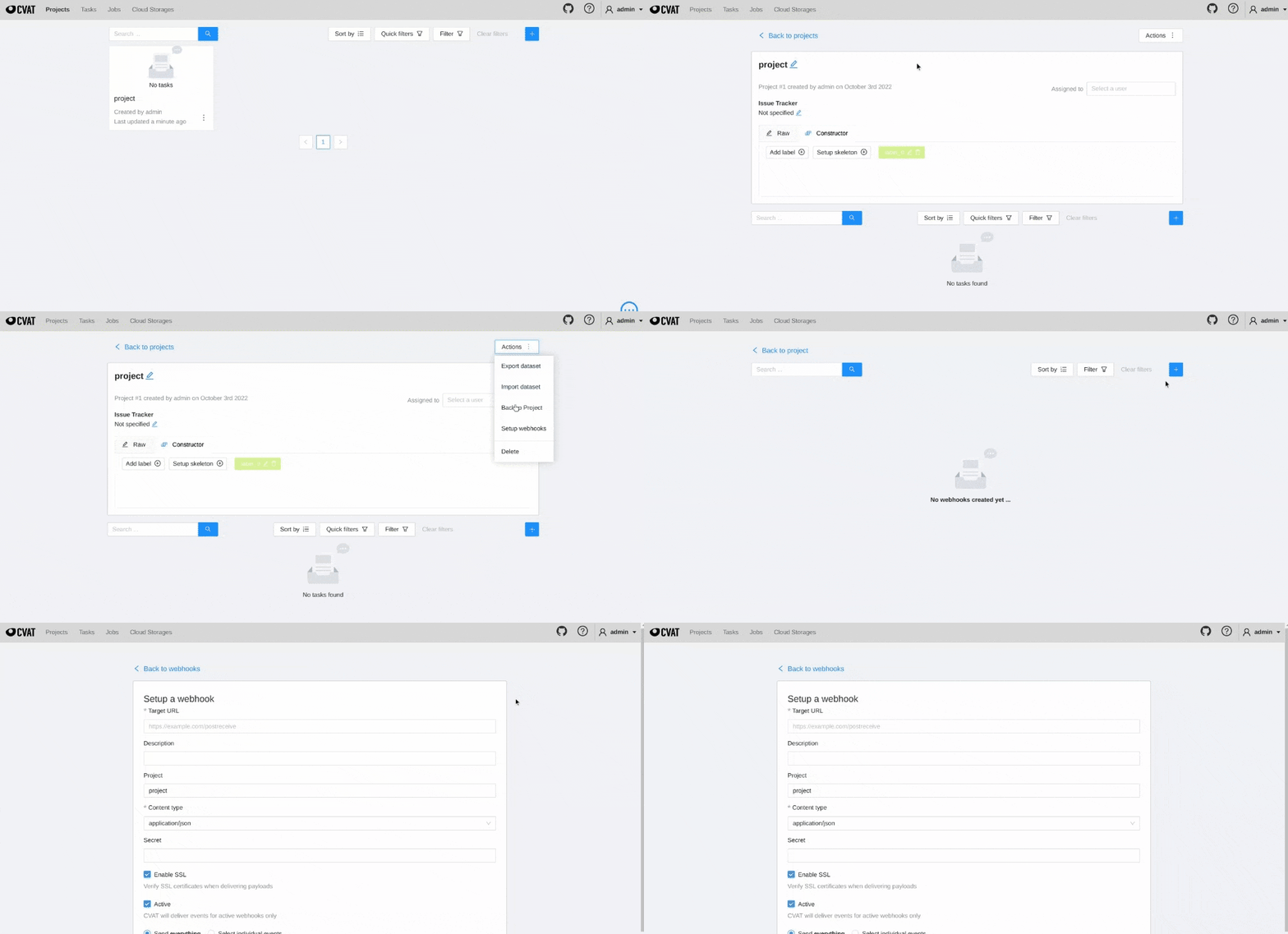
-
Fill in the Setup webhook form and click Submit.
For organization
To create a webhook for Organization, do the following:
- Create Organization
- Go to the Organization > Settings > Actions > Setup Webhooks.
- In the top right corner click +
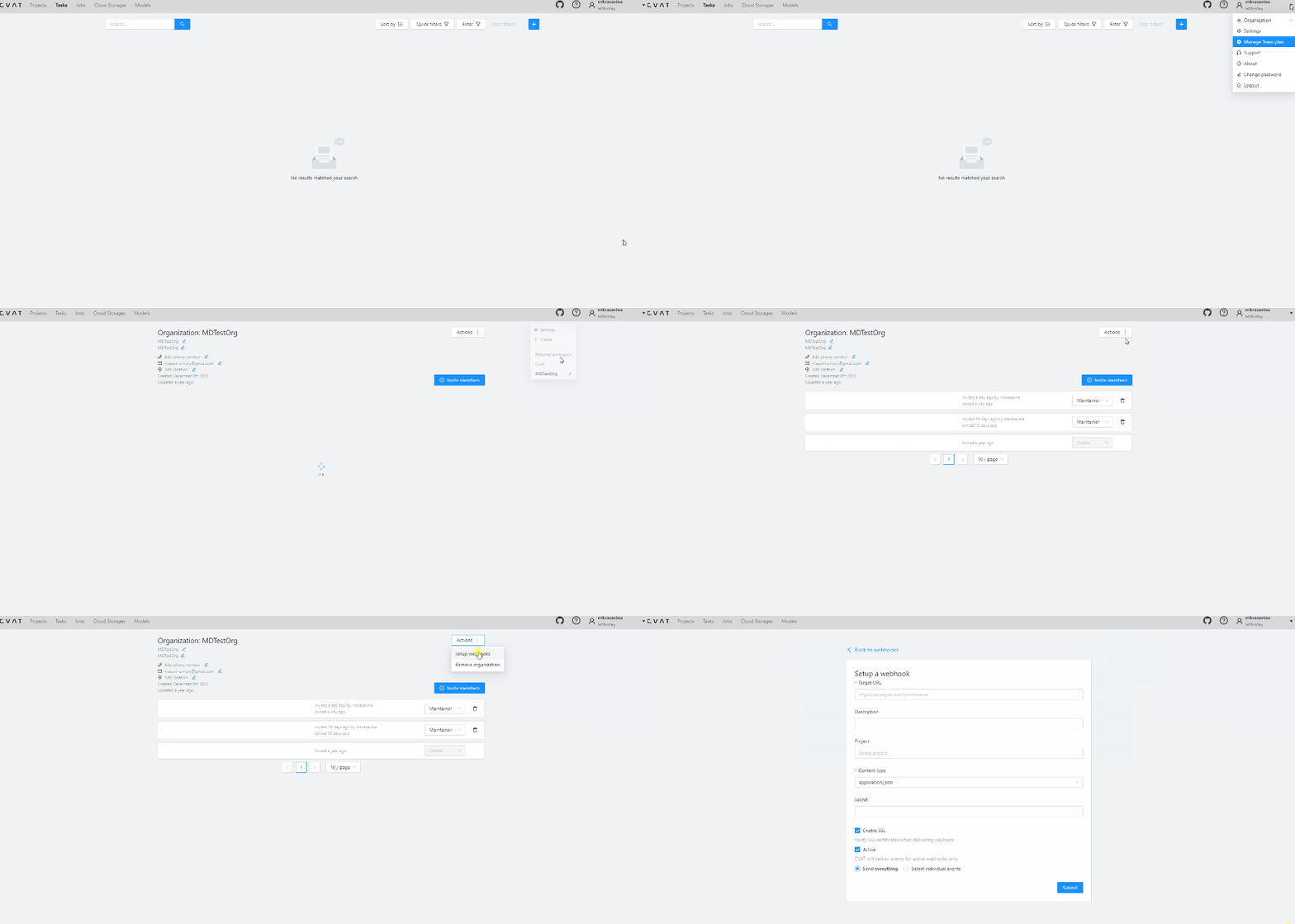
- Fill in the Setup webhook form and click Submit.
For server (admin only)
Available in:CVAT CommunityCVAT EnterpriseServer webhooks receive server-wide events, such as user and organization creation, that no project or organization webhook can observe. Only superusers (admins) can create, view, edit, or delete server webhooks, and they are not exposed in the CVAT GUI, so they are managed either through the Django administration panel or via the API.
To create a server webhook through the Django administration panel:
-
Log in as a superuser and go to the Django administration panel.
-
Under Webhooks, click Webhooks, then Add webhook.
-
Set Type to
serverand leave Project and Organization empty. -
Fill in the target URL, secret, content type, and the other fields described in Webhooks forms.
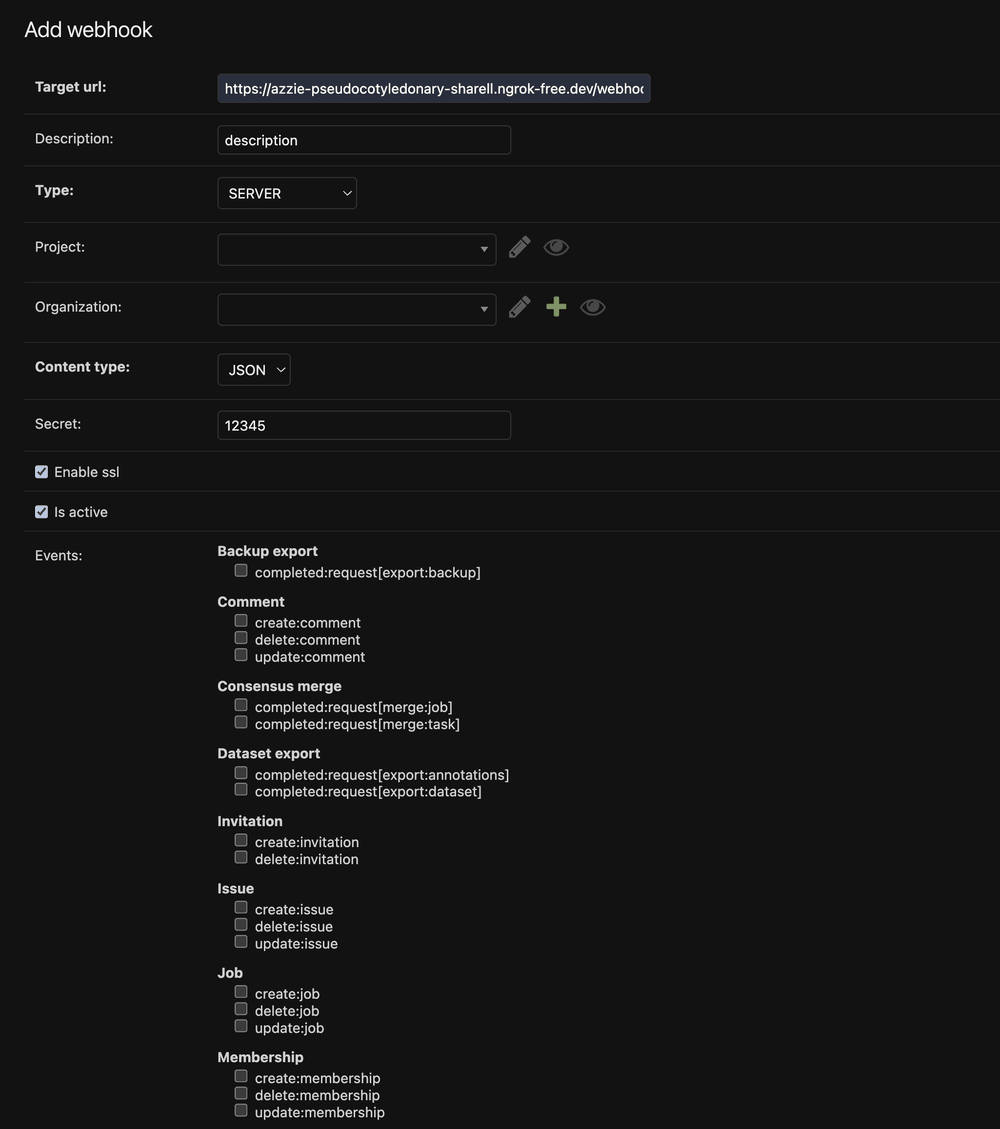
-
Under Events, tick the events you want to receive, grouped by resource (for example User or Organization). See List of events for the full list available to server webhooks.
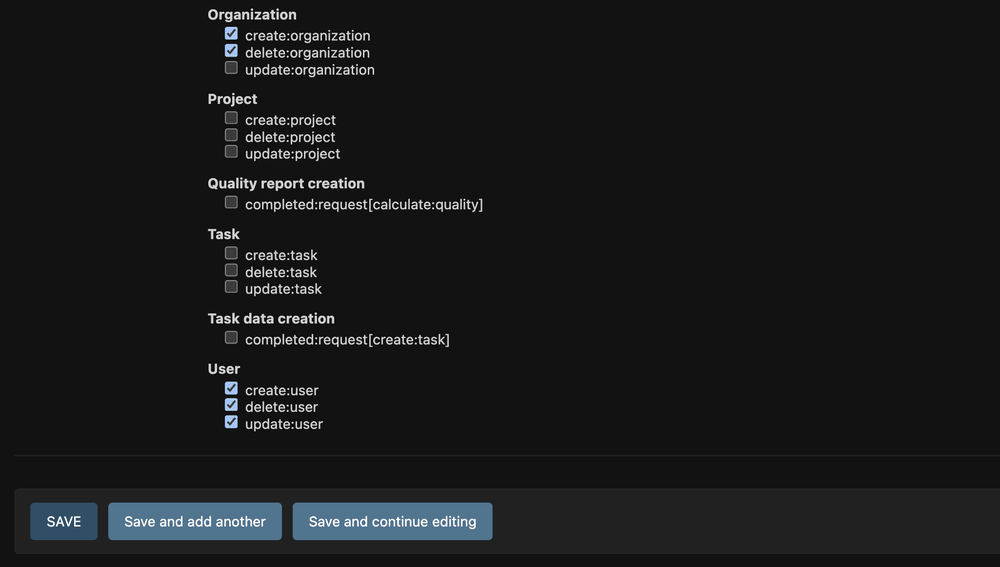
-
Click Save.
The same admin page lists and manages project and organization webhooks as well (filterable by type and active state, searchable by target URL), so it doubles as a central place for admins to review every webhook on the instance. Once a webhook is created, its Type, Project, and Organization fields become read-only.
To create a server webhook via the API instead, send POST /api/webhooks with
"type": "server" and no project_id/organization_id. The list of events available
to server webhooks can be retrieved with GET /api/webhooks/events?type=server.
Webhooks forms
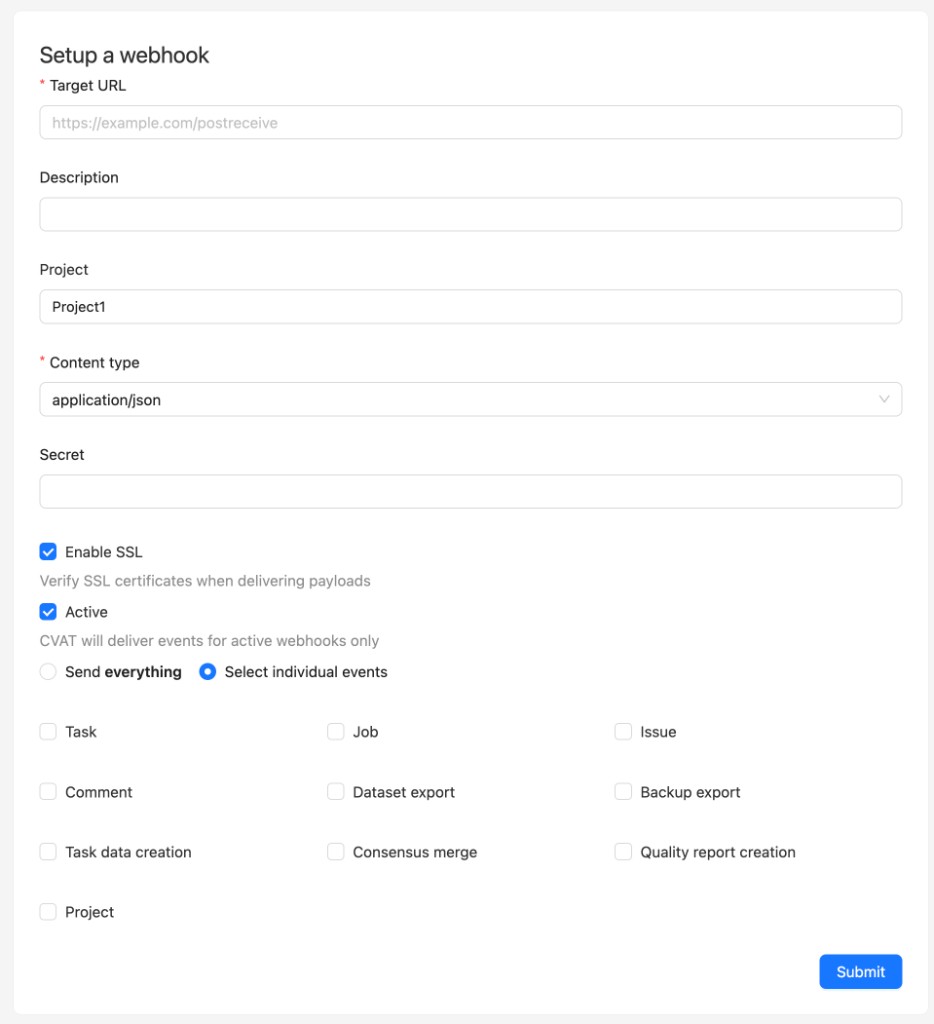
The Setup a webhook forms look like the following.
Project
Organization
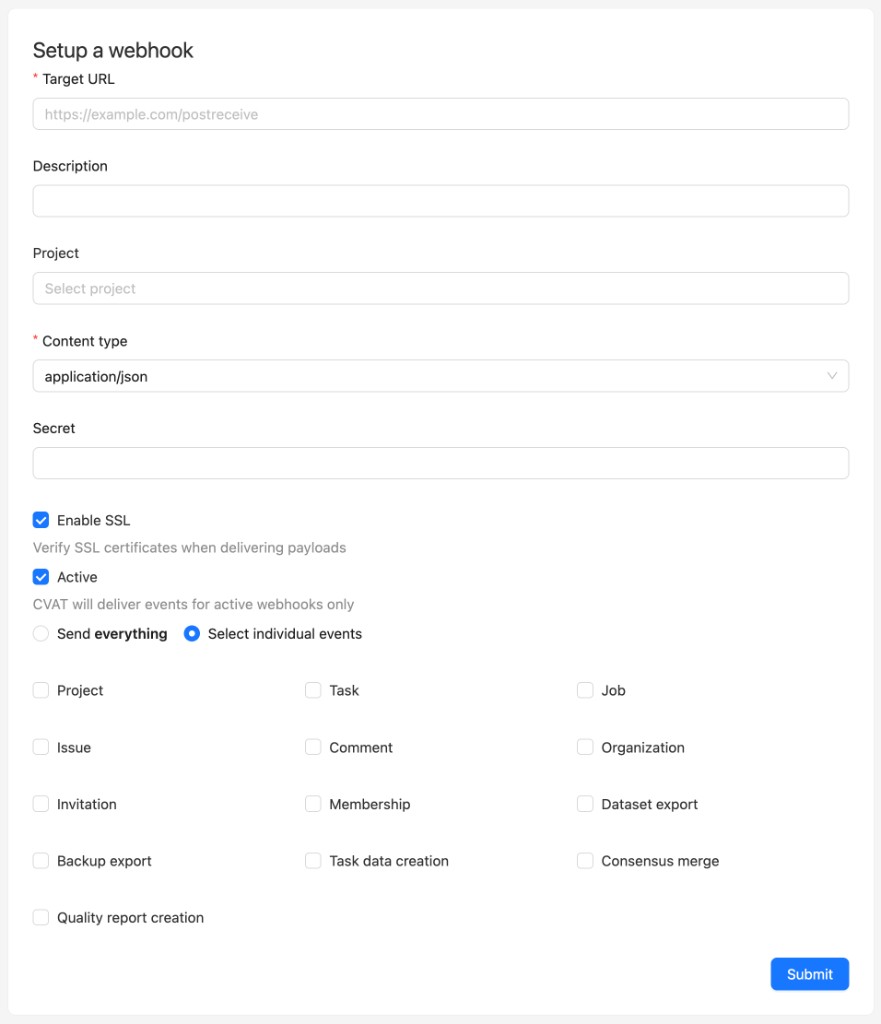
Forms have the following fields:
| Field | Description |
|---|---|
| Target URL | The URL where the event data will be sent. |
| Description | Provides a brief summary of the webhook’s purpose. |
| Project | A drop-down list that lets you select from available projects. |
| Content type | Defines the data type for the payload in the webhook request via the HTTP Content-Type field. |
| Secret | A unique key for verifying the webhook’s origin, ensuring it’s genuinely from CVAT. For more information, see Webhook secret |
| Enable SSL | A checkbox for enabling or disabling SSL verification. |
| Active | Uncheck this box if you want to stop the delivery of specific webhook payloads. |
| Send everything | Check this box to send all event types through the webhook. |
| Specify individual events | Choose this option to send only certain event types. Refer to the List of available events for more information on event types. |
List of events
The following events are available for webhook alerts.
Entities
| Resource | Create | Update | Delete | Description |
|---|---|---|---|---|
| User | ✅ (server) | ✅ (server) | ✅ (server) | Alerts for user creation, updates, or deletion. |
| Organization | ✅ (server) | ✅ (organization) | ✅ (server) | Alerts when an Organization is created, updated, or deleted. |
| Membership | ✅ (organization) | ✅ (organization) | ✅ (organization) | Alerts when a member is added to, changed in, or removed from an organization. |
| Invitation | ✅ (organization) | ✅ (organization) | Alerts when an invitation to an Organization is issued or revoked. | |
| Project | ✅ (organization) | ✅ (project, organization) | ✅ (project, organization) | Alerts for any actions taken within a project. |
| Task | ✅ (project, organization) | ✅ (project, organization) | ✅ (project, organization) | Alerts for actions related to a task, such as status changes, assignments, etc. |
| Job | ✅ (project, organization) | ✅ (project, organization) | ✅ (project, organization) | Alerts for any updates made to a job. |
| Issue | ✅ (project, organization) | ✅ (project, organization) | ✅ (project, organization) | Alerts for any activities involving issues. |
| Comment | ✅ (project, organization) | ✅ (project, organization) | ✅ (project, organization) | Alerts for actions involving comments, such as creation, deletion, or modification. |
Requests
The following events are sent when a request finishes, whether it succeeded or failed.
| Resource | Completed | Description |
|---|---|---|
| Dataset export | ✅ | Alerts when a dataset or annotations export request completes. |
| Backup export | ✅ | Alerts when a project or task backup export request completes. |
| Task data creation | ✅ | Alerts when a task data creation request completes. |
| Consensus merge | ✅ | Alerts when a consensus merge request completes. |
| Quality report creation | ✅ | Alerts when a quality report creation request completes. |
Payloads
Entities
Webhook payloads for create, update, and delete events on resources.
Create event
Webhook payload object for create:<resource> events:
| Key | Type | Description |
|---|---|---|
event |
string |
Identifies the event that triggered the webhook, following the create:<resource> pattern. |
<resource> |
object |
Complete information about the created resource. Refer to the Swagger docs for individual resource details. |
webhook_id |
integer |
The identifier for the webhook that sends the payload. |
sender |
object |
Details about the user that triggered the webhook. |
An example of payload for the create:task event:
{
 "event": "create:task",
    "task": {
        "url": "<http://localhost:8080/api/tasks/15>",
        "id": 15,
        "name": "task",
        "project_id": 7,
        "mode": "",
        "owner": {
            "url": "<http://localhost:8080/api/users/1>",
            "id": 1,
            "username": "admin1",
            "first_name": "Admin",
            "last_name": "First"
        },
        "assignee": null,
        "bug_tracker": "",
        "created_date": "2022-10-04T08:05:50.419259Z",
        "updated_date": "2022-10-04T08:05:50.422917Z",
        "overlap": null,
        "segment_size": 0,
        "status": "annotation",
        "labels": \[
            {
                "id": 28,
                "name": "label_0",
                "color": "#bde94a",
                "attributes": [],
                "type": "any",
                "sublabels": [],
                "has_parent": false
            }
        \],
        "segments": [],
        "dimension": "2d",
        "subset": "",
        "organization": null,
        "target_storage": {
            "id": 14,
            "location": "local",
            "cloud_storage_id": null
        },
        "source_storage": {
            "id": 13,
            "location": "local",
            "cloud_storage_id": null
        }
    },
    "webhook_id": 7,
    "sender": {
        "url": "<http://localhost:8080/api/users/1>",
        "id": 1,
        "username": "admin1",
        "first_name": "Admin",
        "last_name": "First"
    }
}
Update event
Webhook payload object for update:<resource> events:
| Key | Type | Description |
|---|---|---|
event |
string |
Identifies the event that triggered the webhook, following the update:<resource> pattern. |
<resource> |
object |
Provides complete information about the updated resource. See the Swagger docs for resource details. |
webhook_id |
integer |
The identifier for the webhook that dispatched the payload. |
sender |
object |
Details about the user that triggered the webhook. |
An example of update:<resource> event:
{
    "event": "update:task",
    "task": {
        "url": "<http://localhost:8080/api/tasks/15>",
        "id": 15,
        "name": "new task name",
        "project_id": 7,
        "mode": "annotation",
        "owner": {
            "url": "<http://localhost:8080/api/users/1>",
            "id": 1,
            "username": "admin1",
            "first_name": "Admin",
            "last_name": "First"
        },
        "assignee": null,
        "bug_tracker": "",
        "created_date": "2022-10-04T08:05:50.419259Z",
        "updated_date": "2022-10-04T11:04:51.451681Z",
        "overlap": 0,
        "segment_size": 1,
        "status": "annotation",
        "labels": \[
            {
                "id": 28,
                "name": "label_0",
                "color": "#bde94a",
                "attributes": [],
                "type": "any",
                "sublabels": [],
                "has_parent": false
            }
        \],
        "segments": \[
            {
                "start_frame": 0,
                "stop_frame": 0,
                "jobs": \[
                    {
                        "url": "<http://localhost:8080/api/jobs/19>",
                        "id": 19,
                        "assignee": null,
                        "status": "annotation",
                        "stage": "annotation",
                        "state": "new"
                    }
                \]
            }
        \],
        "data_chunk_size": 14,
        "data_compressed_chunk_type": "imageset",
        "data_original_chunk_type": "imageset",
        "size": 1,
        "image_quality": 70,
        "data": 14,
        "dimension": "2d",
        "subset": "",
        "organization": null,
        "target_storage": {
            "id": 14,
            "location": "local",
            "cloud_storage_id": null
        },
        "source_storage": {
            "id": 13,
            "location": "local",
            "cloud_storage_id": null
        }
    },
    "webhook_id": 7,
    "sender": {
        "url": "<http://localhost:8080/api/users/1>",
        "id": 1,
        "username": "admin1",
        "first_name": "Admin",
        "last_name": "First"
    }
}
Delete event
Webhook payload object for delete:<resource> events:
| Key | Type | Description |
|---|---|---|
event |
string |
Identifies the event that triggered the webhook, following the delete:<resource> pattern. |
<resource> |
object |
Provides complete information about the deleted resource. See the Swagger docs for resource details. |
webhook_id |
integer |
The identifier for the webhook that dispatched the payload. |
sender |
object |
Details about the user that triggered the webhook. |
Here is an example of the payload for the delete:task event:
{
    "event": "delete:task",
    "task": {
        "url": "<http://localhost:8080/api/tasks/15>",
        "id": 15,
        "name": "task",
        "project_id": 7,
        "mode": "",
        "owner": {
            "url": "<http://localhost:8080/api/users/1>",
            "id": 1,
            "username": "admin1",
            "first_name": "Admin",
            "last_name": "First"
        },
        "assignee": null,
        "bug_tracker": "",
        "created_date": "2022-10-04T08:05:50.419259Z",
        "updated_date": "2022-10-04T08:05:50.422917Z",
        "overlap": null,
        "segment_size": 0,
        "status": "annotation",
        "labels": \[
            {
                "id": 28,
                "name": "label_0",
                "color": "#bde94a",
                "attributes": [],
                "type": "any",
                "sublabels": [],
                "has_parent": false
            }
        \],
        "segments": [],
        "dimension": "2d",
        "subset": "",
        "organization": null,
        "target_storage": {
            "id": 14,
            "location": "local",
            "cloud_storage_id": null
        },
        "source_storage": {
            "id": 13,
            "location": "local",
            "cloud_storage_id": null
        }
    },
    "webhook_id": 7,
    "sender": {
        "url": "<http://localhost:8080/api/users/1>",
        "id": 1,
        "username": "admin1",
        "first_name": "Admin",
        "last_name": "First"
    }
}
Requests
Webhook payloads for completed request events.
Completed event
Webhook payload object for completed:<resource> events:
| Key | Type | Description |
|---|---|---|
event |
string |
Identifies the event that triggered the webhook, following the completed:<resource> pattern. |
request |
object |
Complete information about the request. Same structure as the retrieve response in the Swagger docs. |
webhook_id |
integer |
The identifier for the webhook that sends the payload. |
sender |
object |
Details about the user that triggered the webhook. |
An example of payload for a completed task data creation request:
{
    "event": "completed:request[create:task]",
    "request": {
        "status": "finished",
        "message": "",
        "id": "action=create&target=task&target_id=1",
        "operation": {
            "type": "create:task",
            "target": "task",
            "project_id": 2,
            "task_id": 1,
            "job_id": null,
            "org_id": 1,
            "format": null,
            "lightweight": null
        },
        "progress": 0.0,
        "created_date": "2026-08-17T08:16:17.540858Z",
        "started_date": "2026-08-17T08:16:17.551124Z",
        "finished_date": "2026-08-17T08:16:17.866904Z",
        "expiry_date": "2026-08-17T08:24:37.866904Z",
        "owner": {
            "id": 1,
            "username": "demo_user"
        },
        "result_url": null,
        "result_id": null
    },
    "webhook_id": 1,
    "sender": {
        "url": "/api/users/1",
        "id": 1,
        "username": "demo_user",
        "first_name": "",
        "last_name": ""
    }
}
Webhook secret
To validate that webhook requests originate from CVAT, include a secret during the webhook creation process.
This helps ensure the authenticity of incoming webhook requests.
When a secret is provided, CVAT includes an X-Signature-256 header in the webhook request.
This header contains a SHA256 hash of the request body, signed using the secret key.
How it works:
- CVAT computes the SHA256 HMAC of the request body using the
secret. - The computed hash is included in the
X-Signature-256header. - The webhook receiver verifies the request by recalculating the hash using the same
secretand comparing it with the received signature.
Here’s an example of the X-Signature-256 header for a request with an empty body and secret = mykey:
X-Signature-256: e1b24265bf2e0b20c81837993b4f1415f7b68c503114d100a40601eca6a2745f
Verifying webhook signature
You can verify the webhook signature in your webhook receiver service using Python:
# webhook_receiver.py

import hmac
from hashlib import sha256
from flask import Flask, request

app = Flask(__name__)

@app.route("/webhook", methods=["POST"])
def webhook():
    secret = "mykey".encode("utf-8")
    received_signature = request.headers.get("X-Signature-256", "")

    expected_signature = "sha256=" + hmac.new(secret, request.data, digestmod=sha256).hexdigest()

    if hmac.compare_digest(received_signature, expected_signature):
        return app.response_class(status=200, response="Valid signature")
    return app.response_class(status=403, response="Invalid Signature")

if __name__ == "__main__":
    app.run(port=5000)
Ping webhook
The Ping webhook feature helps confirm that CVAT can successfully send webhook events to the configured target URL.
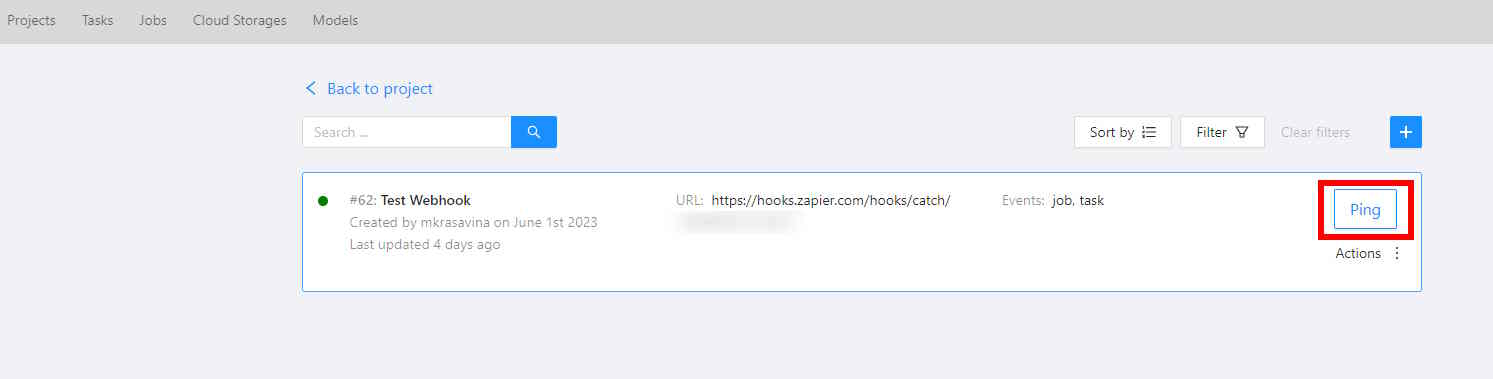
- Click the Ping button in the CVAT UI. Alternatively, send a
POST /webhooks/{id}/pingrequest via the API. Server webhooks can be pinged only via the API. - CVAT will send a webhook event to the target URL with basic details.
Ping webhook payload
| Key | Type | Description |
|---|---|---|
event |
string |
Always set to ping. |
webhook |
object |
Contains webhook details (refer to Swagger docs for a complete structure). |
sender |
object |
Includes information about the user who triggered the ping. |
Example ping event payload:
{
   "event": "ping",
    "webhook": {
        "id": 7,
        "url": "<http://localhost:8080/api/webhooks/7>",
        "target_url": "<https://example.com>",
        "description": "",
        "type": "project",
        "content_type": "application/json",
        "is_active": true,
        "enable_ssl": true,
        "created_date": "2022-10-04T08:05:23.007381Z",
        "updated_date": "2022-10-04T08:05:23.007395Z",
        "owner": {
            "url": "<http://localhost:8080/api/users/1>",
            "id": 1,
            "username": "admin1",
            "first_name": "Admin",
            "last_name": "First"
        },
        "project": 7,
        "organization": null,
        "events": \[
            "create:comment",
            "create:issue",
            "create:task",
            "delete:comment",
            "delete:issue",
            "delete:task",
            "update:comment",
            "update:issue",
            "update:job",
            "update:project",
            "update:task"
        \],
        "last_status": 200,
        "last_delivery_date": "2022-10-04T11:04:52.538638Z"
    },
    "sender": {
        "url": "<http://localhost:8080/api/users/1>",
        "id": 1,
        "username": "admin1",
        "first_name": "Admin",
        "last_name": "First"
    }
}
Webhooks with API calls
You can create and manage webhooks via API calls. Refer to the Swagger API documentation for details.
For implementation examples, check the REST API tests.
Example: setting up email alerts via webhooks
This video demonstrates configuring email alerts for a project using Zapier and Gmail: