Workspace
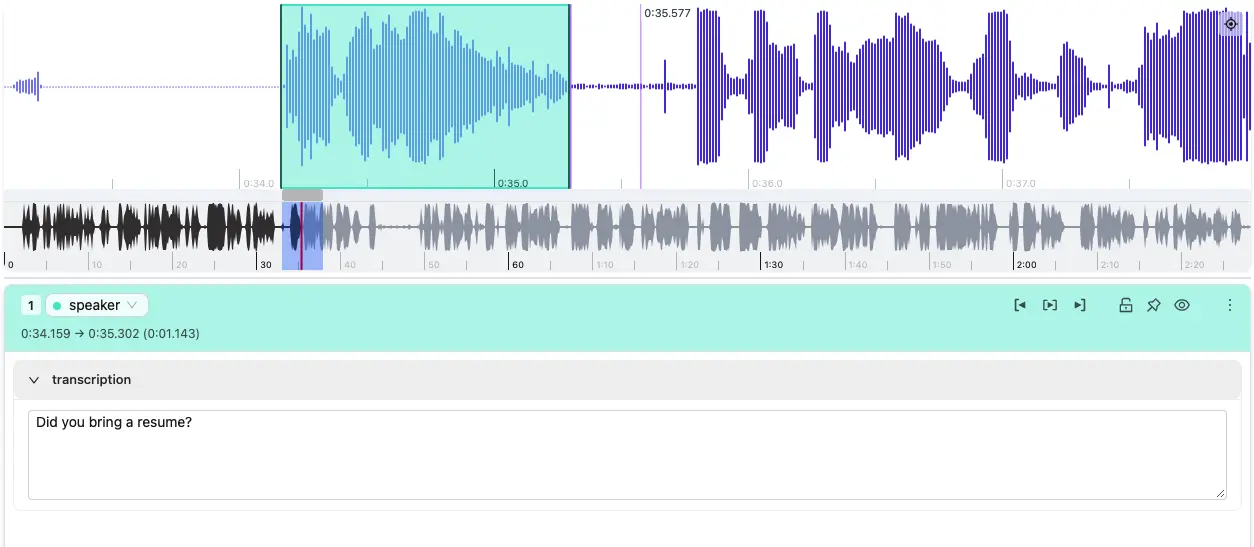
The Audio Editor workspace displays the recording as a waveform. The vertical playhead marks the current playback position, and colored regions represent audio intervals.
Navigate the waveform
Move through the recording
-
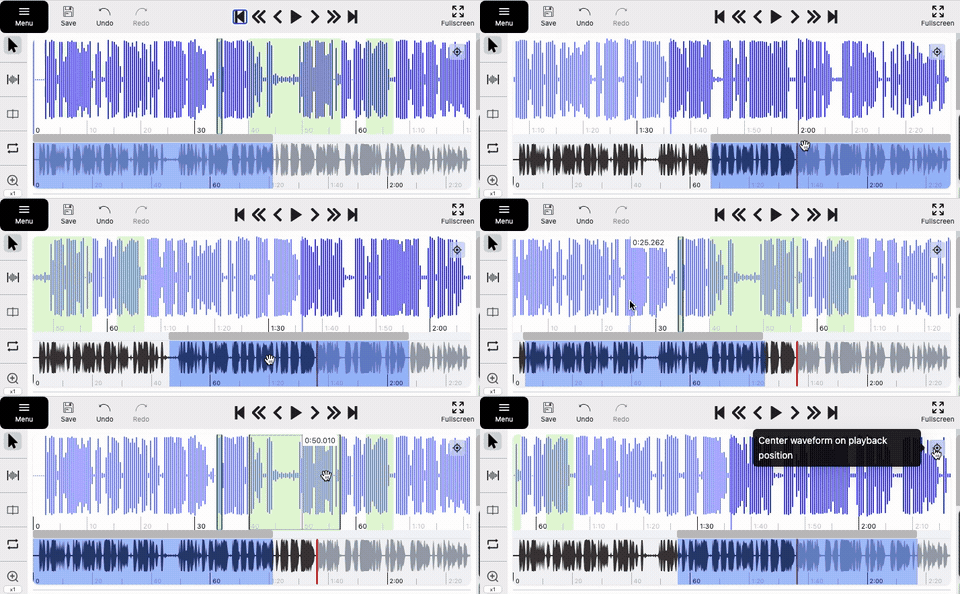
Click the waveform to move the playhead to that time. To move through a zoomed recording, use the horizontal scrollbar, horizontal scrolling on a supported mouse or touchpad, or Shift+mouse wheel.
-
The minimap shows the entire recording. Click it to move to a time, or drag its visible-area overlay to scroll the waveform horizontally.

-
Click Center waveform on playback position button at the top right corner of the waveform to bring the current playhead into view.

Zoom and inspect
-
Use the Zoom control or scroll the mouse wheel over the waveform to change the time scale.
-
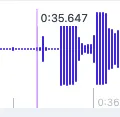
The hover guide shows the timestamp at the pointer position, and timeline tick marks and labels adjust automatically to the current zoom level.
-
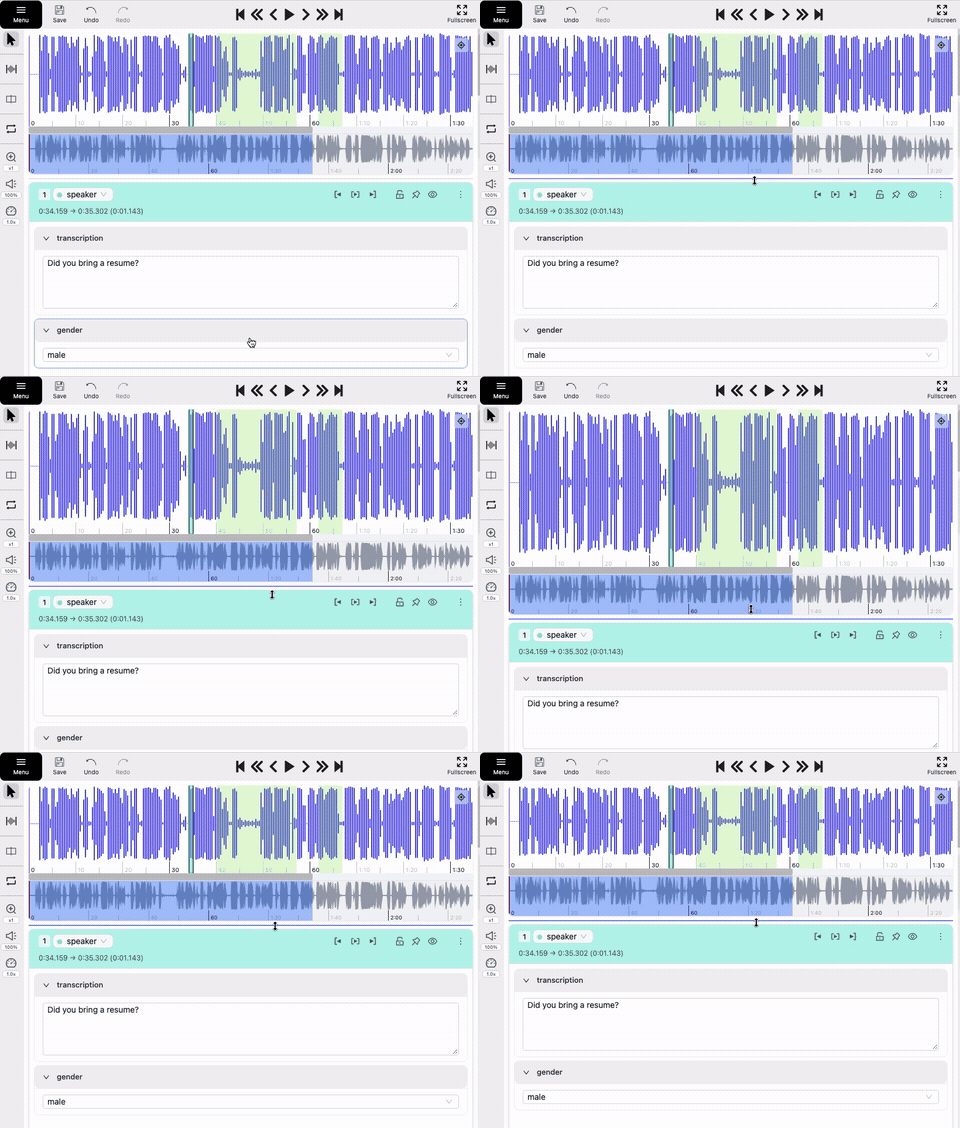
Drag the handle below the minimap to change the waveform height.
Select and edit intervals
| Action | Description |
|---|---|
| Select | Click an interval on the waveform or select it in the Objects Sidebar to make it active.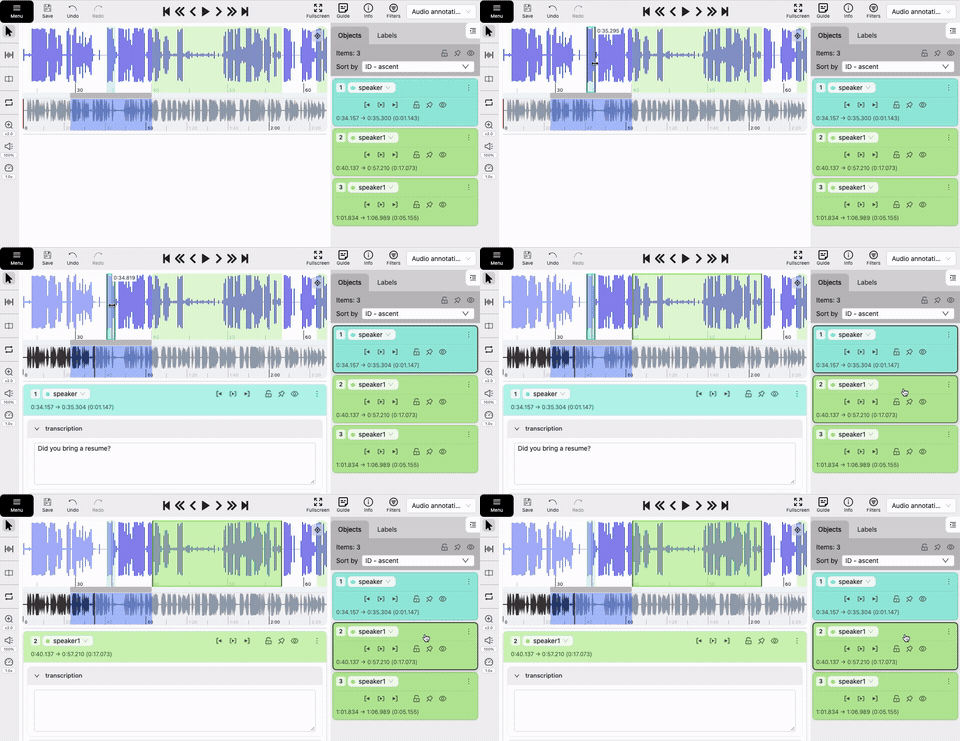 Default shortcuts: Next visible interval: Tab Previous visible interval: Shift+Tab Each shortcut selects and centers the interval on the waveform. |
| Move | Drag an interval to change its position. Hold Alt while dragging to snap either boundary to a nearby boundary of another visible interval. If both boundaries have eligible snap targets, CVAT uses the closest one. 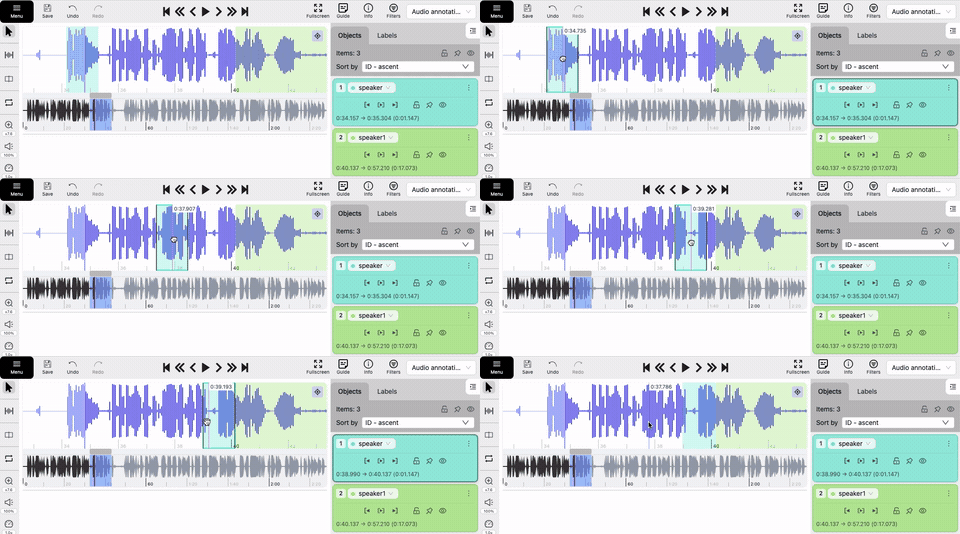 |
| Resize | Drag either boundary to change its start or end time. When you resize an interval beyond the visible edge, the waveform scrolls automatically. Hold Alt to snap the boundary being resized to a nearby boundary of another visible interval. It cannot snap to the other boundary of the same interval. 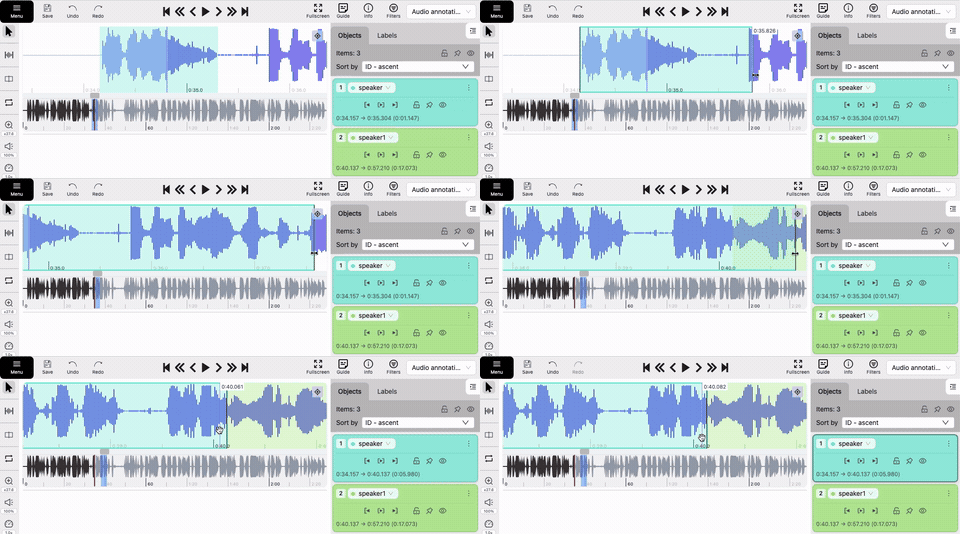 |
| Bulk resize | Hold Shift near adjacent interval boundaries to highlight nearby unlocked boundaries, then drag to resize them together.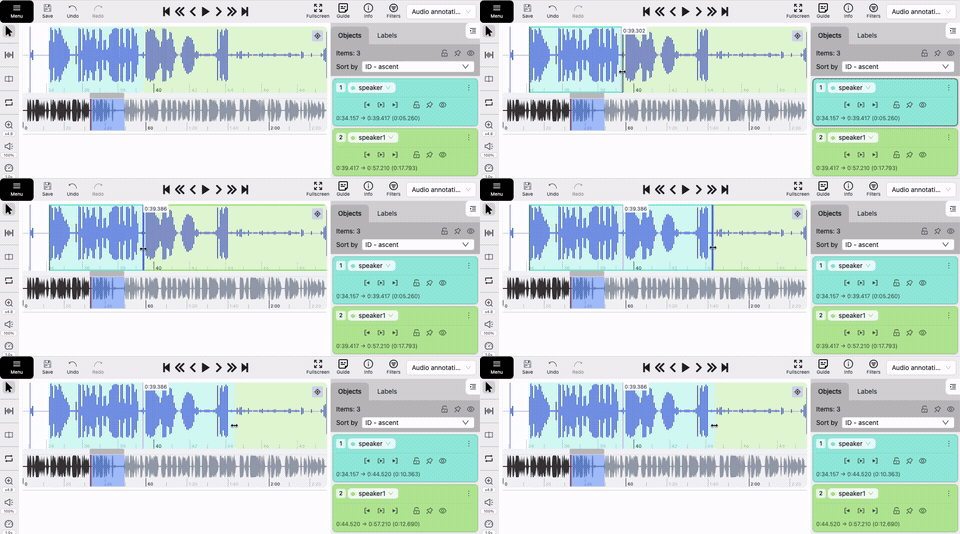 |
Interval details
When you select an interval, its details panel appears below the waveform.
Header
| Image | Description |
|---|---|
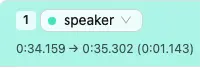 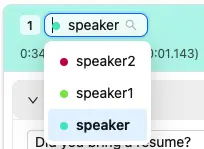 |
The header shows the interval number, label, source when available, start and end time, and duration. Use the label selector to change its label. |
 |
Playback controls move the playhead to the interval start or end, or play the interval once. Default shortcuts: Set playback to start: Shift+D Play once: Shift+Space Set playback to end: Shift+F |
 |
State controls lock, pin, or hide the interval. Locked intervals cannot be edited, moved, or resized. Pinned intervals cannot be moved. Hidden intervals are not shown on the waveform. Default shortcuts: Lock/Unlock: L Pin/Unpin: P Hide/Show: H |
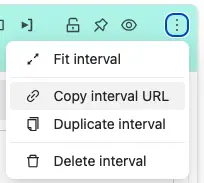 |
The More actions menu lets you fit the waveform to the interval, copy its URL, duplicate it, change its color when available, or delete it. Default shortcuts: Fit interval: I Delete: Del Force-delete a locked interval: Shift+Del |
Edit attributes
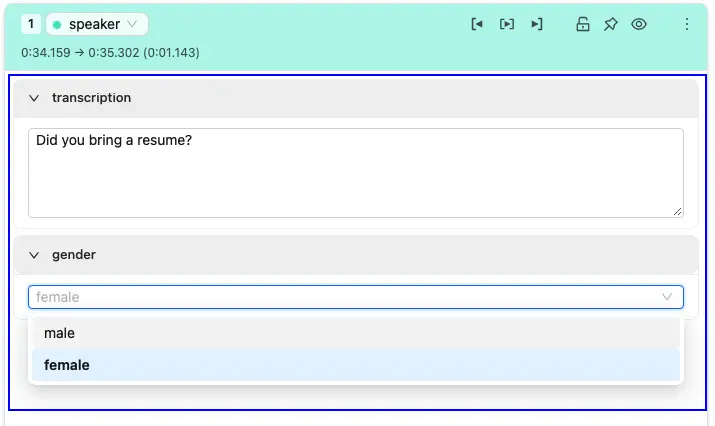
All attributes are expanded by default. Edit their values or collapse them as needed. Available attributes depend on the selected label.
Play and manage intervals
-
Double-click an interval on the waveform to play it once.
-
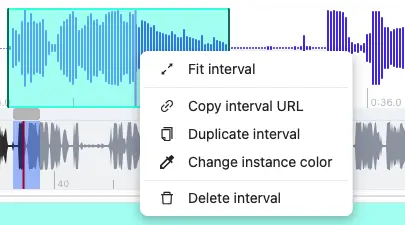
Right-click it to open the context menu, where you can:
- Fit the waveform to the interval.
- Copy the interval URL.
- Duplicate the interval.
- Change its color, when available.
- Delete the interval.
For interval creation, see Create intervals.