Immediate job feedback
Overview
The basic idea behind this feature is to provide annotators with quick feedback on their performance in a job. When an annotator finishes a job, a dialog is displayed showing the quality of their annotations. The annotator can either agree or disagree with the feedback. If they disagree, they have the option to re-annotate the job and request feedback again.
To ensure transparency with the annotator, the immediate feedback shows the computed score and the minimum required score. Information about the specific errors or frames that have errors is not available to annotators.
Feedback is only available a limited number of times for each assignment, to prevent Ground Truth revealing by annotators. This is controlled by a configurable parameter, so it can be adjusted to the requirements of each project.
How to configure
Immediate feedback settings, such as Target metric, Target metric threshold,
Max validations per job and others, can be configured on the quality settings page.
This feature is considered enabled if the Max validations per job is above 0. You can change
the parameters any time.
Note
This feature requires a configured validation set in the task. Read more in the quality overview section or in the full guide.- Open the task Actions menu > Quality control > Settings
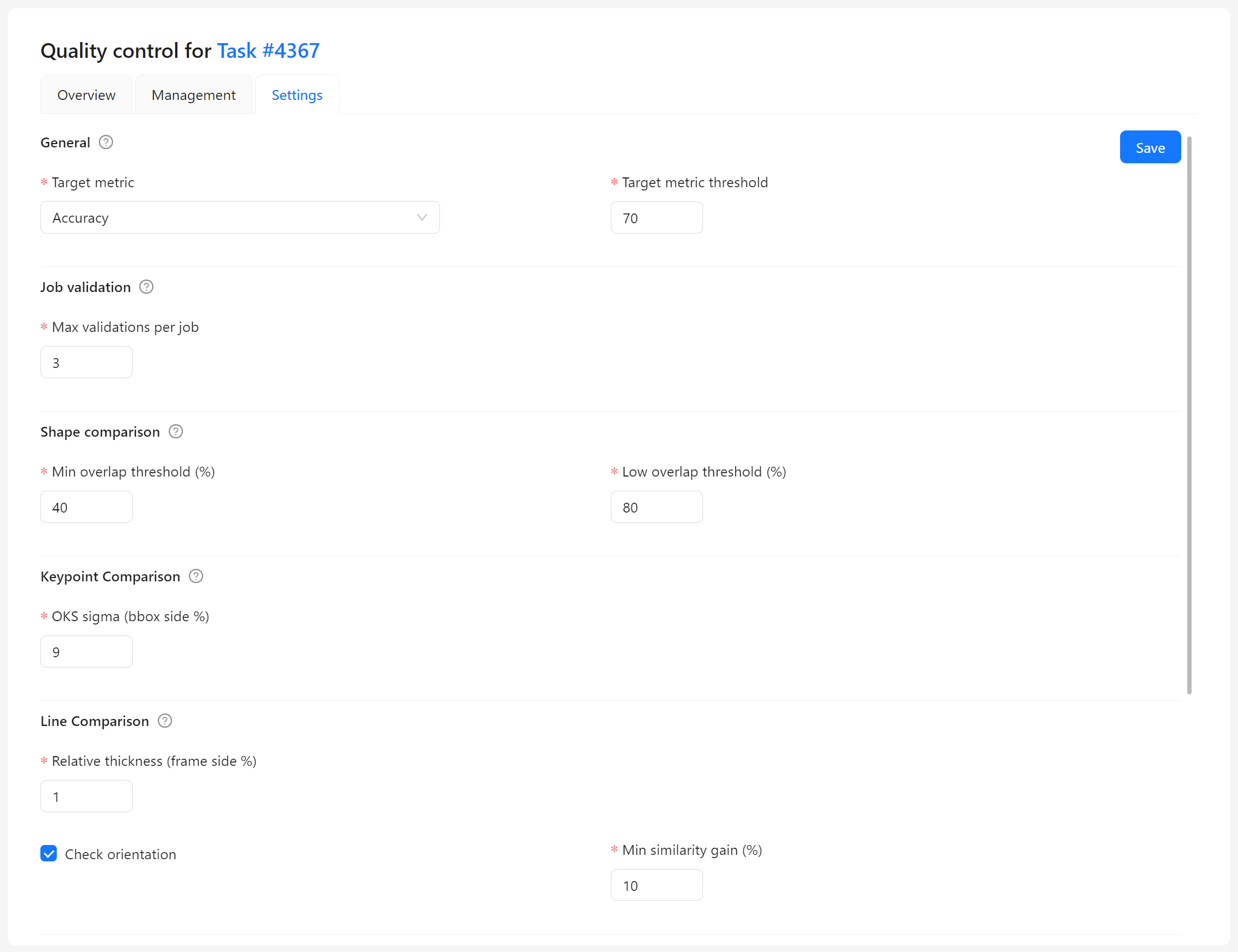
- Set the
Target metricandTarget metric thresholdvalues to what is required in your project. - Set Max validations per job to above zero. 3 is a good starting number.
- Save the updated settings
How to receive a feedback
- Assign an annotator to an annotation job
- Annotate the job
- Mark the job finished using the corresponding button in the menu
- Once the job is completed, you’ll see the job validation dialog
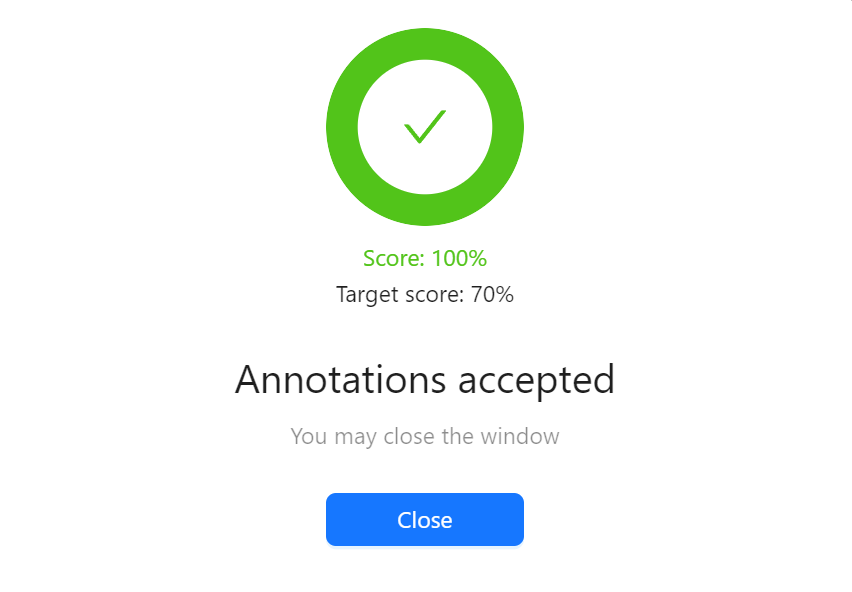
Each assignee gets no more than the specified number of validation attempts.
Note
This functionality is only available in regular annotation jobs. For instance, it’s not possible to use it in Ground Truth jobs.Available feedbacks
There are three types of feedbacks available for different cases:
- Accepted
- Rejected, with an option to fix mistakes
- Finally rejected when the number of attempts is exhausted
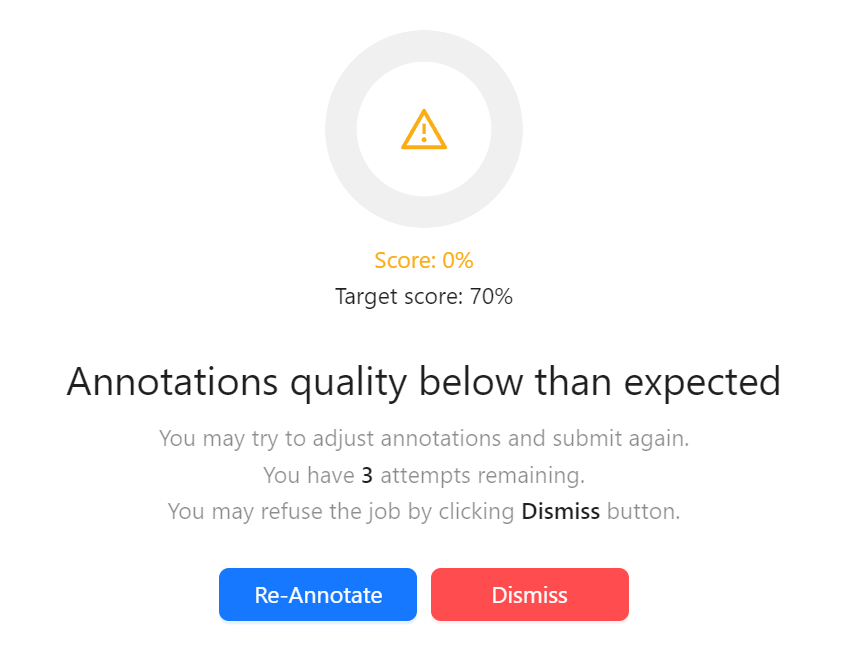
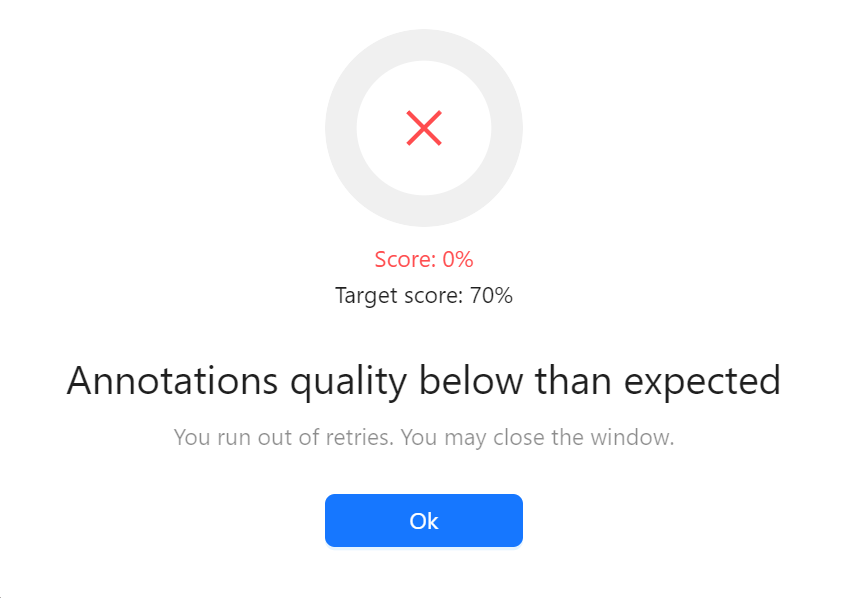
Annotation hints
When a job is rejected, the Top problems section may show up to three short hints based on the confusion matrices of requirements that were not met:
Confused classes: "A" and "B"Missing annotations: "C"Extra annotations: "C"
The hints appear in a warning block. Hover over or focus the question mark next to a hint to read its explanation. Missing annotations indicates that your annotations might miss some objects of the indicated label. Extra annotations indicates that your annotations might include extra objects of that label. Incorrect attributes or inaccurate boundaries can also cause either type of discrepancy.
The hints describe patterns in the checked portion of the job. They do not identify specific annotations or validation frames, reveal expected attribute values, or tell you which class should replace another. A hint about a single class means that some annotations could not be matched; it does not identify the cause.
Only patterns with at least three discrepancies in a requirement’s confusion matrix are considered. Missing and extra annotations are ranked separately, each with its own minimum of three. Both hints can appear for the same class and count toward the limit of three hints. A failed match can contribute to both missing and extra annotations. Repeated hints across requirements are combined, and the three strongest patterns are shown. These limits are fixed. If no pattern meets the minimum, the section is hidden. Hints are also available after the last validation attempt when that attempt is rejected.
Additional details
Note
Immediate feedback has a default timeout of 20 seconds. Feedback may be unavailable for large jobs or when there are too many immediate feedback requests. In this case annotators do not see any feedback dialogs and annotate jobs as if the feature was disabled.
The number of attempts does not decrease for staff members who have access to a job with ground truth annotations. For instance, if you’re trying to test this feature as the task owner, you may be confused if you see the number of attempts doesn’t decrease.
The number of attempts resets when the job assignee is updated.