Multi-object selection
Multi-object selection allows you to select shapes and tracks in the 2D annotation workspace and perform supported actions on all selected objects at once.
See:
- Selecting objects
- Changing a selection
- Moving selected objects
- Selection actions
- Copying and pasting a selection
- Undo, redo, and frame navigation
Selecting objects
You can create a multi-object selection from the canvas or the objects sidebar.
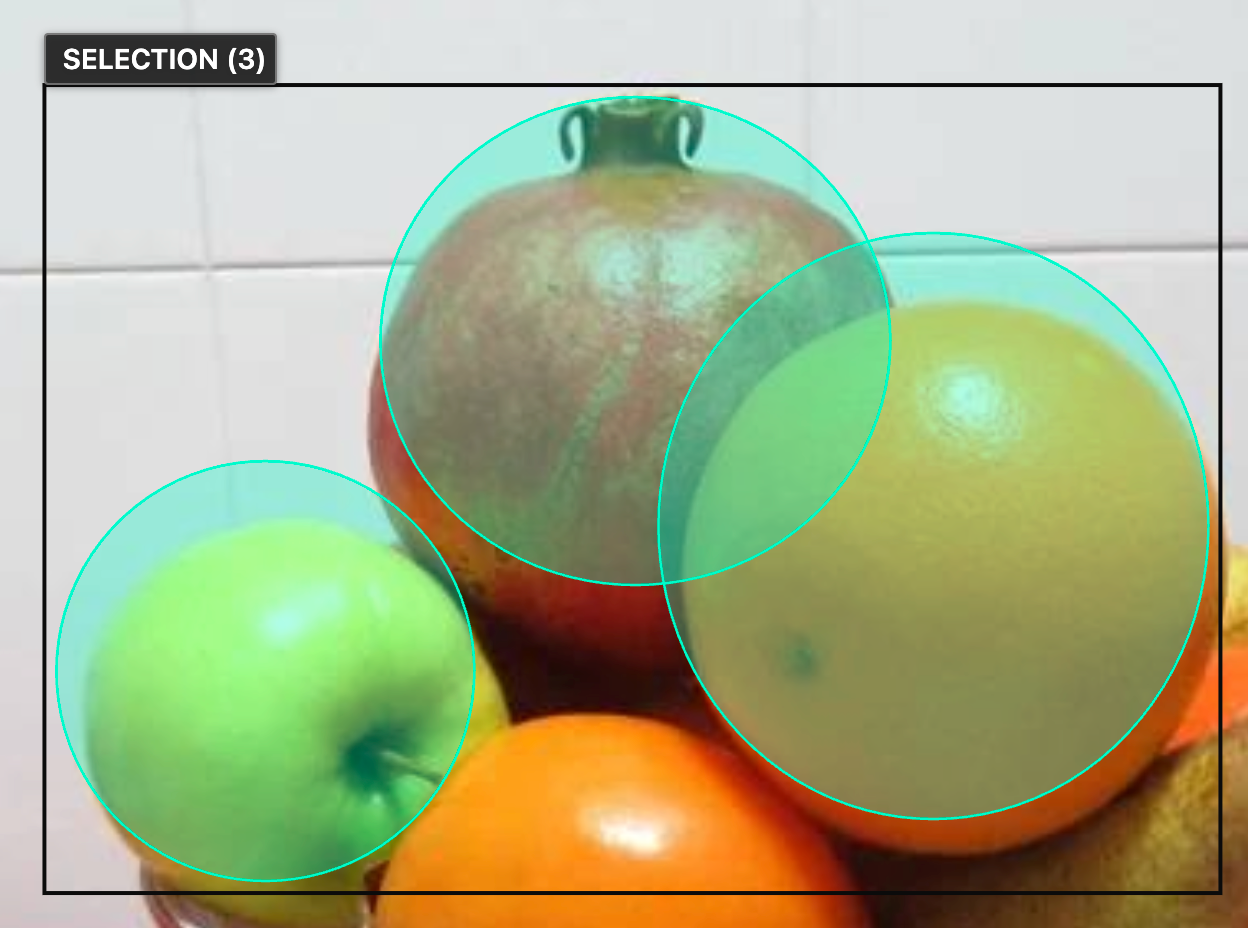
A selection can contain one or more objects. CVAT displays a bounding box around the selected objects
and a SELECTION (N) label, where N is the number of selected objects.
Selecting objects on the canvas
To select objects with a selection box, do the following:
- On the Controls sidebar, select Select objects.
- Click an empty area of the canvas and drag a selection box around the objects.
- Release the mouse button.
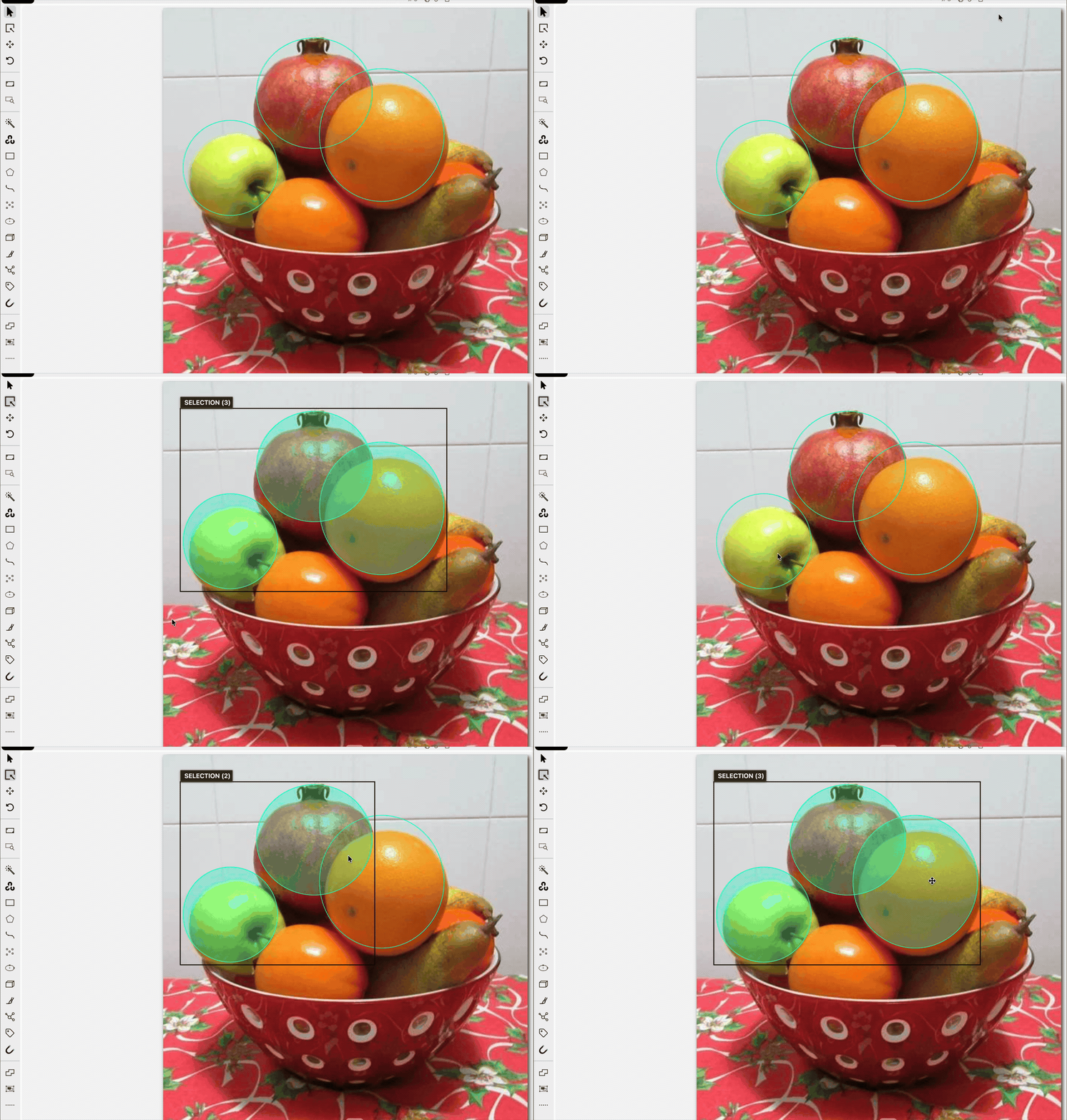
Only objects fully contained by the selection box are selected. For rotated objects, CVAT uses the transformed object boundaries. The Select objects tool remains active, so you can draw another selection box without selecting the tool again. Each new selection box starts a new selection and replaces the previous one.
You can also hold Shift and start dragging from an empty canvas area while using the Cursor tool. This activates Select objects and starts the selection box from the initial pointer position. If the box selects at least one object, Select objects remains active after you release the mouse button. If the box selects no objects, CVAT returns to the Cursor tool. A Shift-drag also replaces objects previously selected with Ctrl/Command+Click.
Selecting individual objects
While the Select objects tool is active, click an object to add it to or remove it from the selection. The same semantic hit-testing used for regular canvas interaction applies to overlapping objects, Points objects, and skeletons.
While using the Cursor tool, hold the platform selection modifier and click an object:
- On Windows and Linux, use Ctrl+Click.
- On macOS, use Command+Click.
You can use the modifier on the canvas or on an object card in the Objects tab. When objects overlap, CVAT uses the object under the pointer according to the regular canvas hit-testing rules.
Selecting objects from the sidebar
The objects sidebar provides the following selection options:
| Location | Action | Result |
|---|---|---|
| Objects tab | Ctrl/Command+Click an object card | Adds the object to or removes it from the selection. |
| Objects tab | Shift+Click an object card | Selects the range between the last selected object and the clicked object using the current visible order. |
| Objects tab | Ctrl/Command+A | Selects all selectable objects visible on the canvas. |
| Labels tab | Ctrl/Command+Click a label | Adds or removes all selectable objects with that label. |
| Labels tab | Shift+Click a label | Selects objects for a continuous range of labels. |
| Layer Stack | Ctrl/Command+Click a layer header | Adds or removes all selectable objects on the layer. |
| Layer Stack | Shift+Click an object card | Selects an object range within that layer. |
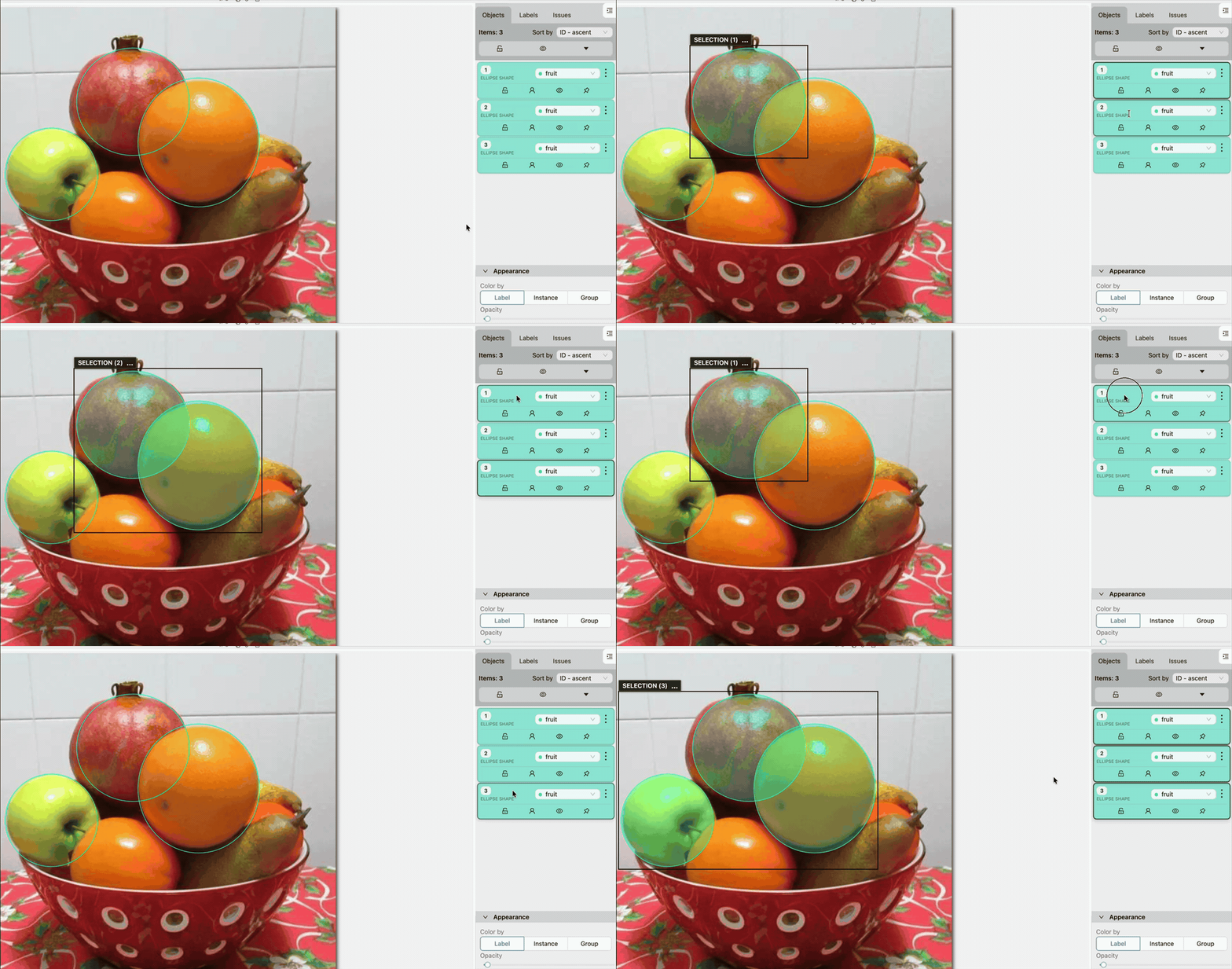
In the Layer Stack, object-card range selection is limited to one expanded layer. Hidden, filtered, outside, and hidden-layer objects are not selected. Tags and individual skeleton elements cannot be added to a multi-object selection. A Points object is selected as one complete object rather than as separate points.
Changing a selection
To clear the selection, do one of the following:
- Press Esc.
- Click outside the selection while using the Cursor tool.
- Click an unselected object without a selection modifier while using the Cursor tool to return to regular single-object interaction.
Use Ctrl/Command+Click to remove individual objects without clearing the rest of the selection. Hiding an object or its layer removes the object from the active selection. Undoing the hide action restores both the object’s visibility and its previous selection membership. Showing the object again manually does not add it back to the selection.
Moving selected objects
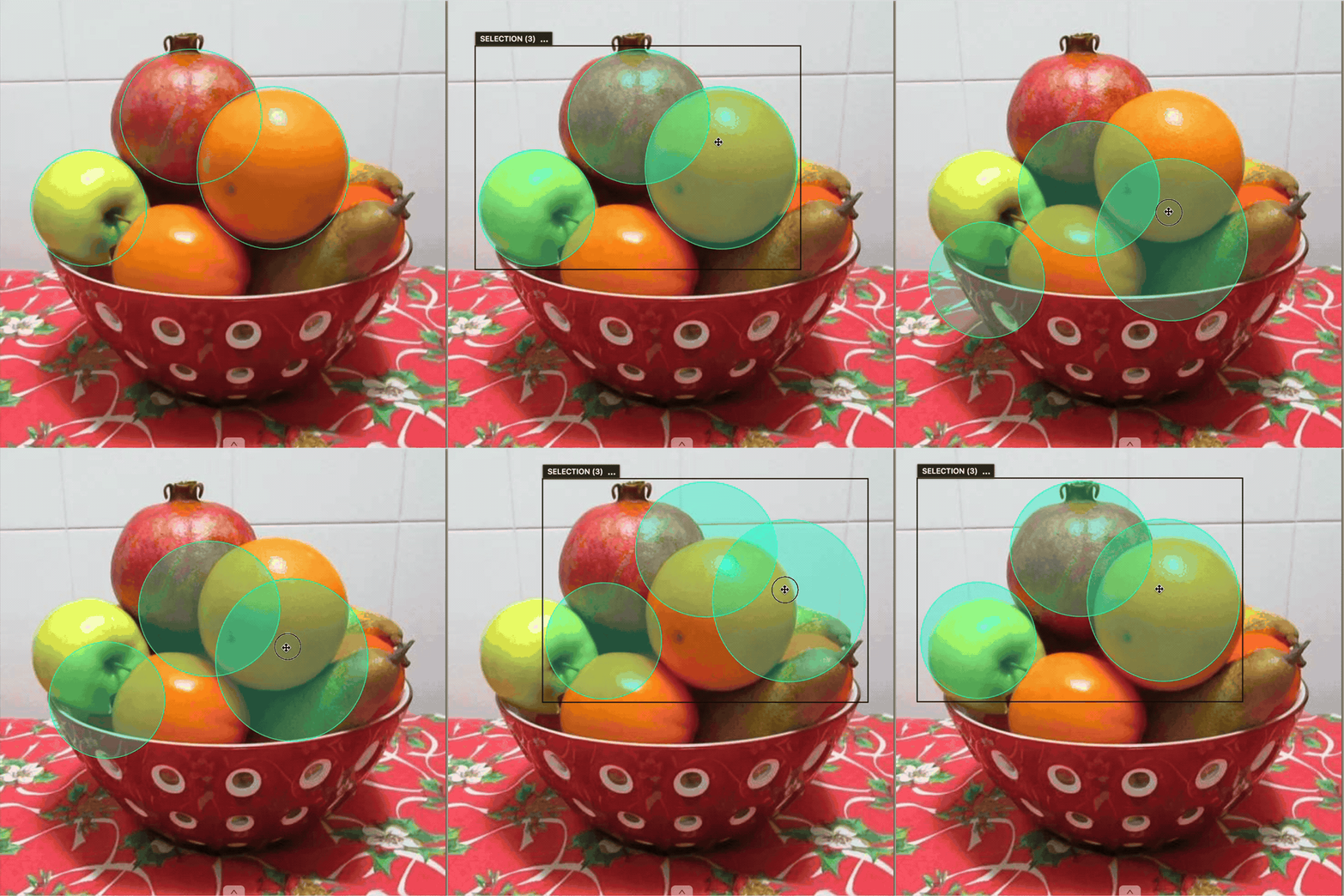
To move a selection, drag one of the following:
- The selection bounding box.
- The SELECTION (N) label.
- A movable object that belongs to a selection containing multiple objects.
All movable objects are translated by the same distance, preserving their relative positions, rotations, and layer order.
Locked, pinned, and ground-truth objects remain selected but do not move. If the selection contains both movable and stationary objects, only the movable objects are translated. A selection containing only stationary objects cannot be dragged.
Selection actions
Open the selection action card by right-clicking the selection bounding box.
The card contains the label selector, frequently used actions represented by icons, and a More selection actions (⋯) menu for additional operations. It also displays the number of selected objects and a compact type summary. Hover over the summary to see the number of objects of each type.
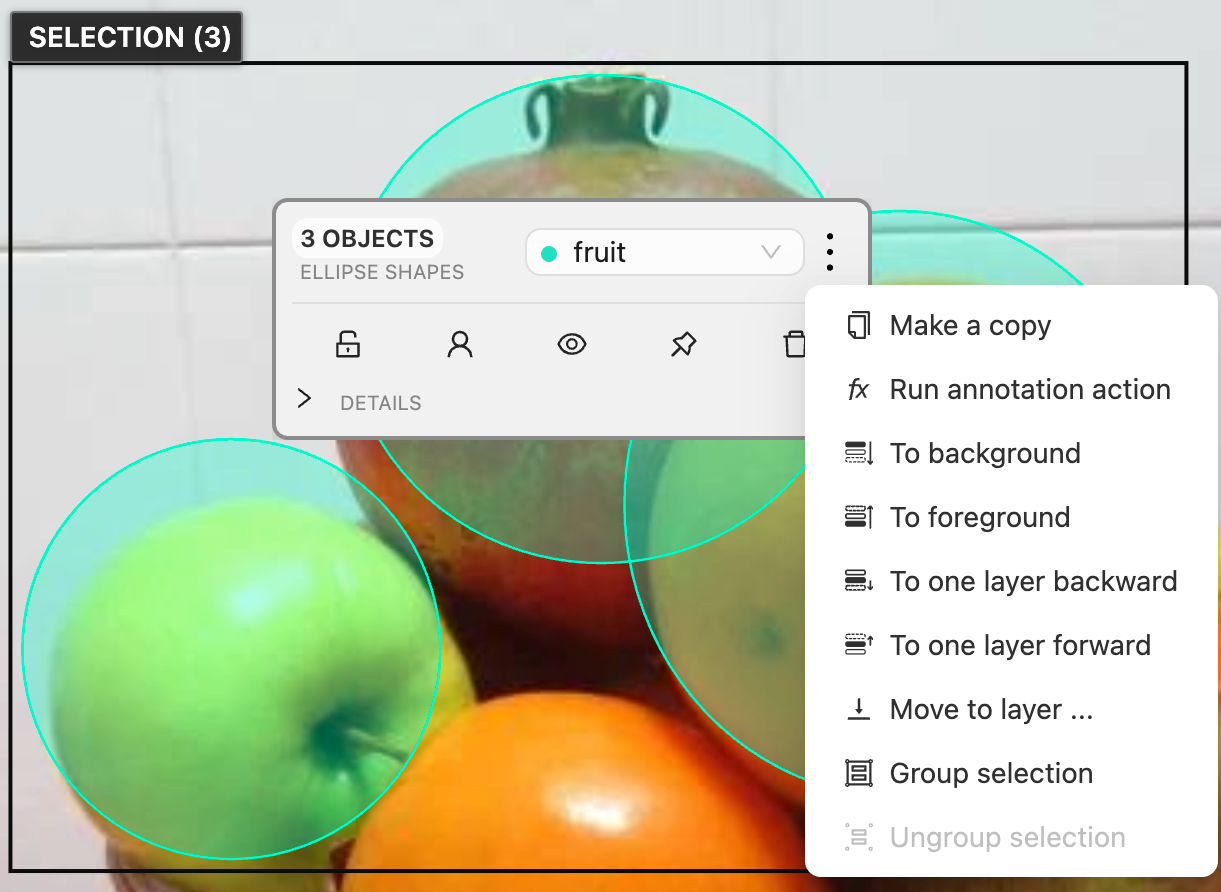
Unavailable actions are disabled when they cannot be applied safely to the selection. Hover over a disabled action to see why it is unavailable.
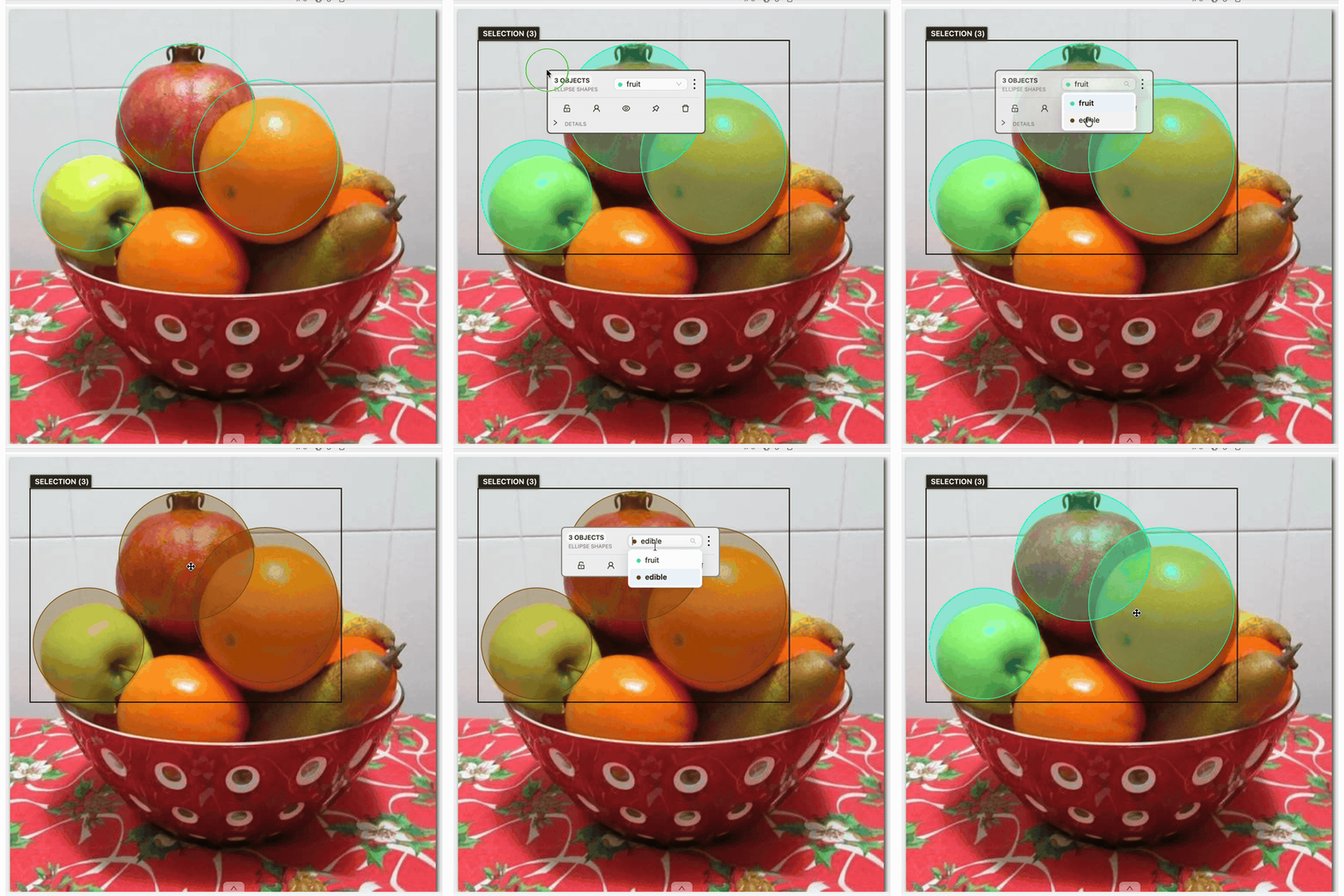
Changing labels
Use the label selector at the top of the card to apply one label to the complete selection. The selector contains only labels that are compatible with every selected object. If the selected objects have different labels, the selector displays Multiple labels.
The selector is disabled when no common label is available or when the selection contains a locked, ground-truth, or skeleton object.
Changing attributes
Expand Details to edit attributes for the complete selection. This section is available when all selected objects have the same label and that label has attributes. If an attribute has different values among the selected objects, its control indicates a mixed value. Selecting a new value applies it to every selected object.
Attributes are read-only when the selection contains a locked or ground-truth object.
Locking and pinning
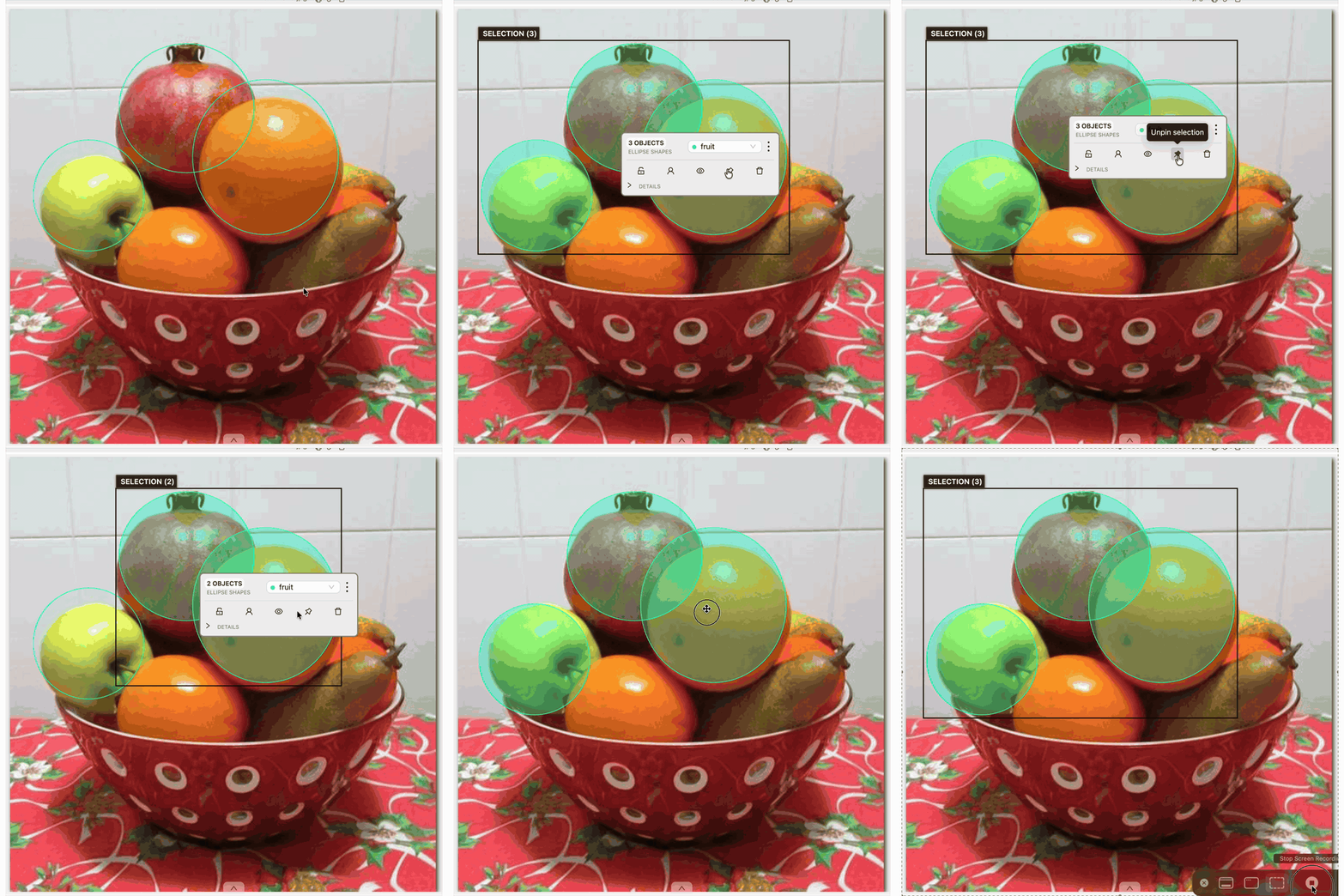
Use the lock icon to lock or unlock all selected objects. Locking and unlocking are unavailable when the selection contains a ground-truth object.
Use the pin icon to pin or unpin all selected objects. Pinning and unpinning are unavailable when the selection contains a locked or ground-truth object.
For a selection with mixed lock or pin states, the action changes only the objects needed to bring the complete selection to the state shown by the action.
Occluding and hiding
Use the occluded icon or press Q or / to change the occluded state of every selected object. Use the visibility icon or press H to hide the complete selection.
These actions are unavailable when the selection contains a locked or ground-truth object. Hiding removes the hidden objects from the active selection. Undo restores both their visibility and their selection membership as one history action.
Copying and running annotation actions
Open More selection actions (⋯), then select Make a copy to copy the selected objects and start interactive placement. For details, see Copying and pasting a selection.
In the same menu, select Run annotation action to open the annotation action dialog with the selected objects as its input. The dialog provides actions that are compatible with the selected objects.
Changing the layer order
Open More selection actions (⋯), then use one of the following actions to change the layer order of selected objects:
- To background moves them behind the other objects.
- To foreground moves them in front of the other objects.
- To one layer backward moves each object one layer backward.
- To one layer forward moves each object one layer forward.
- Move to layer … moves them to a specified layer.
Layer actions apply only to unlocked, editable shapes and tracks in the selection. Locked and ground-truth objects remain selected but keep their current layer. Layer actions are disabled when the selection contains no editable objects.
Grouping and ungrouping
Open More selection actions (⋯), then select Group selection to place the selected objects in one group. At least two objects must be selected, and the action is disabled if they already belong to the same group.
Select Ungroup selection from the same menu to remove selected objects from their groups. This action is available when at least one selected object belongs to a group. Grouping and ungrouping are unavailable when the selection contains a ground-truth object.
Deleting a selection
Use the delete icon to delete the eligible selected objects as one undoable operation. Regular deletion skips locked objects, which remain selected. Use Shift+Delete or Shift+Backspace to force-delete locked selected objects. Ground-truth objects are always skipped and remain selected.
The regular object shortcuts also work with an active selection. For example, press L to lock or unlock the selection, P to pin or unpin it, and use a configured label shortcut to change the label when it is compatible with every selected object.
Copying and pasting a selection
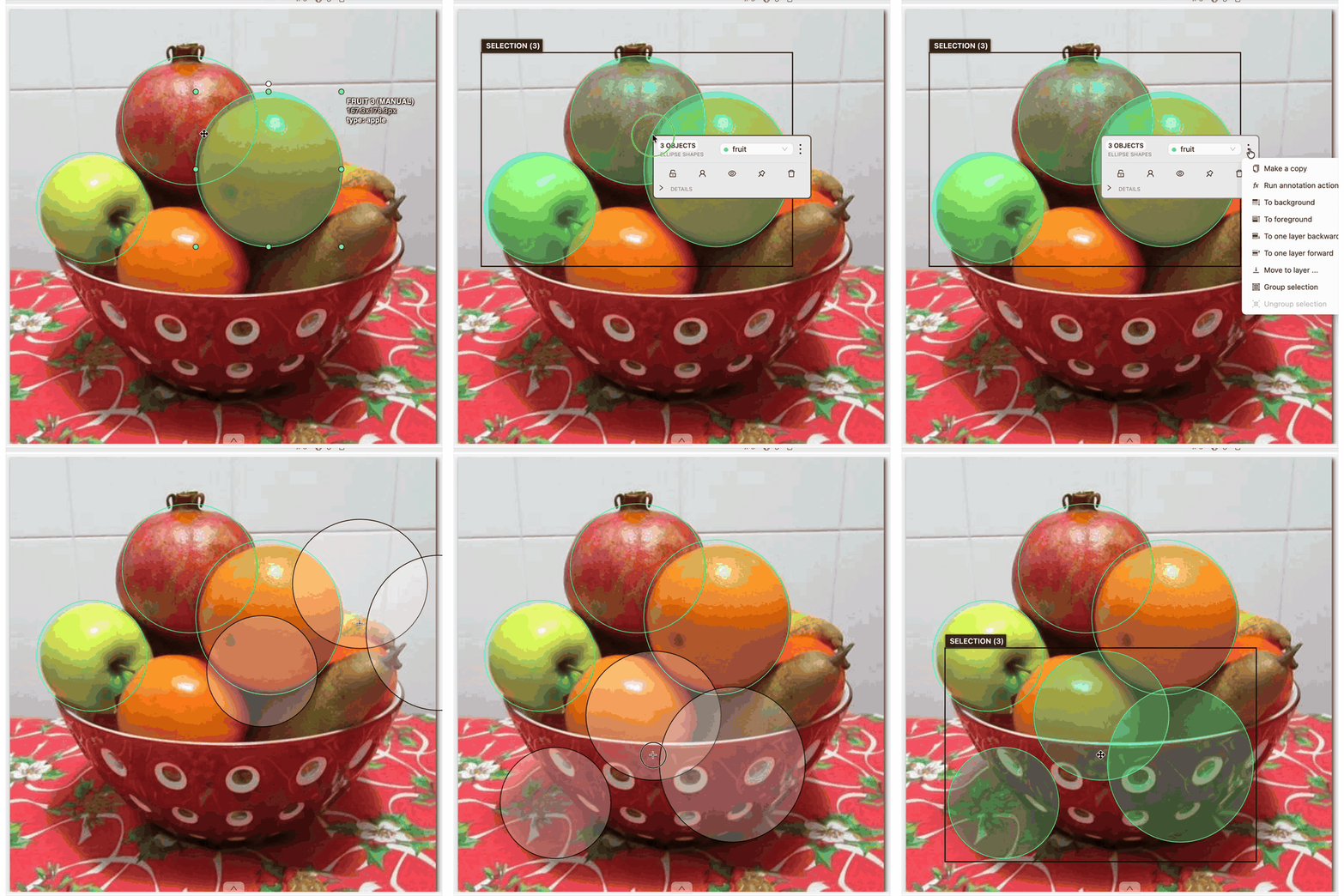
Press Ctrl+C on Windows or Linux, or Command+C on macOS, to copy the selected objects. Press Ctrl+V or Command+V to start interactive placement.
If one object is selected, copy and paste use the same placement behavior as Make a copy for a single object. For two or more objects, CVAT displays transparent preview objects. Move the pointer to the required position and click to place them. The new objects preserve their relative geometry, labels, attributes, object types, rotations, and groups, and become the active selection. Lock, visibility, pin, and instance color use the same defaults as single-object copies.
A copied selection can contain different geometry types, including rectangles, ellipses, polygons, polylines, and Points objects, as well as shapes and tracks. When objects are placed near a frame boundary, CVAT constrains or crops their geometry according to the object type.
Press Esc during interactive placement to cancel the paste without creating objects. Canceling the paste also clears the active selection.
Undo, redo, and frame navigation
Selection membership changes and supported batch operations are recorded in annotation history. Undo and redo restore selection changes, movement, deletion, paste, label and attribute changes, lock, pin, occluded, and visibility changes, grouping, and layer changes. When hiding selected objects, Undo restores both their visibility and selection membership. This also applies to skeleton objects and their elements.
On Windows and Linux, use Ctrl+Z to undo and Ctrl+Shift+Z or Ctrl+Y to redo. On macOS, use Command+Z to undo and Command+Shift+Z to redo.
When you change frames, selected frame-local shapes are removed from the selection. Selected tracks remain selected if they are visible and available on the destination frame. Outside, hidden, filtered, and hidden-layer tracks are removed from the selection.