Objects Sidebar
The Audio Editor objects sidebar contains the intervals list, label controls, and appearance settings.
Intervals list
| Image | Description |
|---|---|
 |
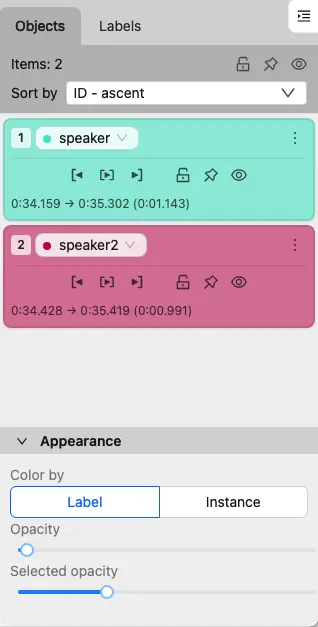
The list shows every interval in the job, including hidden intervals. Click an item to make it active, or double-click it to play it once. |
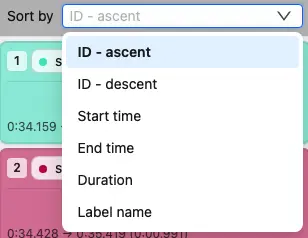 |
Use Sort by to order the list by ID, start time, end time, duration, or label name. |
 |
Bulk controls lock, pin, or hide all applicable intervals. Default shortcuts: Lock/Unlock all: T, then L Pin/Unpin all: T, then P Hide/Show all: T, then H |
Interval actions
Each interval card includes playback, state, and more actions:
| Image | Description |
|---|---|
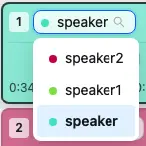  |
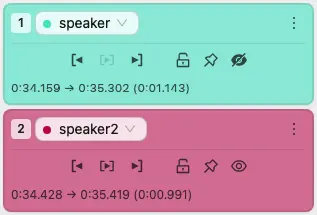
The header shows the interval number, label, source when available, start and end time, and duration. Use the label selector to change its label. |
 |
Playback controls move the playhead to the interval start or end, or play the interval once. Default shortcuts: Set playback to start: Shift+D Play once: Shift+Space Set playback to end: Shift+F |
 |
State controls lock, pin, or hide the interval. Locked intervals cannot be edited, moved, or resized. Pinned intervals cannot be moved. Hidden intervals are not shown on the waveform. Default shortcuts: Lock/Unlock: L Pin/Unpin: P Hide/Show: H |
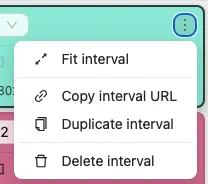 |
The More actions menu lets you fit the waveform to the interval, copy its URL, duplicate it, change its color when available, or delete it. Default shortcuts: Fit interval: I Delete: Del Force-delete a locked interval: Shift+Del |
Labels and appearance
| Image | Description |
|---|---|
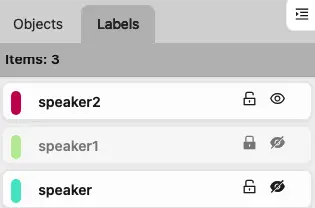 |
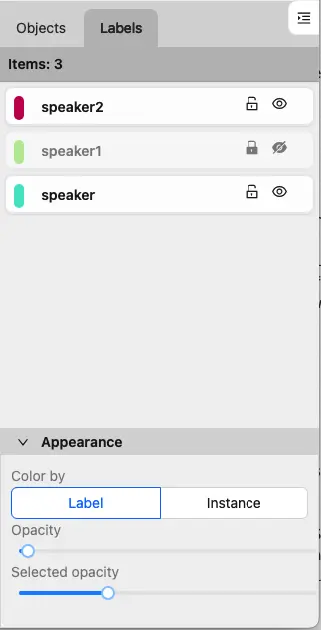
The labels section lets you manage interval visibility and locking by label. |
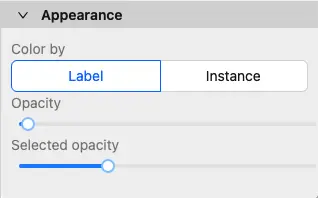 |
In Appearance, choose whether interval colors are determined by Label or Instance and adjust the general and selected interval opacity. |