This is the multi-page printable view of this section.
Click here to print.
Return to the regular view of this page.
Audio Editor
Annotate audio recordings with labeled time intervals in the CVAT Audio Editor.
The Audio Editor is the annotation interface for audio data. Instead of frames and shapes,
you work with labeled time intervals on an audio waveform.
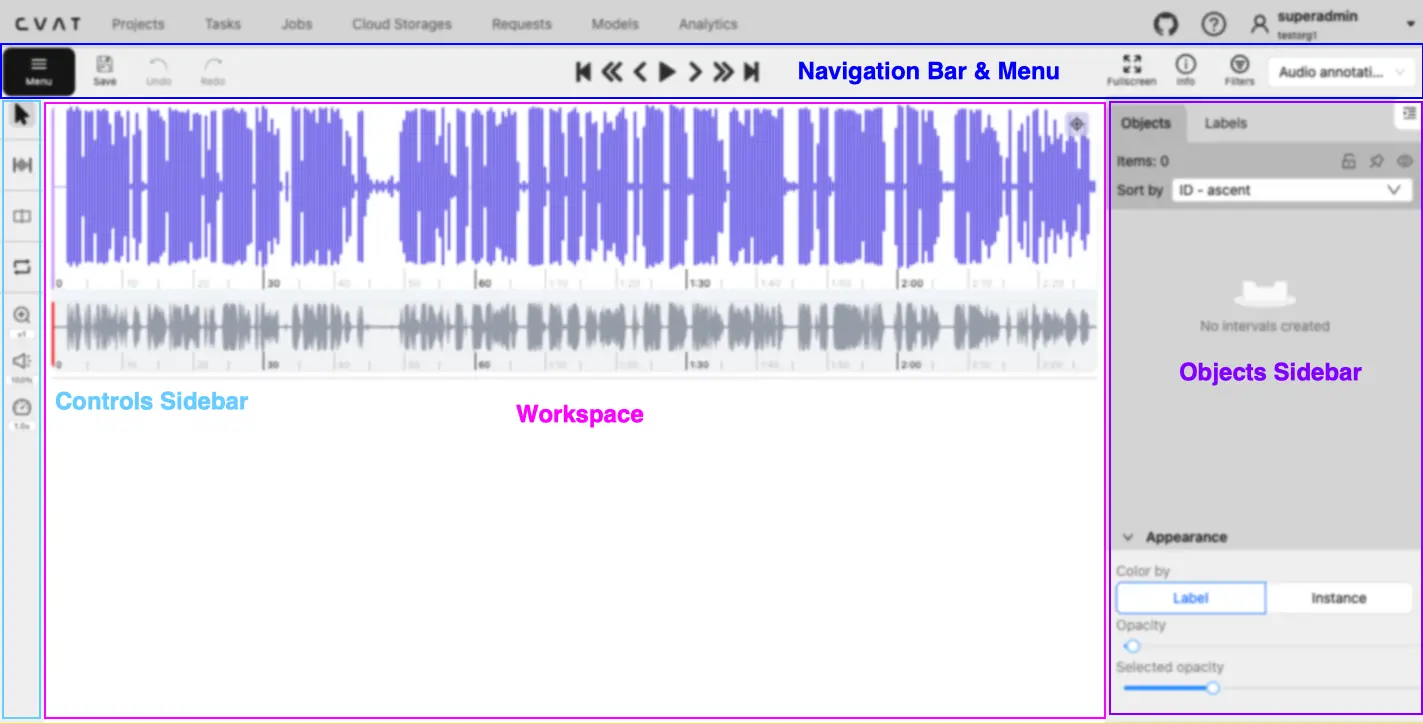
Use the Audio Editor to play a recording, create intervals for relevant time ranges, and assign
labels and attributes to each interval. Audio tasks open in this editor automatically.
1 - Menu and Navigation Bar
Use the Audio Editor menu and top bar to manage audio annotations and playback.
The Audio Editor top bar contains job actions, save and undo controls, and audio playback navigation.
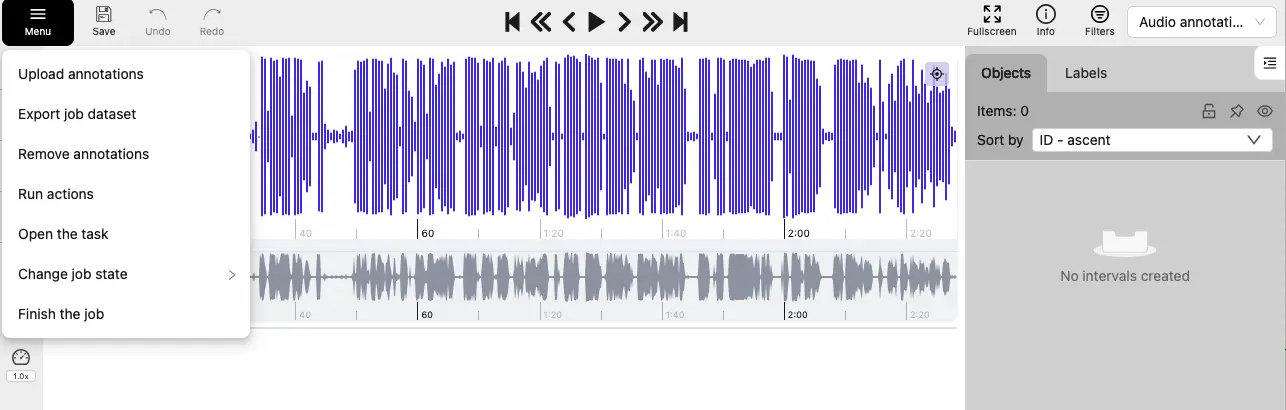
Open the Menu to manage the current job:
| Item |
Description |
| Upload annotations |
Imports interval annotations into the job. Audio tasks use the Generic TSV 1.0 format. |
| Export job dataset |
Exports interval annotations. |
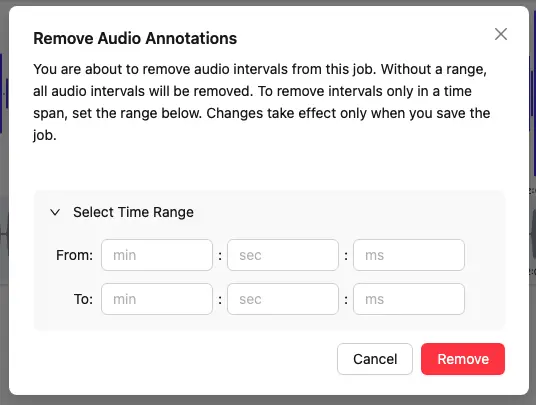
| Remove annotations |
Removes all intervals, or only the intervals in a selected time range.
The removal is saved only after you save the job.
 |
| Run actions |
Annotation actions are currently not available for audio jobs. |
| Open the task |
Opens the task details page. |
| Change job state |
Changes the job state to New, In Progress, Rejected, or Completed. |
| Finish the job |
Saves the annotations and sets the job state to Completed. |
Save, undo, and redo
| Button |
Description |
Save
 |
Submits unsaved interval changes to the server.
Default shortcuts:
Ctrl+S
⌘+S |
Undo
 |
Reverses the latest interval creation, deletion, or edit in the current session.
Default shortcuts:
Ctrl+Z
⌘+Z |
Redo
 |
Restores the most recently undone interval change.
Default shortcuts:
Ctrl+Shift+Z
Ctrl+Y
⌘+Shift+Z |
Playback navigation
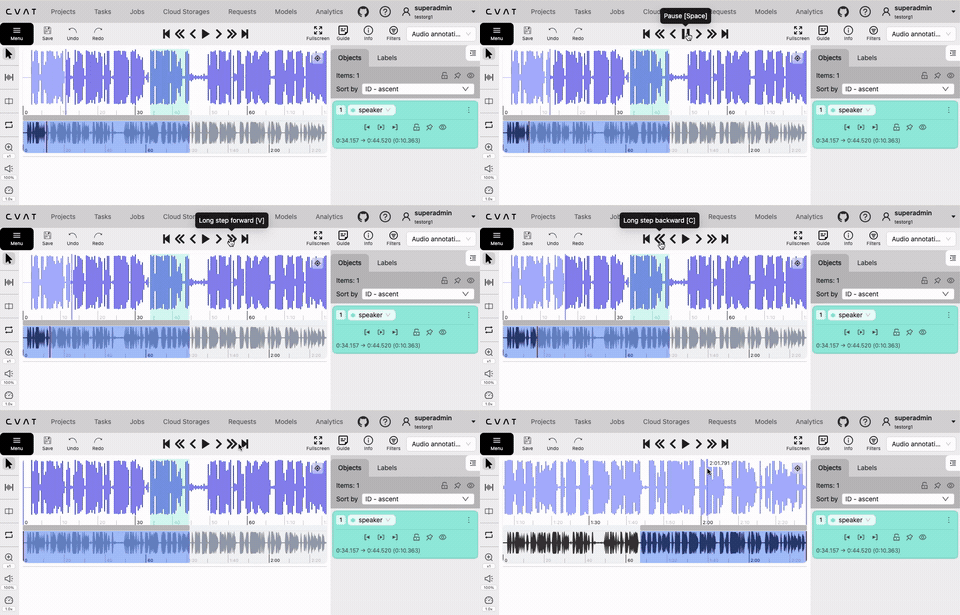
Use the player controls to play or pause the audio and move the playhead:
| Button |
Description |
Jump to start
 |
Moves the playhead to the beginning of the recording. |
Long step backward
 |
Moves the playhead backward by 5% of the currently visible waveform.
Default shortcut: C. |
Short step backward
 |
Moves the playhead backward by 0.5% of the currently visible waveform.
Default shortcut: D. |
Play/Pause
 |
Starts or pauses playback.
Default shortcut: Space. |
Short step forward
 |
Moves the playhead forward by 0.5% of the currently visible waveform.
Default shortcut: F. |
Long step forward
 |
Moves the playhead forward by 5% of the currently visible waveform.
Default shortcut: V. |
Jump to end
 |
Moves the playhead to the end of the recording. |
Note
The step sizes are fixed and cannot be configured. The displayed shortcuts are configurable.
| Control |
Description |
Fullscreen
 |
Toggles fullscreen mode for the Audio Editor. |
Guide
 |
Opens the task guide when one is configured. |
Info
 |
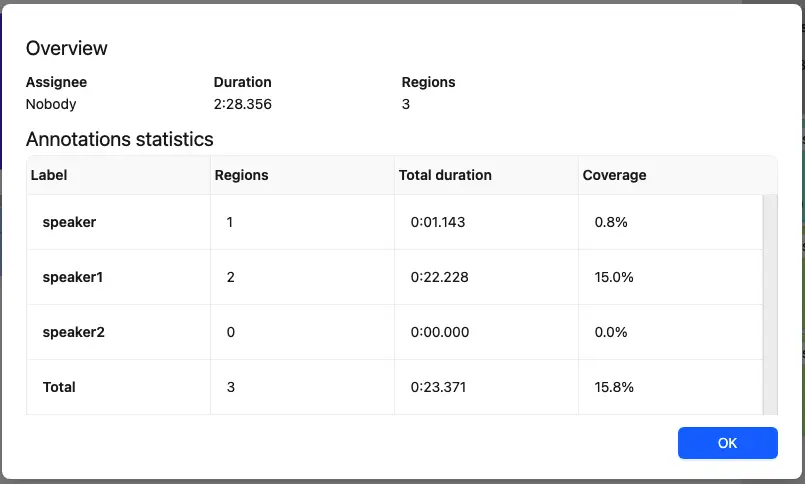
Opens job statistics, including the total audio duration, region count, and per-label region counts, duration, and coverage.
 |
Filters
 |
Restricts the intervals shown in the sidebar and waveform. See Filters. |
Annotation mode
 |
The drop-down list to switch between different annotation modes:
Audio annotation is currently the only available annotation mode for audio jobs. |
2 - Workspace
Navigate and inspect an audio recording on the waveform and minimap.
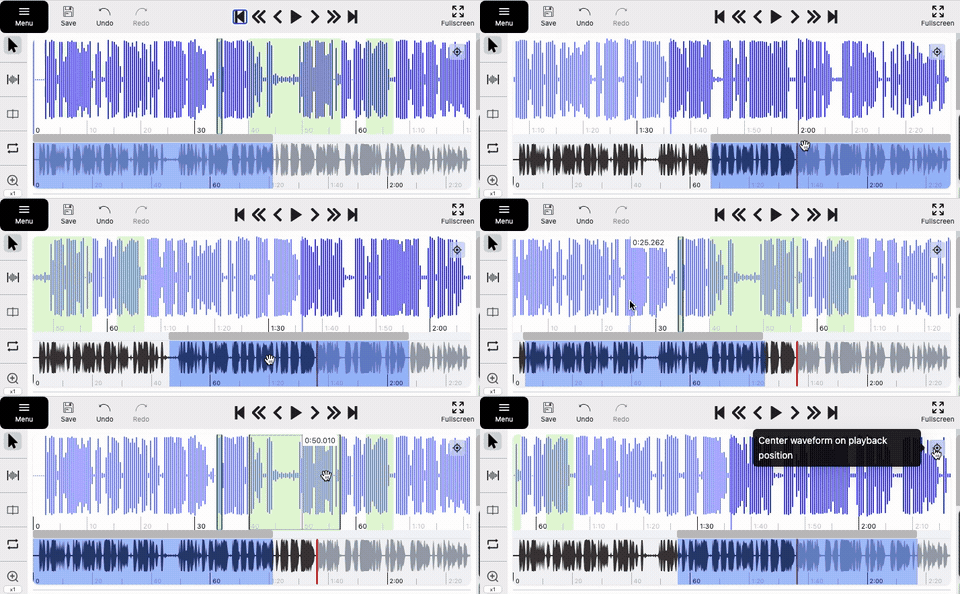
The Audio Editor workspace displays the recording as a waveform. The vertical playhead marks the
current playback position, and colored regions represent audio intervals.
Move through the recording
-
Click the waveform to move the playhead to that time. To move through a zoomed recording, use the
horizontal scrollbar, horizontal scrolling on a supported mouse or touchpad, or
Shift+mouse wheel.
-
The minimap shows the entire recording. Click it to move to a time, or drag its visible-area overlay
to scroll the waveform horizontally.

-
Click Center waveform on playback position button at the top right corner of the waveform
to bring the current playhead into view.

Zoom and inspect
-
Use the Zoom control or scroll the mouse wheel over the waveform to
change the time scale.
-
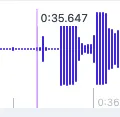
The hover guide shows the timestamp at the pointer position, and timeline tick marks and labels
adjust automatically to the current zoom level.
-
Drag the handle below the minimap to change the waveform height.
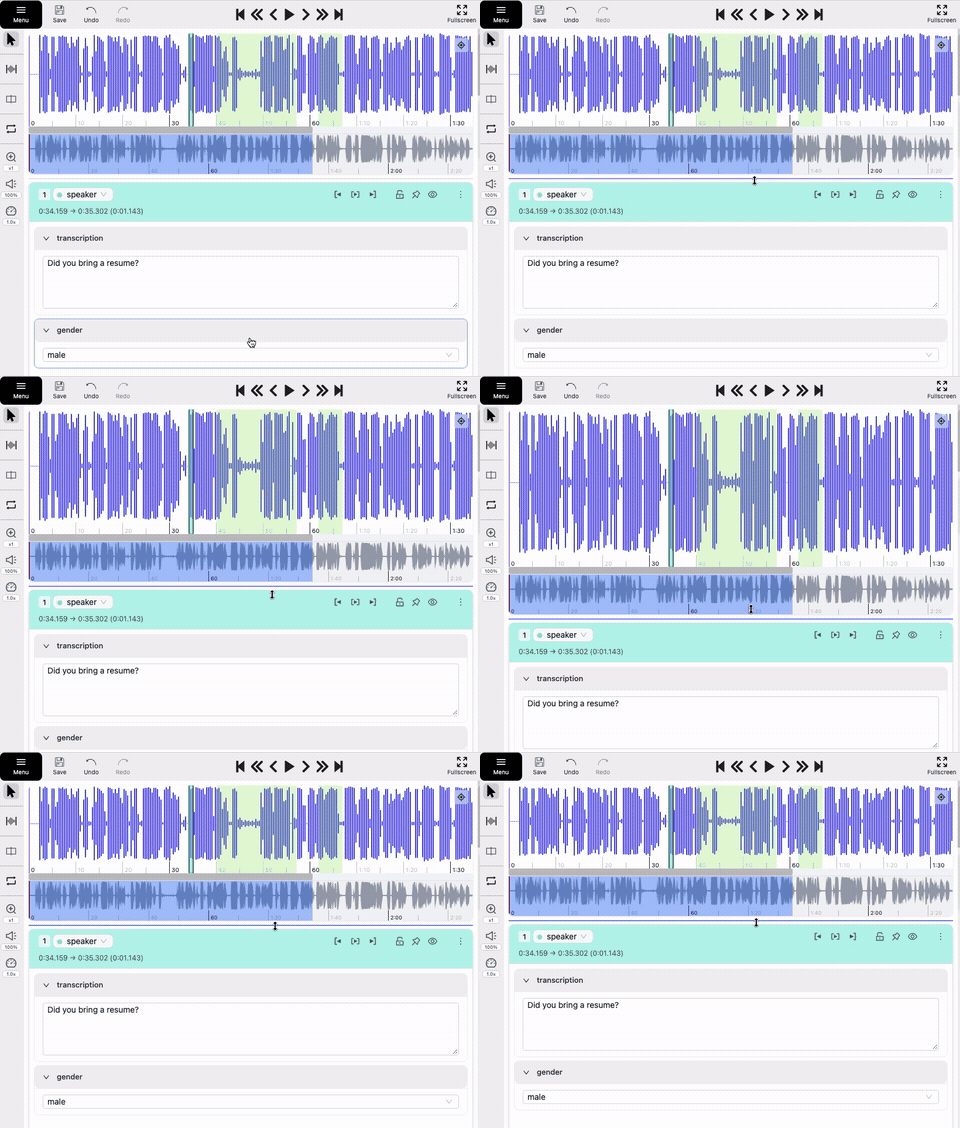
Select and edit intervals
| Action |
Description |
| Select |
Click an interval on the waveform or select it in the Objects Sidebar to make it active.
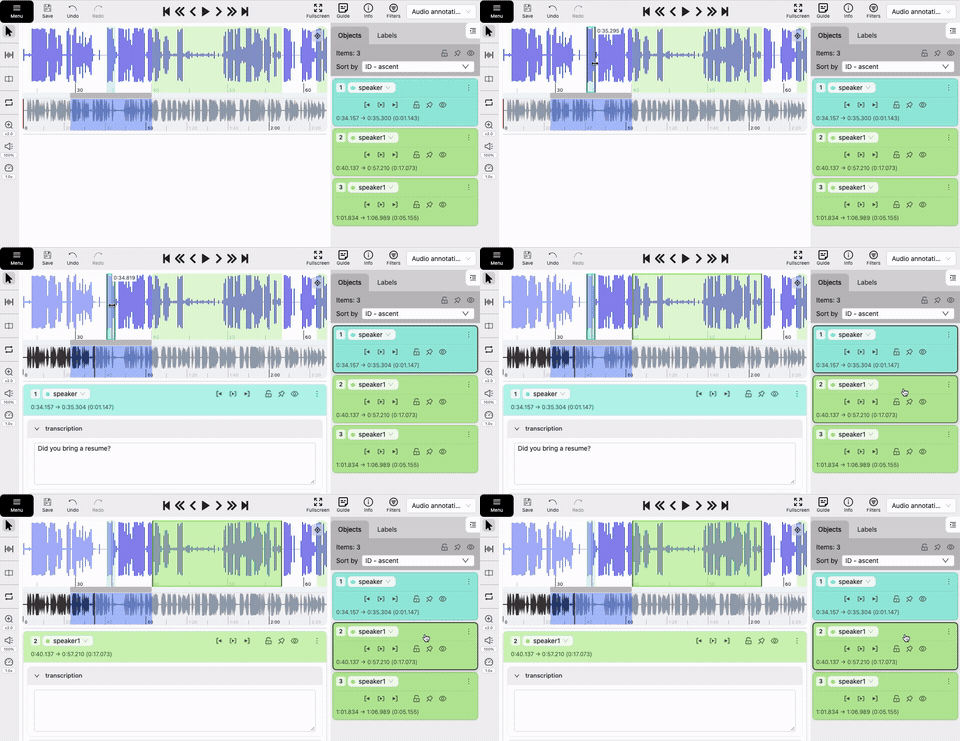
Default shortcuts:
Next visible interval: Tab
Previous visible interval: Shift+Tab
Each shortcut selects and centers the interval on the waveform. |
| Move |
Drag an interval to change its position.
Hold Alt while dragging to snap either boundary to a nearby boundary of another visible interval. If both boundaries have eligible snap targets, CVAT uses the closest one.
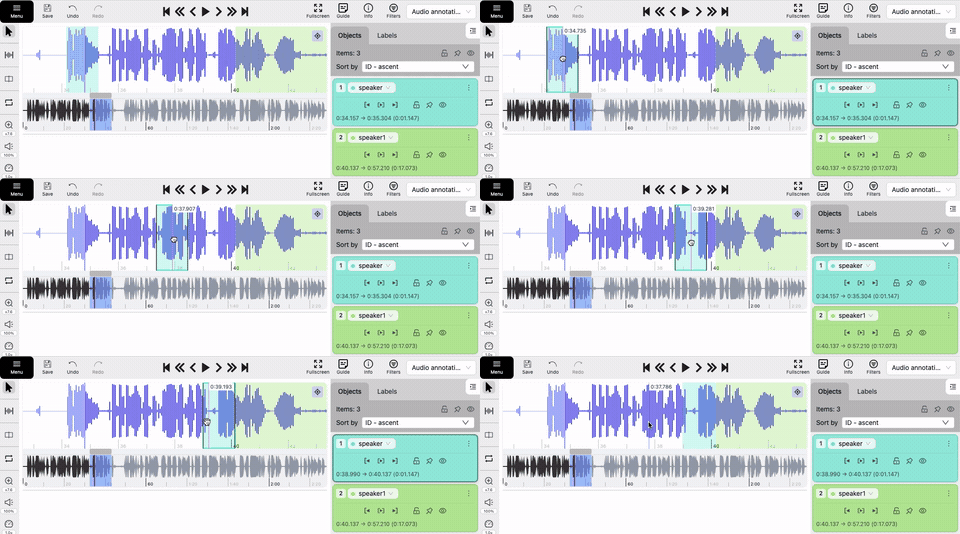 |
| Resize |
Drag either boundary to change its start or end time.
When you resize an interval beyond the visible edge, the waveform scrolls automatically.
Hold Alt to snap the boundary being resized to a nearby boundary of another visible interval. It cannot snap to the other boundary of the same interval.
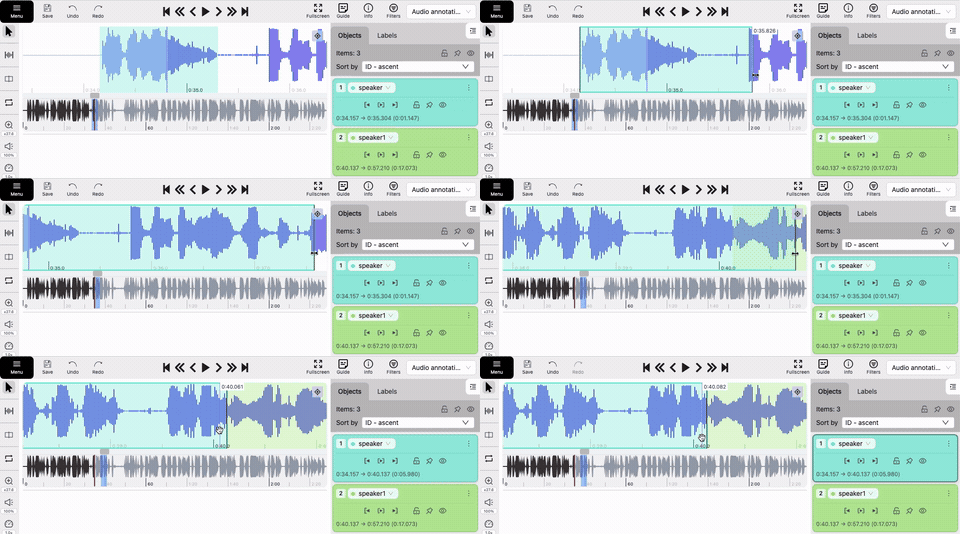 |
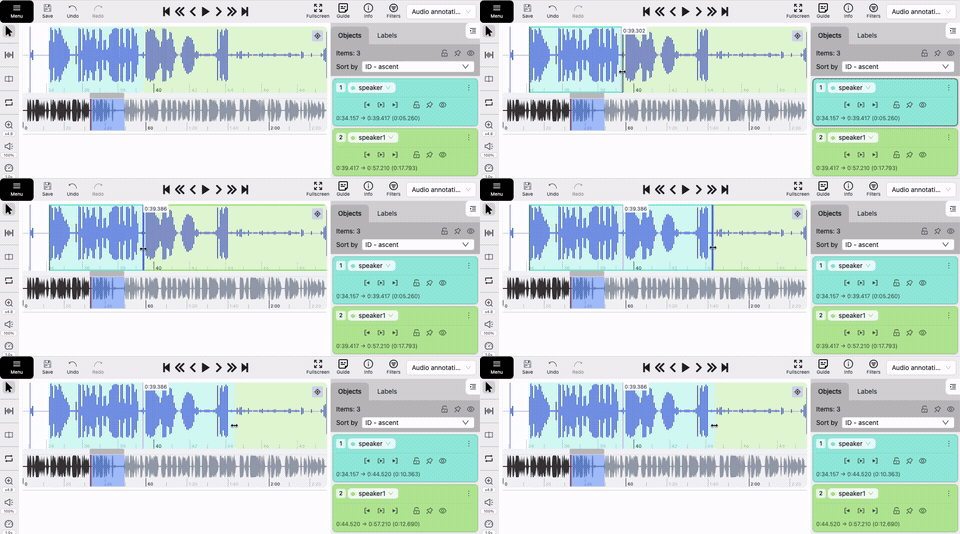
| Bulk resize |
Hold Shift near adjacent interval boundaries to highlight nearby unlocked boundaries, then drag to resize them together.
 |
Interval details
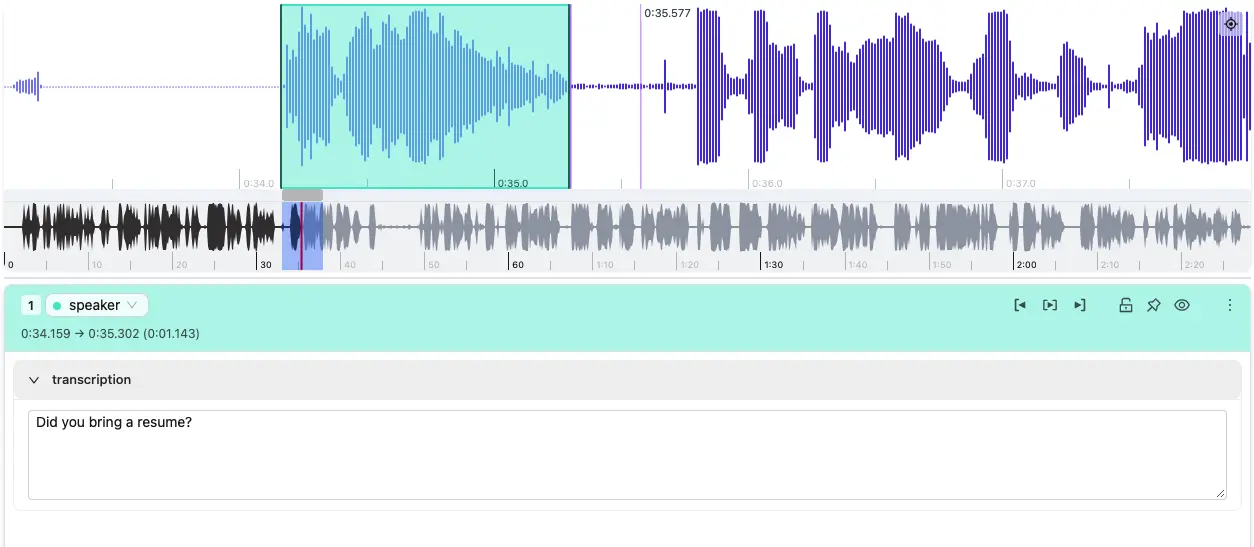
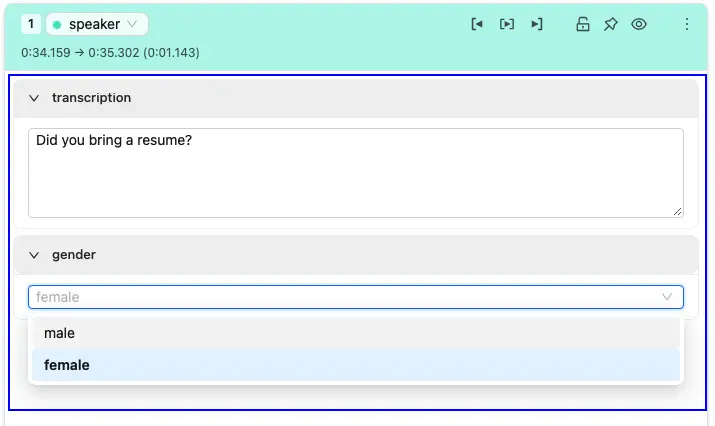
When you select an interval, its details panel appears below the waveform.
| Image |
Description |
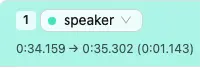 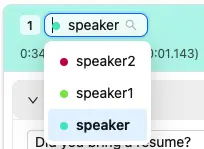 |
The header shows the interval number, label, source when available, start and end time, and duration. Use the label selector to change its label. |
 |
Playback controls move the playhead to the interval start or end, or play the interval once.
Default shortcuts:
Set playback to start: Shift+D
Play once: Shift+Space
Set playback to end: Shift+F |
 |
State controls lock, pin, or hide the interval. Locked intervals cannot be edited, moved, or resized. Pinned intervals cannot be moved. Hidden intervals are not shown on the waveform.
Default shortcuts:
Lock/Unlock: L
Pin/Unpin: P
Hide/Show: H |
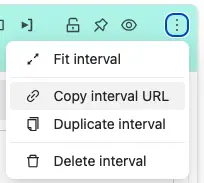 |
The More actions menu lets you fit the waveform to the interval, copy its URL, duplicate it, change its color when available, or delete it.
Default shortcuts:
Fit interval: I
Delete: Del
Force-delete a locked interval: Shift+Del |
Edit attributes
All attributes are expanded by default. Edit their values or collapse them as needed. Available
attributes depend on the selected label.
Play and manage intervals
-
Double-click an interval on the waveform to play it once.
-
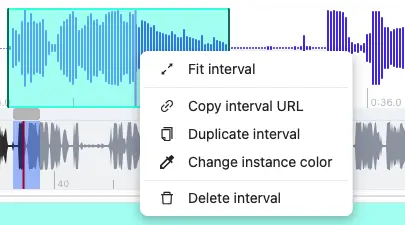
Right-click it to open the context menu, where you can:
- Fit the waveform to the interval.
- Copy the interval URL.
- Duplicate the interval.
- Change its color, when available.
- Delete the interval.
For interval creation, see Create intervals.
3 - Objects Sidebar
Manage audio intervals, labels, and appearance from the sidebar.
The Audio Editor objects sidebar contains the intervals list, label controls, and appearance
settings.
Intervals list
| Image |
Description |
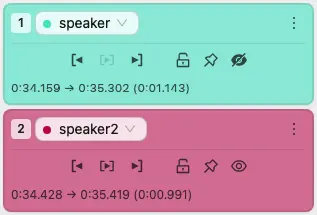 |
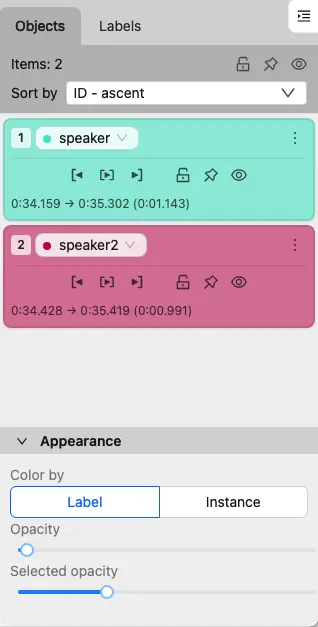
The list shows every interval in the job, including hidden intervals.
Click an item to make it active, or double-click it to play it once. |
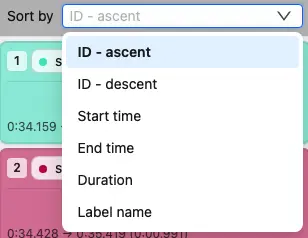 |
Use Sort by to order the list by ID, start time, end time, duration, or label name. |
 |
Bulk controls lock, pin, or hide all applicable intervals.
Default shortcuts:
Lock/Unlock all: T, then L
Pin/Unpin all: T, then P
Hide/Show all: T, then H |
Interval actions
Each interval card includes playback, state, and more actions:
| Image |
Description |
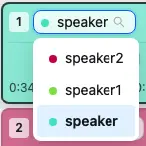  |
The header shows the interval number, label, source when available, start and end time, and duration. Use the label selector to change its label. |
 |
Playback controls move the playhead to the interval start or end, or play the interval once.
Default shortcuts:
Set playback to start: Shift+D
Play once: Shift+Space
Set playback to end: Shift+F |
 |
State controls lock, pin, or hide the interval. Locked intervals cannot be edited, moved, or resized. Pinned intervals cannot be moved. Hidden intervals are not shown on the waveform.
Default shortcuts:
Lock/Unlock: L
Pin/Unpin: P
Hide/Show: H |
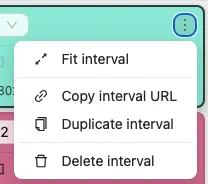 |
The More actions menu lets you fit the waveform to the interval, copy its URL, duplicate it, change its color when available, or delete it.
Default shortcuts:
Fit interval: I
Delete: Del
Force-delete a locked interval: Shift+Del |
Labels and appearance
| Image |
Description |
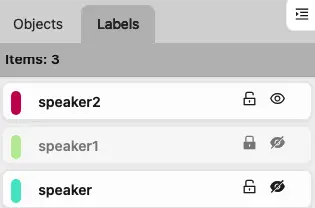 |
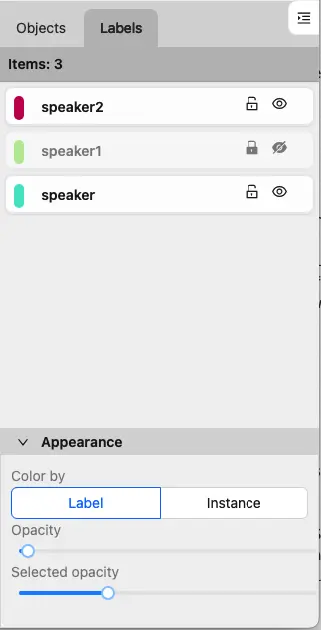
The labels section lets you manage interval visibility and locking by label. |
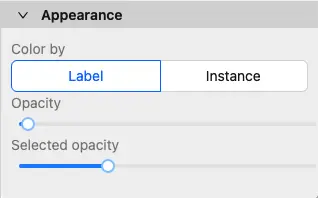 |
In Appearance, choose whether interval colors are determined by Label or Instance and adjust the general and selected interval opacity. |
4 - Controls Sidebar
Choose interval tools and adjust audio playback.
Use the controls sidebar to create and split intervals, and control playback settings.
| Control |
Description |
Cursor
 |
Returns to the selection mode and cancels an active interval creation or recording mode.
Default shortcut: Esc. |
Audio interval tools
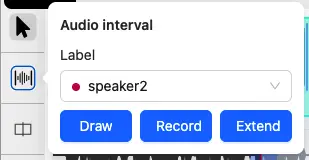
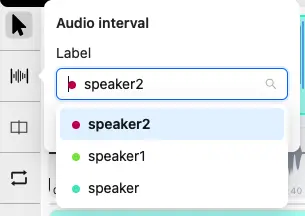 |
Opens Draw, Record, and Extend tools and default label selection. See Create intervals. |
Split interval at playback position
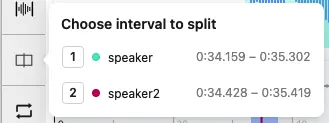 |
To split an interval, place the playhead strictly inside it and click the button.
CVAT splits the target interval into two intervals with the same label, attributes, and color.
A locked or hidden interval cannot be split.
If multiple intervals are eligible and one is active, CVAT splits the active interval.
If multiple intervals are eligible and none is active, CVAT lets you choose which interval to split.
Default shortcut: Alt+M. |
Loop interval playback
 |
Toggles looping playback for the active interval.
Default shortcut: R. |
Zoom
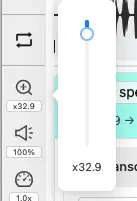 |
Changes the waveform time scale: x1-x300.
Minimum base display rate is 8px/second. |
Volume
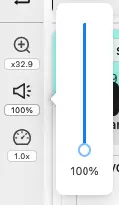 |
Changes the playback volume: 0-100%. |
Speed
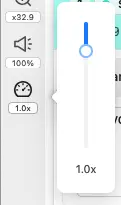 |
Changes the playback speed: 0.1x-4x. |
To change default shortcuts, see Shortcuts.
Create intervals
Open the Audio interval control and choose a label. You can then use one of the following
methods:
| Method |
How it works |
| Draw |
Drag over the waveform to define an interval. You can drag in either direction.
Hold Alt when setting the start or end to snap that boundary to a nearby boundary of a visible interval.
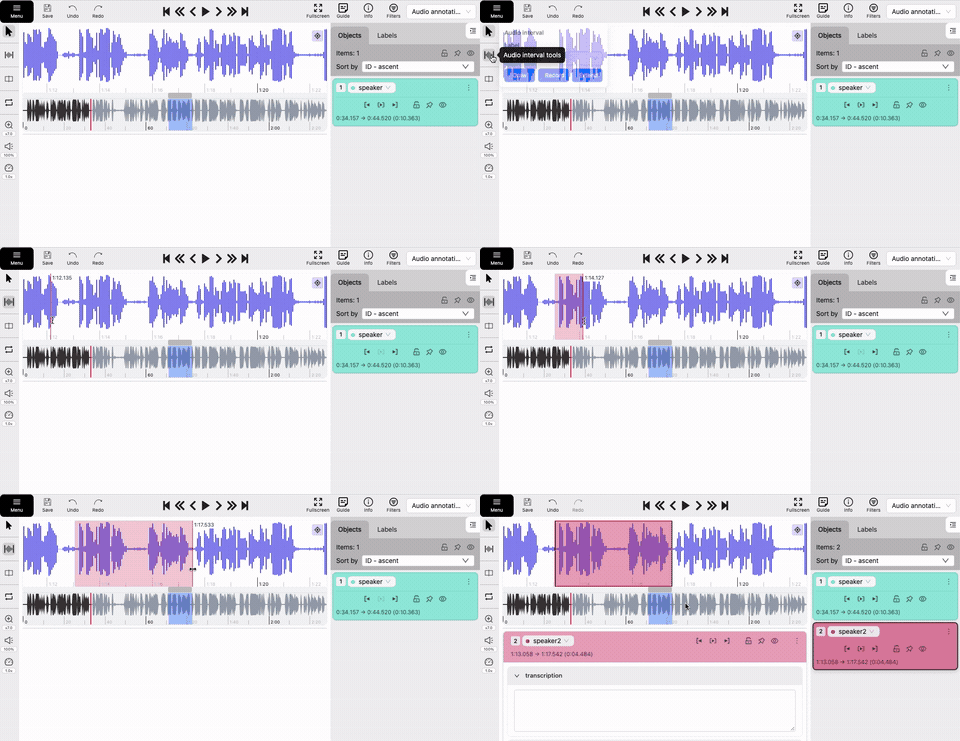
Default shortcut: N. |
| Record |
Start recording at the current playhead position.
Press play to start recording.
Press pause to set the end time.
Press Esc to cancel an unfinished recording.
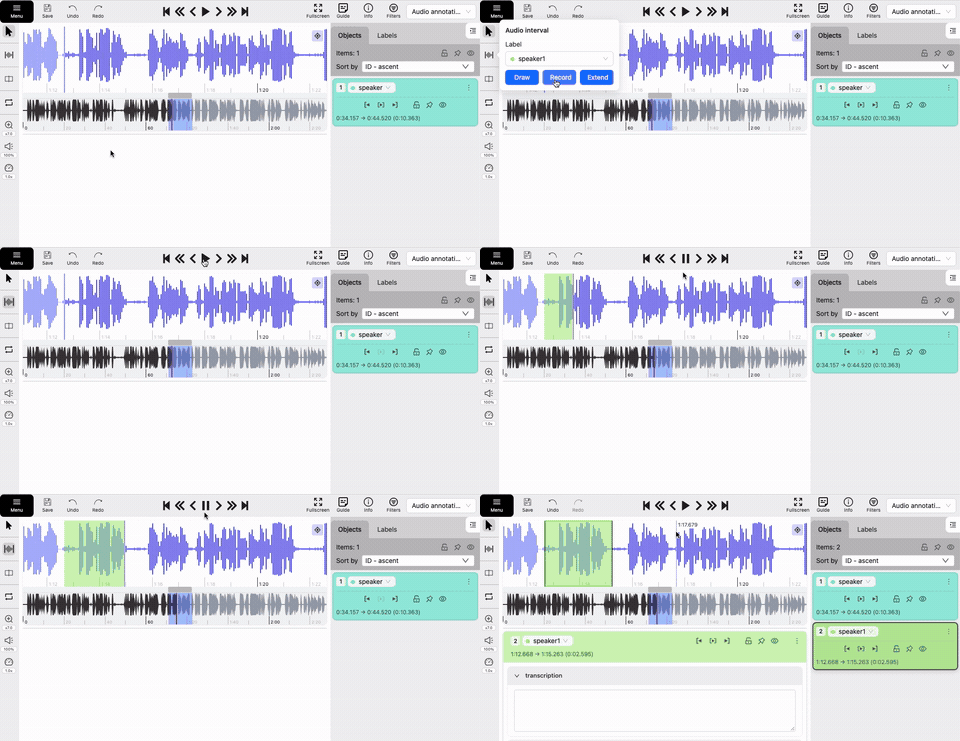
Default shortcut: Shift+N. |
| Extend |
Creates a new interval from the end of the nearest preceding interval to the current playhead.
If there is no preceding interval, it starts at the beginning of the recording.
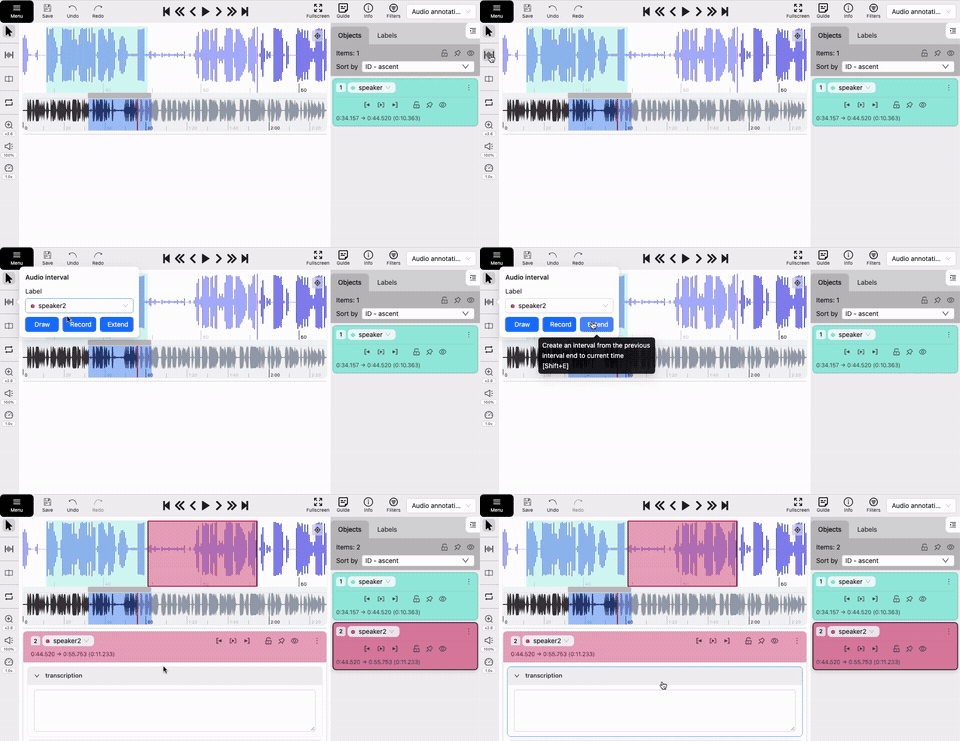
Default shortcut: Shift+E. |