Controls Sidebar
Use the controls sidebar to create and split intervals, and control playback settings.
| Control | Description |
|---|---|
Cursor  |
Returns to the selection mode and cancels an active interval creation or recording mode. Default shortcut: Esc. |
Audio interval tools 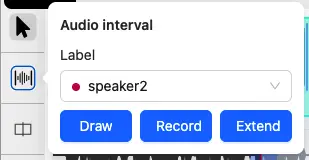 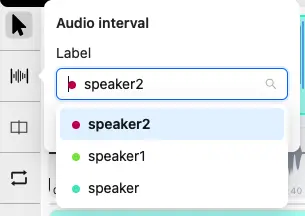 |
Opens Draw, Record, and Extend tools and default label selection. See Create intervals. |
Split interval at playback position 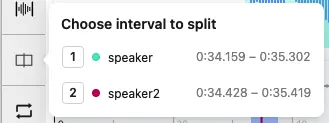 |
To split an interval, place the playhead strictly inside it and click the button. CVAT splits the target interval into two intervals with the same label, attributes, and color. A locked or hidden interval cannot be split. If multiple intervals are eligible and one is active, CVAT splits the active interval. If multiple intervals are eligible and none is active, CVAT lets you choose which interval to split. Default shortcut: Alt+M. |
Loop interval playback  |
Toggles looping playback for the active interval. Default shortcut: R. |
Zoom  |
Changes the waveform time scale: x1-x300. Minimum base display rate is 8px/second. |
Volume 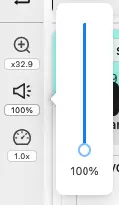 |
Changes the playback volume: 0-100%. |
Speed 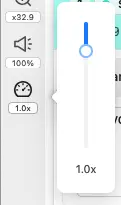 |
Changes the playback speed: 0.1x-4x. |
To change default shortcuts, see Shortcuts.
Create intervals
Open the Audio interval control and choose a label. You can then use one of the following methods:
| Method | How it works |
|---|---|
| Draw | Drag over the waveform to define an interval. You can drag in either direction. Hold Alt when setting the start or end to snap that boundary to a nearby boundary of a visible interval. 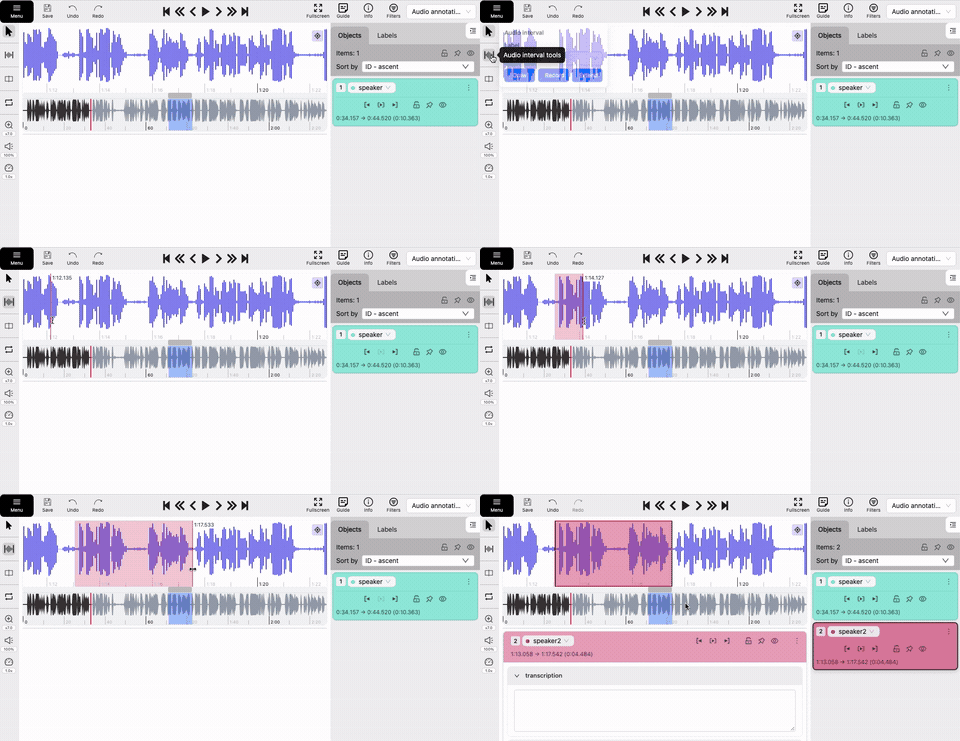 Default shortcut: N. |
| Record | Start recording at the current playhead position. Press play to start recording. Press pause to set the end time. Press Esc to cancel an unfinished recording. 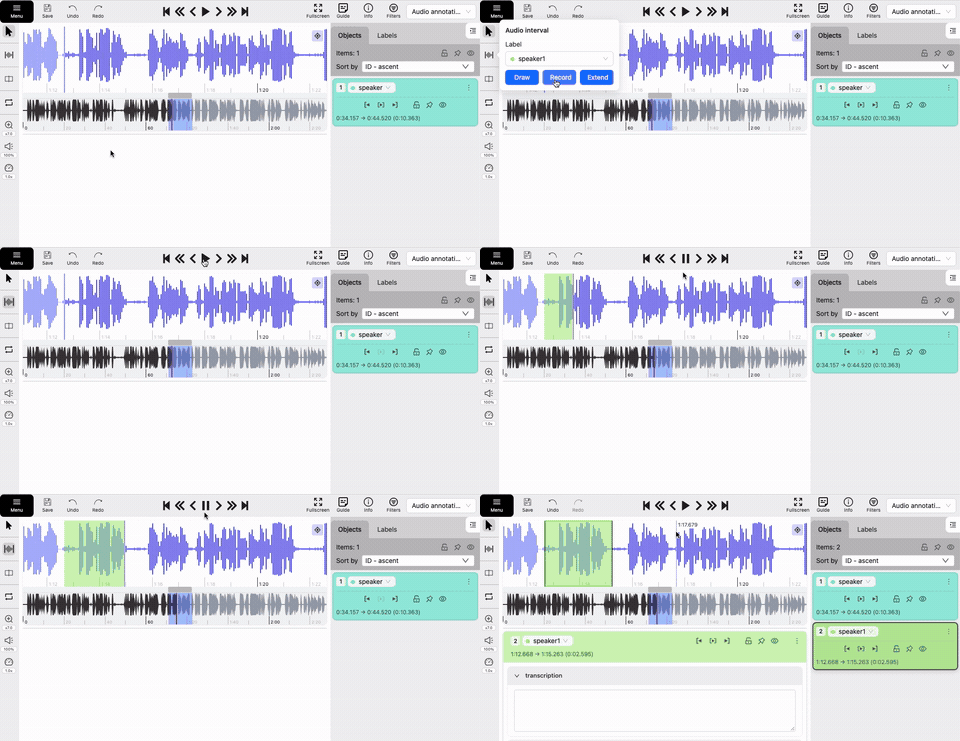 Default shortcut: Shift+N. |
| Extend | Creates a new interval from the end of the nearest preceding interval to the current playhead. If there is no preceding interval, it starts at the beginning of the recording. 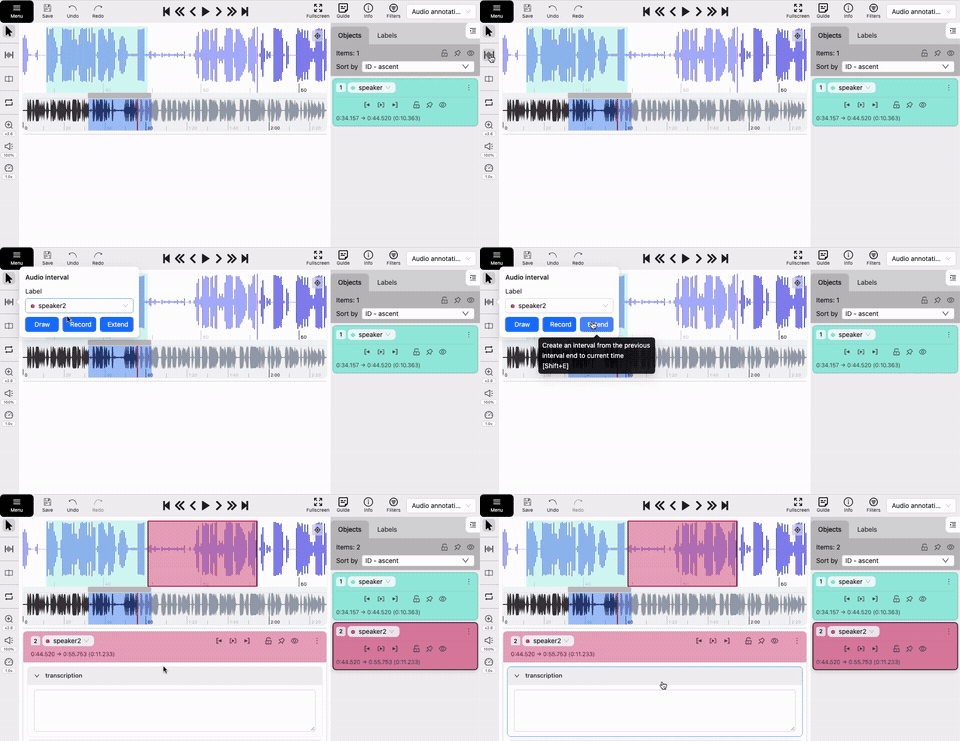 Default shortcut: Shift+E. |