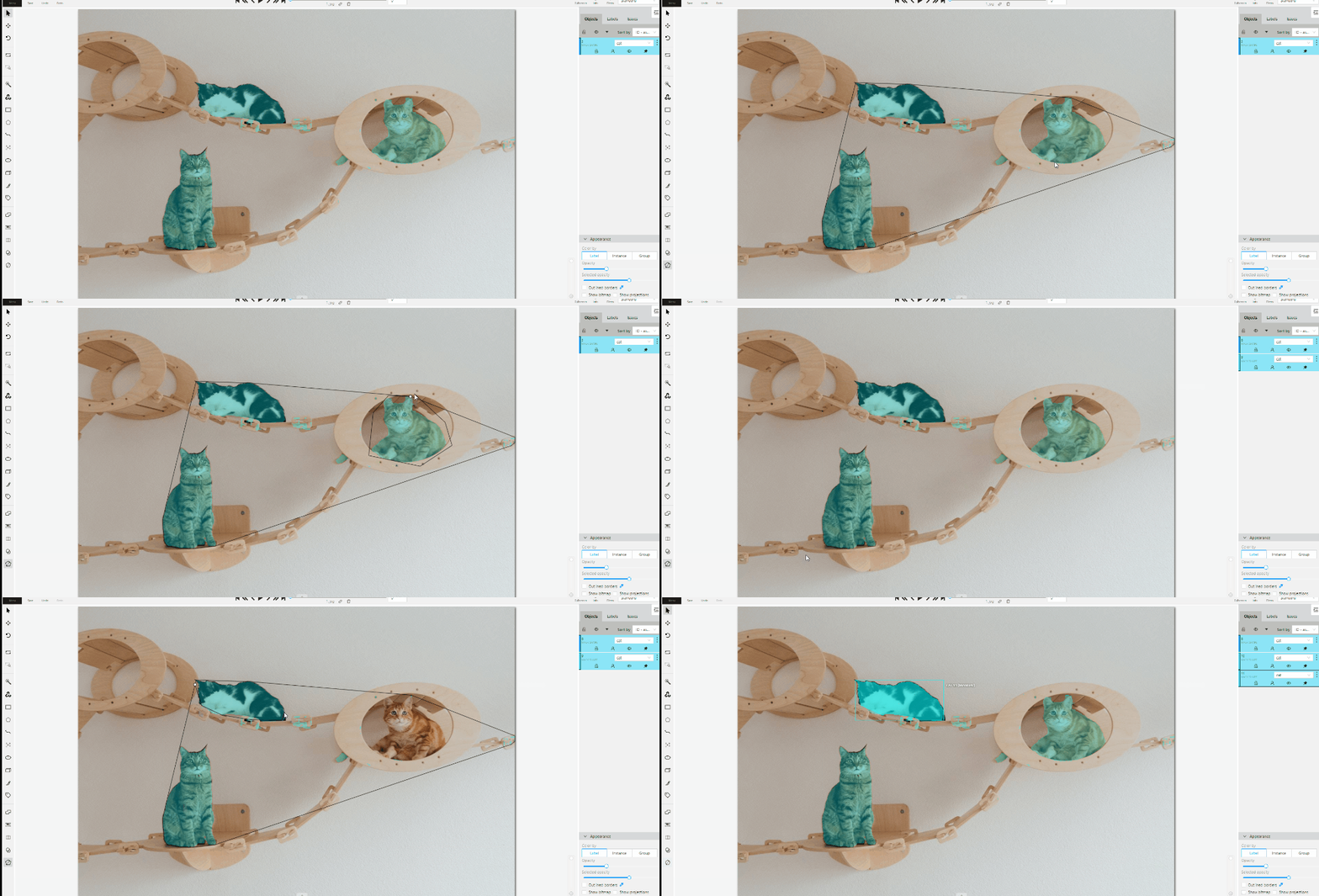
Join and slice tools
In CVAT you can modify shapes by either joining multiple shapes into a single label or slicing a single label into several shapes.
This document provides guidance on how to perform these operations effectively.
See:
Joining polygons and masks
The Join tool ( )
works with both polygon and mask annotations.
)
works with both polygon and mask annotations.
This tool is useful in scenarios where a single object in an image is annotated with multiple shapes, and there is a need to merge these shapes into a single one. For polygons, you can join overlapping polygons or polygons that share at least one edge.
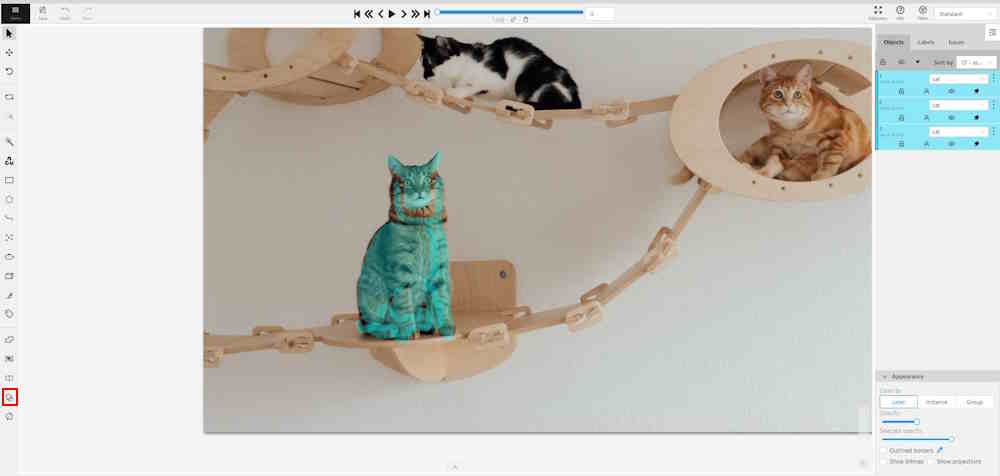
To join polygons or masks, do the following:
- From the Edit block,
select Join tool .
- Click the shapes on the canvas that you want to join.
- (Optional) To remove the selection, click the shape one more time.
- Press J or click Join tool again to execute the join operation.
Upon completion, the selected shapes will be merged.
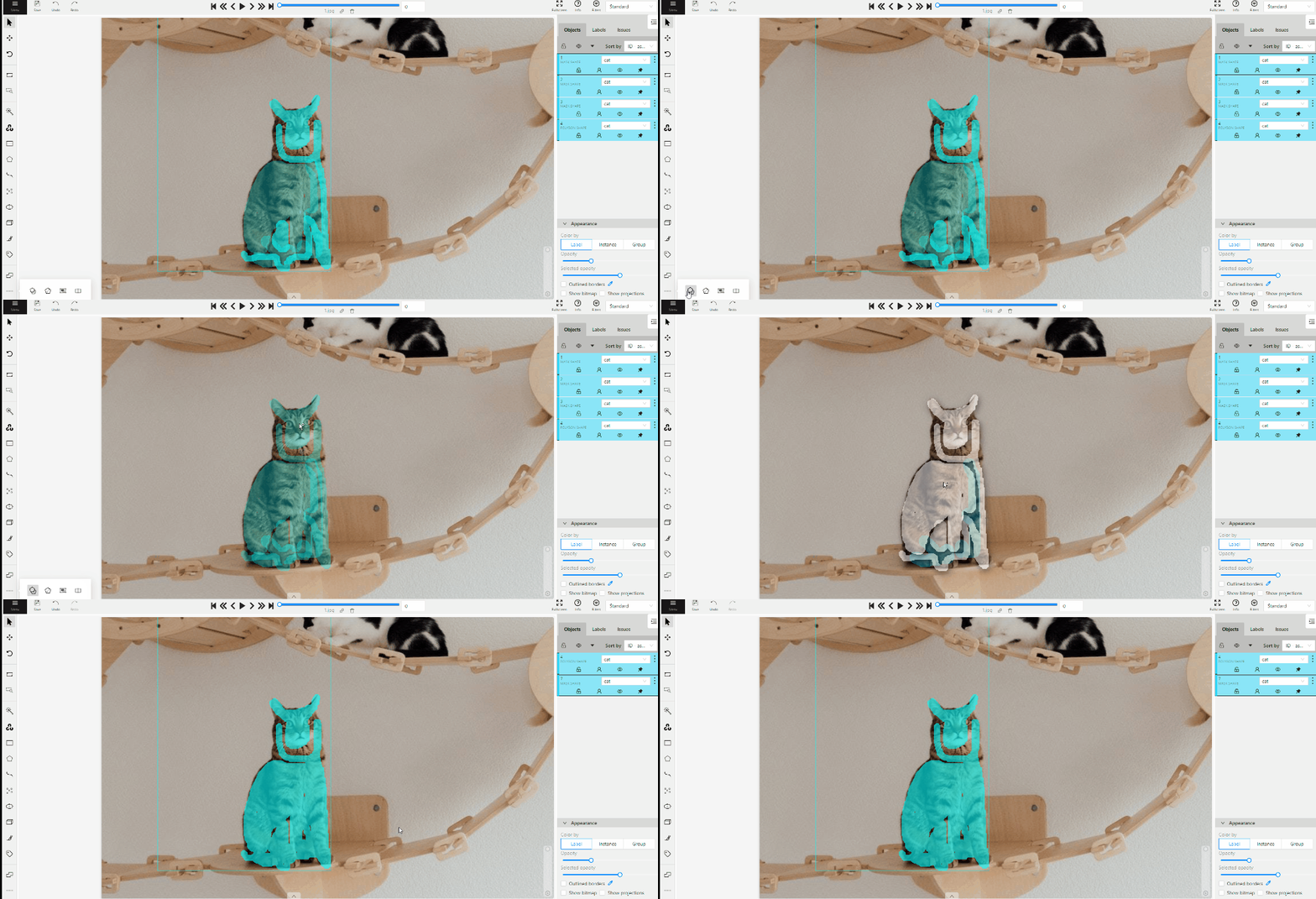
Notes about polygon merging:
- For the merge operation to be successful, polygons must overlap or share at least one edge.
- Disjoint polygons are kept as separate polygons.
- Merge is not supported if the resulting polygon would create an enclosed empty region.
- Self-intersecting polygons are excluded from the join operation.
Tip
The Snap tools can help the join operation work best by making polygon borders and vertices align more precisely.
Slicing polygons and masks
The Slice mask/polygon ( )
is compatible with both mask and polygon annotations.
)
is compatible with both mask and polygon annotations.
This tool is useful in scenarios where multiple objects in an image are annotated with one shape, and there is a need to slice this shape into multiple parts.
Note
The shape can be sliced only in two parts at a time. Use the slice tool several times to split a shape to as many parts as you need.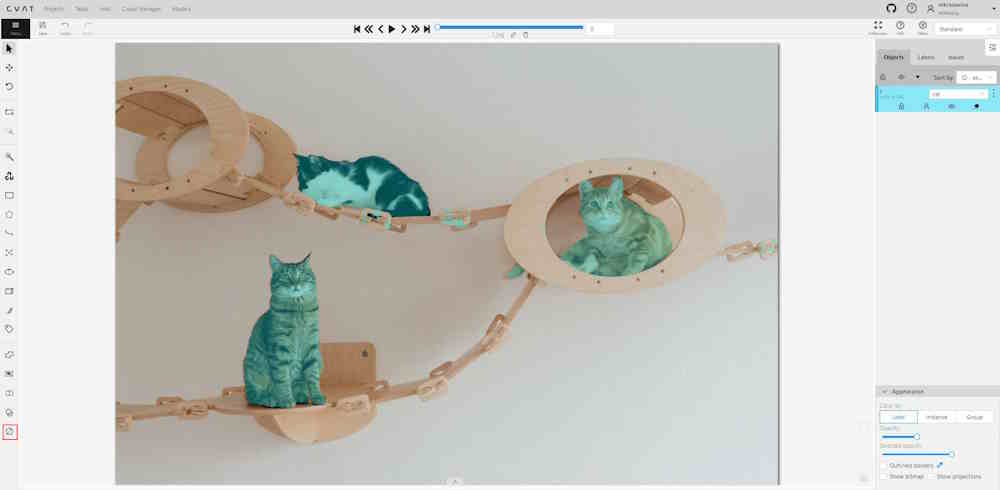
To slice mask or polygon, do the following:
- From the Edit block,
select Slice mask/polygon .
- Click on the shape you intend to slice. A black contour will appear around the selected shape.
- Set an initial point for slicing by clicking on the contour.
- Draw a line across the shape to define the slicing path.
Hold Shift to add points automatically on cursor movement.
Note: The line cannot cross itself.
Note: The line cannot cross the contour more than twice. - (Optional)> Right-click to cancel the latest point.
- Click on the contour (Alt+J) (outside the contour) to finalize the slicing.