OpenCV tools
Open the OpenCV menu on the controls sidebar to draw polygons with intelligent scissors, track objects across frames, or adjust image contrast.
Intelligent scissors
To use Intelligent scissors, do the following:
-
On the menu toolbar, click OpenCV
 and wait for the library to load.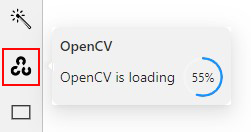
-
Go to the Drawing tab, select the label, and click on the Intelligent scissors button.
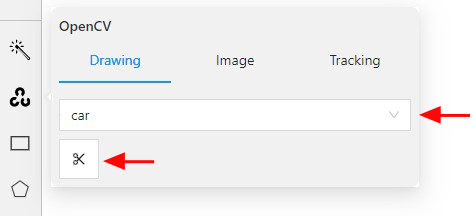
-
Add the first point on the boundary of the allocated object.
You will see a line repeating the outline of the object. -
Add the second point, so that the previous point is within the restrictive threshold.
After that a line repeating the object boundary will be automatically created between the points.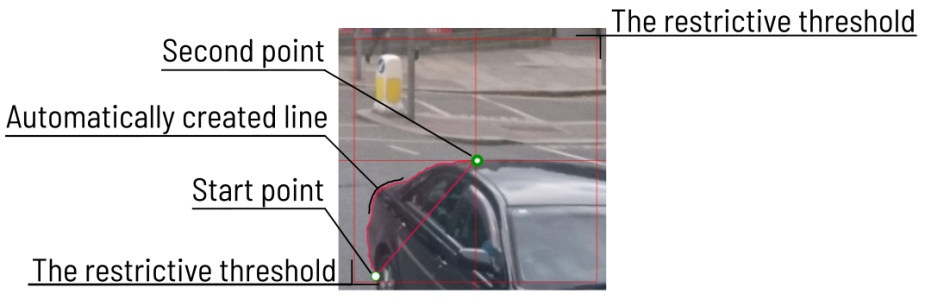
-
To finish placing points, on the top menu click Done (or N on the keyboard).
As a result, a polygon will be created.
You can change the number of points in the polygon with the slider:

To increase or lower the action threshold, hold Ctrl and scroll the mouse wheel.
During the drawing process, you can remove the last point by clicking on it with the left mouse button.
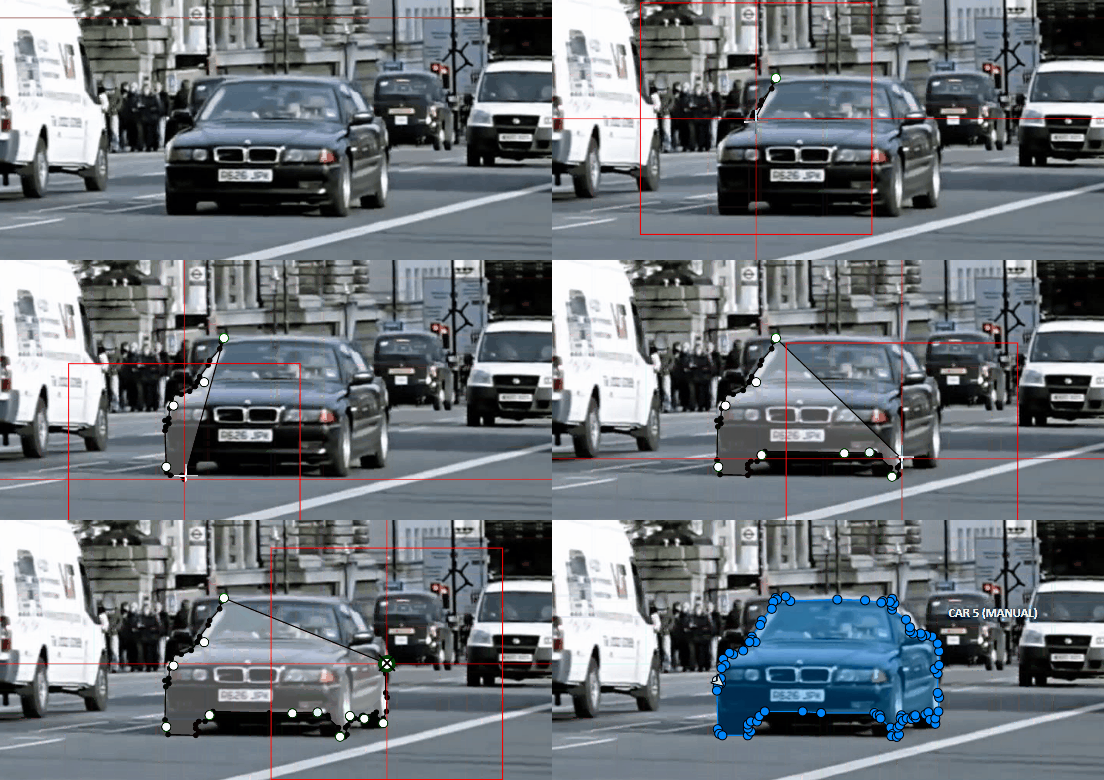
For more information on intelligent scissors, see the Intelligent Scissors Specification.
Track objects
To track objects, do the following:
-
Create basic rectangle shapes or tracks for tracker initialization
-
On the menu toolbar, click OpenCV
and wait for the library to load. -
From Tracker drop-down, select tracker and Click Track
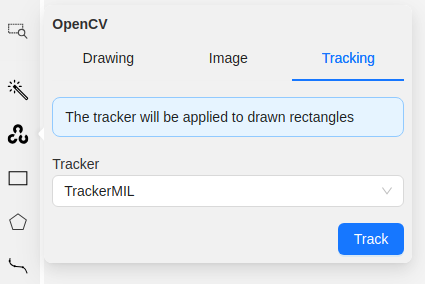
Currently, TrackerMIL is the only tracker available. For more information on it, see Object Tracking using OpenCV.
-
Annotation actions window will pop-up. Setup
Target frameandConvert rectangle shapes to tracksparameters and clickRunNote
Tracking will be applied to all filtered rectangle annotations.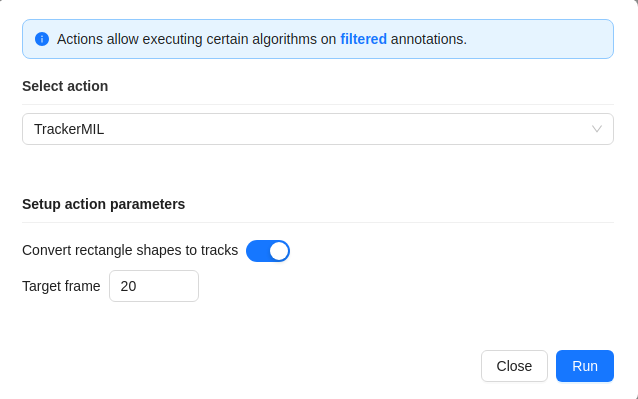
All annotated objects will be automatically tracked up until target frame parameter.
Histogram equalization
Histogram equalization improves the contrast by stretching the intensity range.
It increases the global contrast of images when its usable data is represented by close contrast values.
It is useful in images with backgrounds and foregrounds that are bright or dark.
To improve the contrast of the image, do the following:
- In the OpenCV menu, go to the Image tab.
- Click on Histogram equalization button.
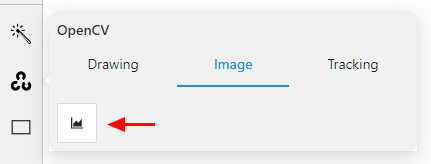
Histogram equalization will improve contrast on current and following frames.
Example of the result:
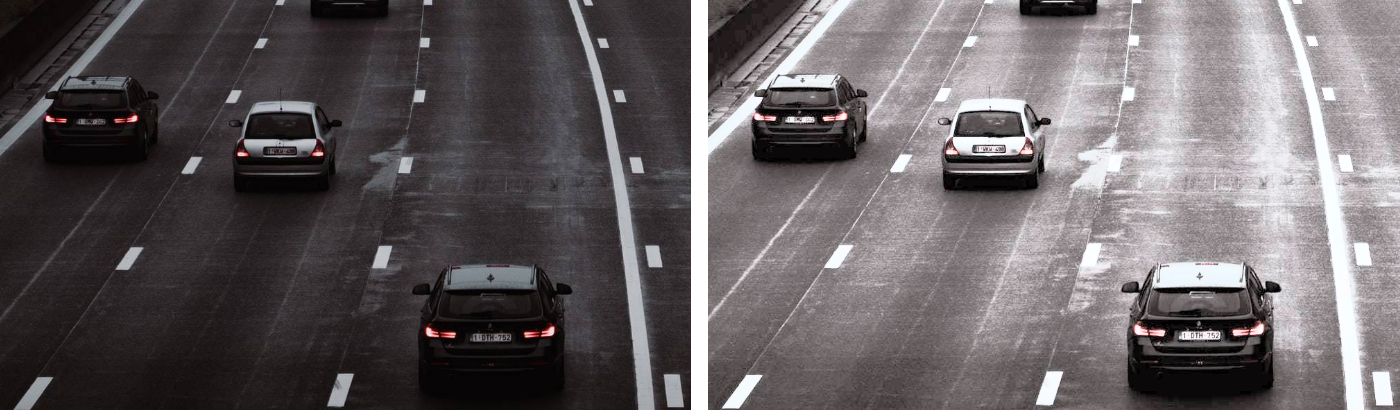
To disable Histogram equalization, click on the button again.