Superuser registration
This section is for users who want to be a bit more flexible with CVAT use.
The user you register by default does not have full permissions on the instance,
so you must create a superuser.
The superuser can use Django administration panel
to assign groups (roles) to other users.
Available roles are: user (default), admin, worker.
Prerequisites
Before you register an admin account (superuser), you need to install CVAT locally, see Installation Guide.
Steps of installation are partly different, depending on the type of operation system (OS).
This section starts with Create superuser step that is common for all OS.
Register as a superuser
In the process of installation you need to create a superuser:
- In a terminal run the following command:
docker exec -it cvat_server bash -ic 'python3 ~/manage.py createsuperuser'
- Set up username, email address, and password.
- Go to
localhost:8080, and log in with credentials from step 2. - (Optional) Go to Django administration panel panel to:
- Create/edit/delete users
- Control permissions of users and access to the tool.
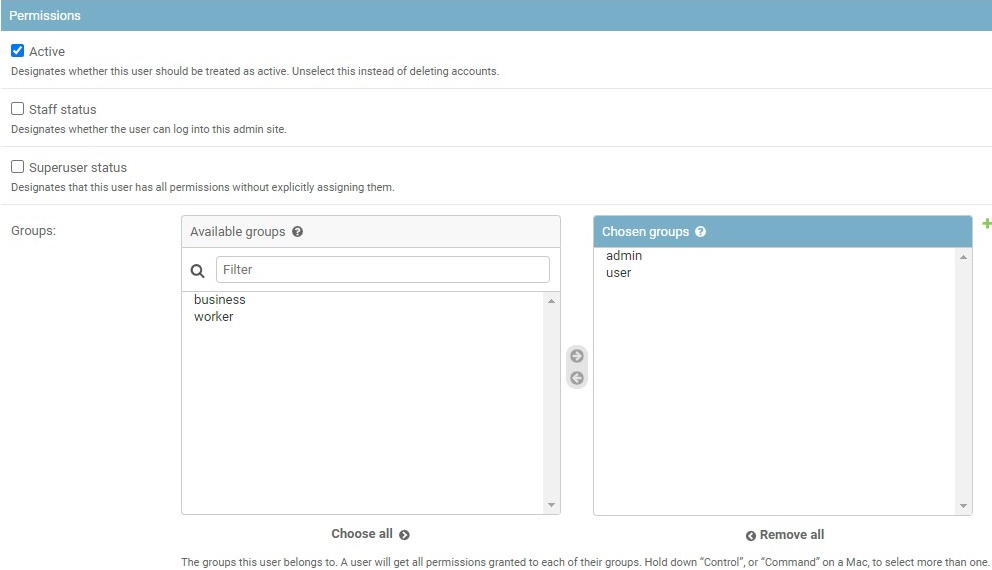
To manage users’ permission, in the Django administration panel:
- On the left menu click Users.
- On the main pane click Admin and scroll down to Permissions section.
- Select user groups and add/remove permissions.
Changing a user’s password
As a superuser, you can manually change passwords for other users through the Django administration panel. This is useful when users cannot use the “Forgot password” feature (e.g., when email is not configured or user email addresses are invalid).
To change a user’s password:
- Go to the Django administration panel.
- On the left menu, click Users.
- Click on the username of the user whose password you want to change.
- In the Password field at the top of the user details page, click the link that says this form (within the text “Raw passwords are not stored, so there is no way to see this user’s password, but you can change the password using this form.”).
- Enter and confirm the new password.
- Click Change password to save.
The user can now log in with the new password and change it again in their account settings if desired.