Snap tools
Snap to contour
Snap to contour allows you to automatically trace the outline of existing shapes when drawing or editing a polygon. This feature helps you quickly create precise annotations by snapping to the edges of nearby objects.
You can enable snap to contour in several ways:
- Using the Snap Tools control : Click the Snap Tools button in the annotation sidebar, then toggle the “Snap to contour” button.
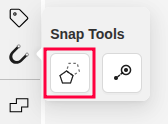
- Keyboard shortcut: Go to shortcut settings and set up a shortcut for a “Snap to contour” feature
Using snap to contour
Once enabled:
- Start drawing a polygon or polyline.
- Vertices of nearby shapes will be highlighted, indicating potential snap points.
- Click on a vertex of an existing polygon to start snapping. As you move your cursor along the polygon’s edges, additional vertices will be highlighted in gray, indicating they will be automatically added as points.
- Click to create a new point. All highlighted vertices between your starting point and the new point will be automatically added to your polygon. Before clicking, you can move your cursor to preview and adjust the selection of vertices that will be included.
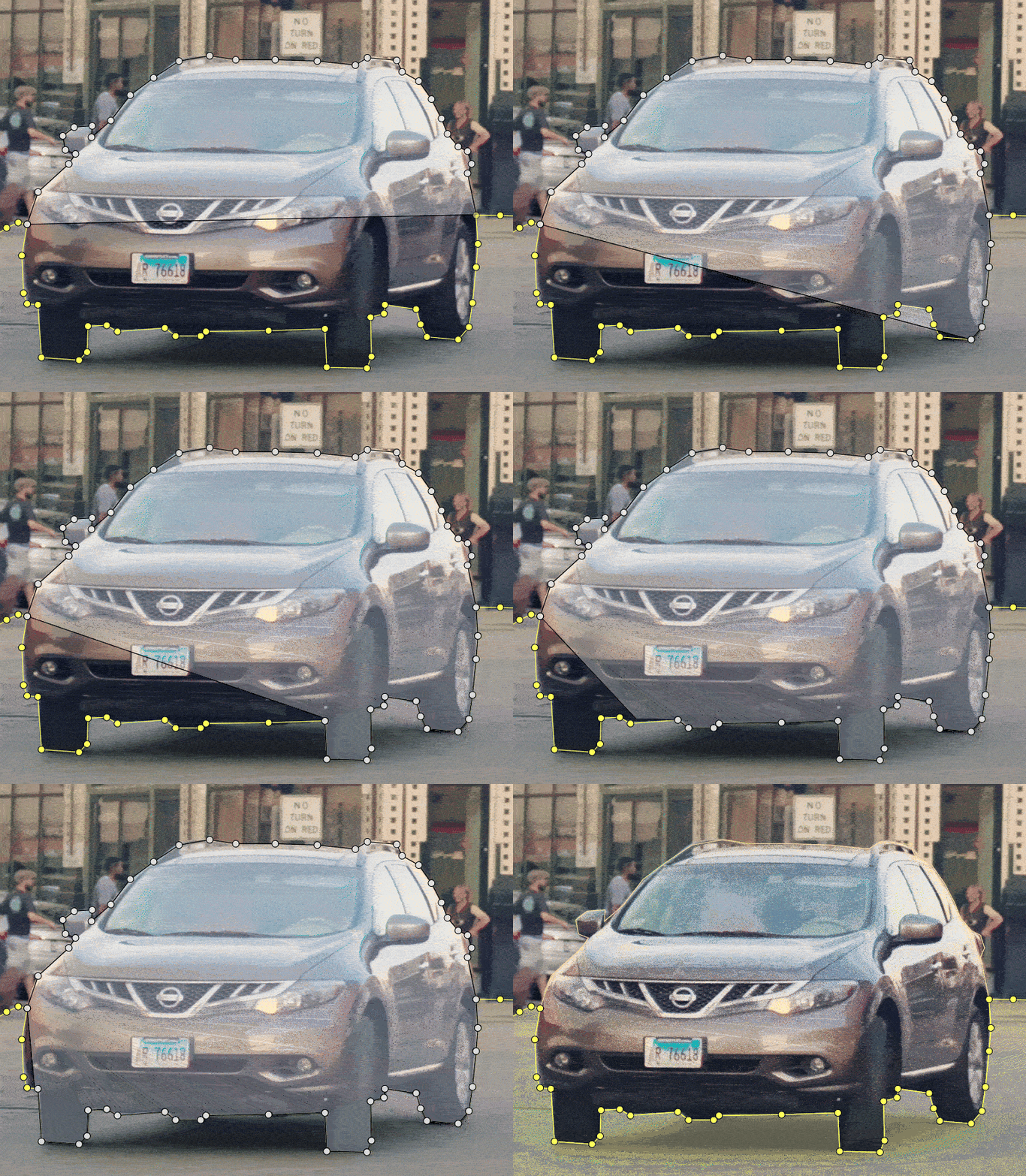
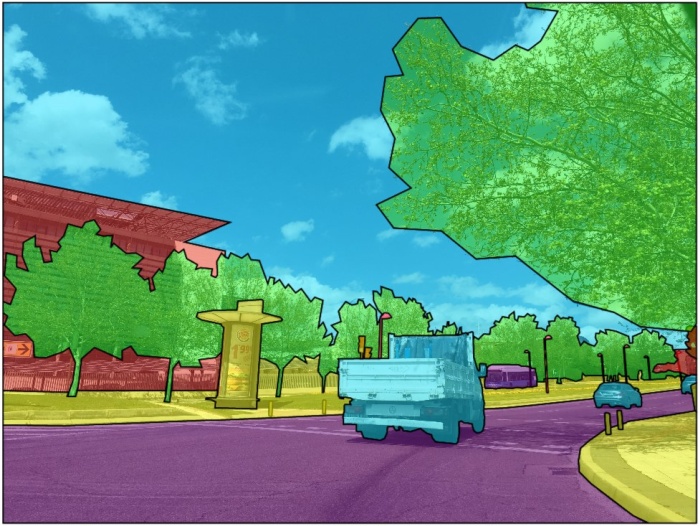
Below you can see results with opacity and black stroke:
Snap to point
Snap to point allows you to automatically align polygon or polyline points with the vertices of existing shapes. This feature helps you create precise annotations by snapping points to existing shape boundaries, ensuring perfect alignment between adjacent objects.
Enabling snap to point
You can enable snap to point in several ways:
- Using the Snap Tools control: Click the Snap Tools button in the annotation sidebar, then toggle the “Snap to point” button.
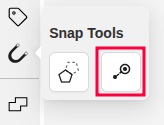
- Keyboard shortcut: Go to shortcut settings and set up a shortcut for the “Snap to point” feature.
Using snap to point
Once enabled:
- Start drawing or moving a point of a polygon, polyline, or points shape.
- As you move your cursor near existing shape vertices, when a snap target is detected (within the snap radius), your point will automatically align to the target vertex.
- Click to place the point at the snapped location.

Additional options
-
Disable temporarily: Hold
Ctrlwhile drawing to temporarily disable snap to point if you need to place a point near, but not exactly on, an existing vertex. -
Use both features: Both snap tools can be enabled simultaneously for maximum precision. Use snap to contour for tracing edges and snap to point for aligning vertices.