Server API
Overview
CVAT server provides HTTP REST API for interaction. Each client application - be it a command line tool, browser or a script - all interact with CVAT via HTTP requests and responses:
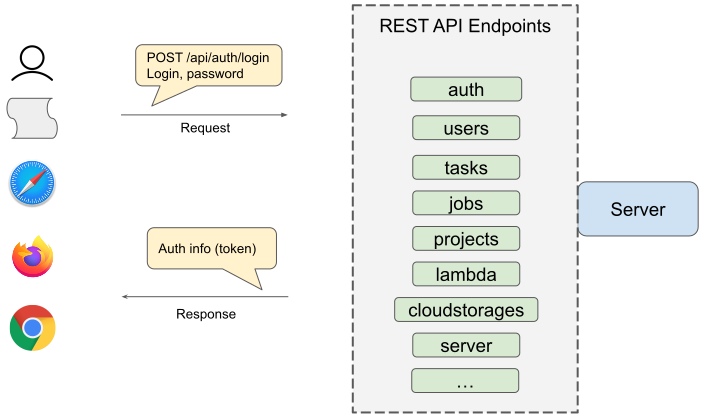
API schema
You can obtain schema for your server at <yourserver>/api/docs. For example,
the official CVAT.ai application has API documentation here.
Examples
Here you can see how a task is created in CVAT:
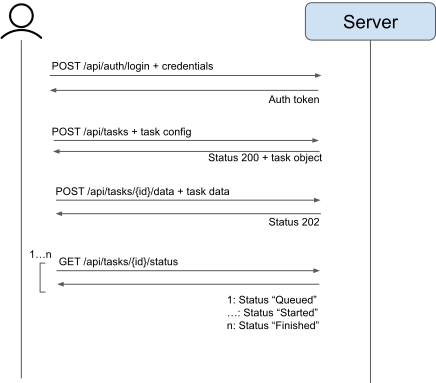
- At first, we have to login
- Then we create a task from its configuration
- Then we send task data (images, videos etc.)
- We wait for data processing and finish
Design principles
Common pattern for our REST API is <VERB> [namespace] <objects> <id> <action>.
VERBcan bePOST,GET,PATCH,PUT,DELETE.namespaceshould scope some specific functionality likeauth,lambda. It is optional in the scheme.- Typical
objectsaretasks,projects,jobs. - When you want to extract a specific object from a collection, just specify its
id. - An
actioncan be used to simplify REST API or provide an endpoint for entities withoutobjectsendpoint likeannotations,data,data/meta. Note: action should not duplicate other endpoints without a reason.
When you’re developing new endpoints, follow these guidelines:
- Use nouns instead of verbs in endpoint paths. For example,
POST /api/tasksinstead ofPOST /api/tasks/create. - Accept and respond with JSON whenever it is possible
- Name collections with plural nouns (e.g.
/tasks,/projects) - Try to keep the API structure flat. Prefer two separate endpoints
for
/projectsand/tasksinstead of/projects/:id1/tasks/:id2. Use filters to extract necessary information like/tasks/:id2?project=:id1. In some cases it is useful to get alltasks. If the structure is hierarchical, it cannot be done easily. Also you have to know both:id1and:id2to get information about the task. Note: for now we acceptGET /tasks/:id2/jobsbut it should be replaced by/jobs?task=:id2in the future. - Handle errors gracefully and return standard error codes (e.g.
201,400) - Allow filtering, sorting, and pagination
- Maintain good security practices
- Cache data to improve performance
- Versioning our APIs. It should be done when you delete an endpoint or modify
its behaviors. Versioning uses a schema with
Acceptheader with vendor media type.
Playground
Sometimes, it may be necessary to send customized requests or
simply test some endpoints available on the server.
It’s possible to send custom requests to a CVAT server directly from
your web browser without special extensions. This can be done at
the Swagger page provided by the server. The page is available at
<cvat_host>/api/swagger (e.g. https://app.cvat.ai/api/swagger).
The Swagger page provides the autogenerated documentation,
supports multiple authentication options and allows sending
custom requests to various server endpoints.
Swagger documentation is visible on allowed hosts. If necessary, the list can be modified by updating the environment
variable in docker-compose.ymlfile with cvat hosted machine IP or domain
name. Example - ALLOWED_HOSTS: 'localhost, 127.0.0.1'.
Make a request to a resource stored on a server and the server will respond with the requested information.
The endpoints are grouped by APIs:
auth- user authentication queriescomments- requests to post/delete comments to issuesissues- update, delete and view problem commentsjobs-requests to manage the joblambda- requests to work with lambda functionprojects- project management queriesreviews-adding and removing the review of the jobserver- server information requeststasks- requests to manage tasksusers- user management queries etc.
In the Models section below you can also find various data structures used in the endpoints.
Each group contains queries related to a different types of HTTP methods such as: GET, POST, PATCH, DELETE, etc.
Different methods are highlighted in different color. Each item has a name and description.
Clicking on an element opens a form with a name, description and settings input field or an example of json values.
To find out more, read swagger specification.
To try to send a request, click Try it now and type Execute.
You’ll get a response in the form of Curl, Request URL and Server response.
Links
- Best practices for REST API design
- Flat vs. nested resources
- REST API Design Best Practices for Sub and Nested Resources
- A specification for building APIs in JSON